 IMG to PDF
 Word to PDF
 Excel to PDF
 JPG to PDF
 PNG to PDF
 Text to PDF
 PPT to PDF
 PDF to Image
 PDF to Word
 PDF to Excel
 PDF to JPG
 PDF to PNG
 PDF to Text
 PDF to PPT
 Word to JPG
 Word to PNG
 IMG to Word
 IMG to PPT
 IMG to Excel
 IMG to Text
 Merge PDF
 Split PDF
 Organize PDF
 OCR PDF
 Delete Page
 Add Page To PDF
 Compress PDF
 PDF Form Filler
 Fill Out PDF
 Create Fillable PDF
 Edit PDF
 Crop PDF
 Sign PDF
 Rotate PDF
 Add Watermark
 Add Number page
 Protect PDF
 Unlock PDF
 Redact PDF
 PDF To PDF/A
 PDF Translator
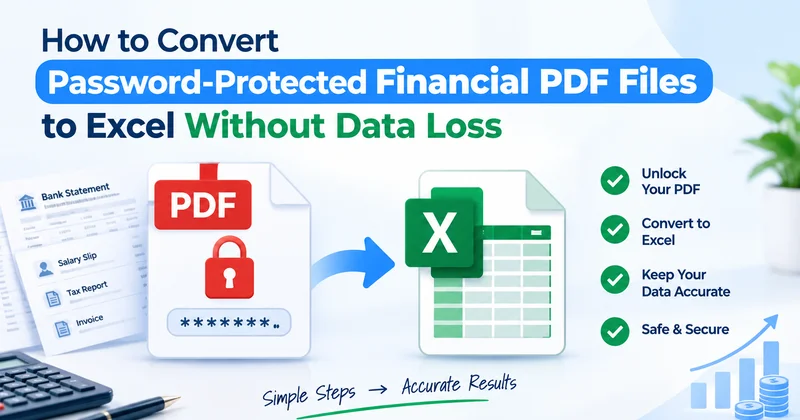
Bank statements, salary slips, tax reports, and invoices usually arrive as password‑protected PDFs. The password keeps your information safe, which is a good thing. When you want to put those numbers into a spreadsheet for budgeting, bookkeeping, or tax filing, that same lock becomes a headache. Many people try to copy and paste the data, but the results are often messy. Columns become misaligned, decimal points may be lost, and some rows may be missing. In this guide, you will learn how to Convert Password-Protected Financial PDF Files safely so every number stays exactly where it belongs.
Why Password-Protected Financial PDFs Are Hard to Convert
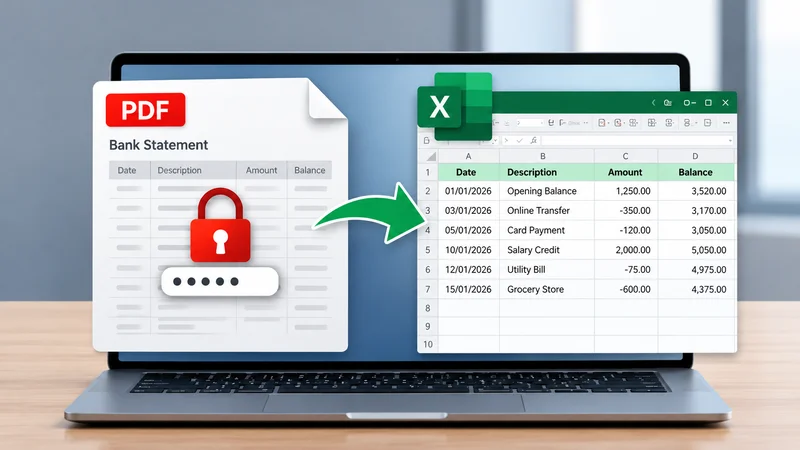
If you have ever tried to open PDF files that are protected by a password, you probably know how annoying it can get. There are two reasons for this problem.
Encryption Blocks Most Converters
When a PDF is locked with a password, the PDF content becomes encrypted. The encryption scrambles the PDF until the right password is typed in. A converter cannot read any part of the PDF until the PDF is unlocked.
I have seen this happen often. Therefore, if you try to convert a password‑protected PDF by uploading it directly, you will often see an error, a blank Excel sheet, or only a fraction of the PDF data.
Complex Table Layouts in Financial Documents
Financial PDFs are not the same as text documents. A normal bank statement has a lot of columns, a running balance, negative numbers in brackets, and dates that follow a format. A converter needs to read all of these and put each number in the right cell in Excel.
That is why even a tiny mistake can change what a number means. A debit that becomes a credit or a missing minus sign can mess up all of your calculations.
What Data Loss Looks Like in Financial PDF Conversion
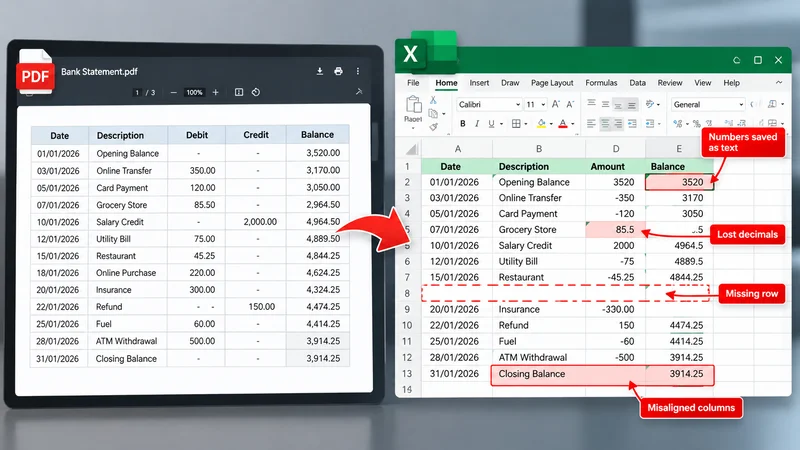
When you convert password-protected PDF files, the biggest risk is not a failed conversion. The real danger is a conversion that seems to work but has small errors. In data, even one wrong digit can change your totals. That is why it helps to know what to look for.
Merged Columns and Missing Rows
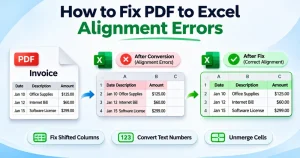
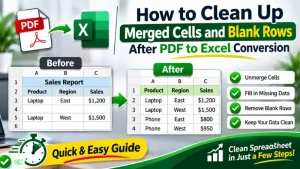
Bank statements use a table layout. A converter does not always read this layout correctly. Sometimes the date, description, and amount end up in one cell. In some cases, rows at the bottom of a page are skipped or repeated. This means a transaction may be missing or counted twice. Both problems make it hard to sort, filter, or reconcile your records.
Numbers Saved as Text
This is one of the common issues. A number may look fine in the cell. Excel treats it as text. As a result, a SUM formula returns 0. An incorrect total. Sorting does not work properly either. A small green triangle in the corner of the cell is often the sign that something is wrong.
Lost Decimals, Minus Signs and Wrong Dates
These errors can be difficult to spot because they change the meaning of financial data without affecting the overall layout.
- Decimals: A value like 1,250.50 can become 125050 if decimal separators are misread.
- Minus Signs and Brackets: A debit shown as (500.00) may lose its brackets and appear as a positive amount.
- Dates: A date like 03/04/2026 may be interpreted as March 4 or 3 April, depending on the date format.
Reviewing these three areas after each conversion helps you catch errors before they affect your financial records.
Step-by-Step: Convert Password-Protected Financial PDF Files to Excel
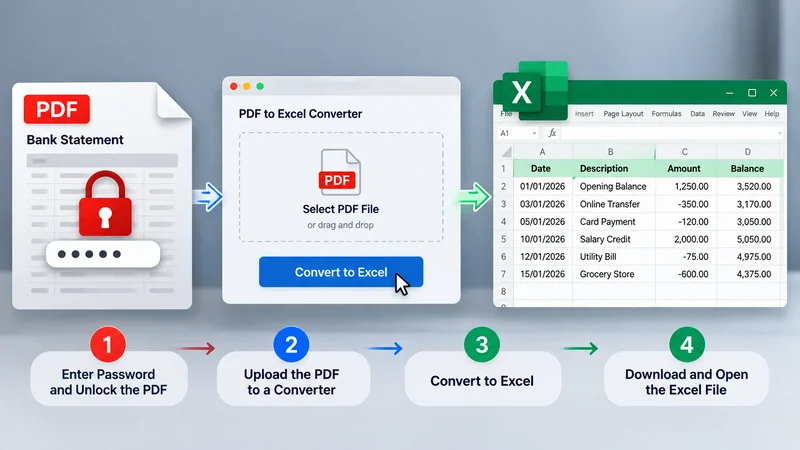
Converting a financial PDF is easy when you take it one step at a time. You unlock your copy, turn it into an Excel sheet, and then check that every number is correct. Here is how to do it.
Step 1: Find the Correct Password
Banks usually use your date of birth, the last digits of your account number, or your customer ID. Check the email or SMS that came with the statement.
Step 2: Create an Unlocked Copy
Open the PDF in Chrome or Edge, enter the password, press Print, and choose “Save as PDF.” You can also use the Unlock PDF tool. Keep the original file as a backup.
Step 3: Check if the PDF Is Text-Based
Try selecting a line of text. If it highlights, the file is text-based. If not, it is a scan and needs OCR, so check the numbers more carefully later.
Step 4: Upload the PDF to the Converter
Open the PDF to Excel converter, click Select PDF File (or drag and drop), and start the conversion.
Step 5: Download the Excel File
Click Download Converted File and open it in Excel.
That is all it takes to turn a locked statement into a clean Excel sheet. Before you start using the numbers, take a few minutes to verify them. The next section shows you how.
How to Verify Your Excel File for Accuracy
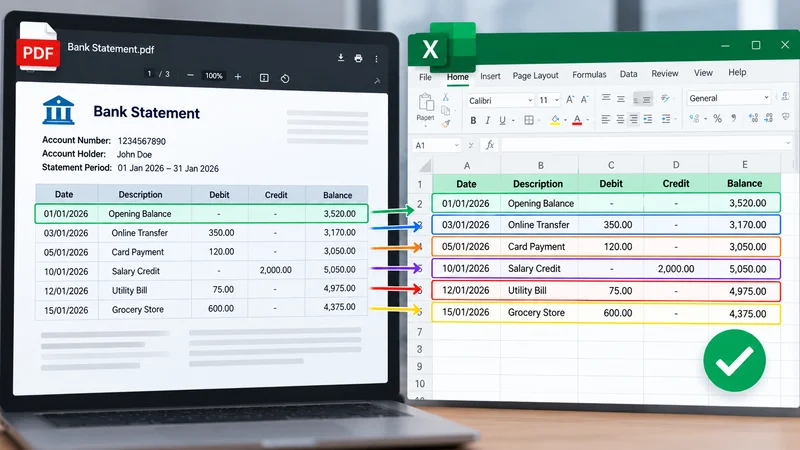
A converted file may appear fine. It still holds tiny mistakes. In data, one wrong digit can mess up your totals. These five checks help you verify that nothing was lost or changed during conversion.
Match Opening and Closing Balances
Check the opening balance, closing balance, and total debits and credits in Excel against the PDF. If the numbers line up, that means the data was converted correctly.
Fix Number Format (Text to Number)
Pick the amount columns. Change their format to Number or Currency. If a cell displays a green triangle, click the “Convert to Number” option so Excel can work with those values.
Check Page Breaks for Repeated Rows
Look at the last rows on one page and the first rows on the next. Page breaks are the spots where transactions can be skipped or duplicated. A careful review can prevent reconciliation problems.
Standardise Date Format
Use a date format like DD/MM/YYYY for the whole column. Then compare dates with the PDF to make sure days and months were not swapped.
Test with a SUM Formula
Add a SUM formula to the amount columns. Match the result against the totals in the original statement. If the totals match, that means your values are numbers, not text.
Once all five checks pass, your Excel file is ready for budgeting, bookkeeping, or tax filing. If any figure does not match
Tips to Keep Your Financial Data Accurate
Consistent habits make each conversion cleaner and easier to verify. These practices matter most when you handle several statements or long, multi-page documents.
Convert one statement at a time
Processing files individually makes it easier to trace and correct errors. Once each file is verified, combine them into a single workbook for analysis.
Use the original PDF from your bank
A statement downloaded directly from your bank portal preserves its text layer and table structure. Screenshots and photos can blur digits and reduce accuracy.
Keep a backup of the original file
Store the locked PDF in a secure location and work only on the unlocked copy. This gives you a reliable source to return to if a figure needs to be rechecked.
Spot-check the start, middle, and end
Compare sample rows from each part of the sheet with the PDF. Pay particular attention to page breaks, where errors are most likely to occur.
These steps take only a few extra minutes, yet they protect the integrity of your records and make later reconciliation far simpler.
Is It Safe to Upload Financial PDFs to Online Tools?
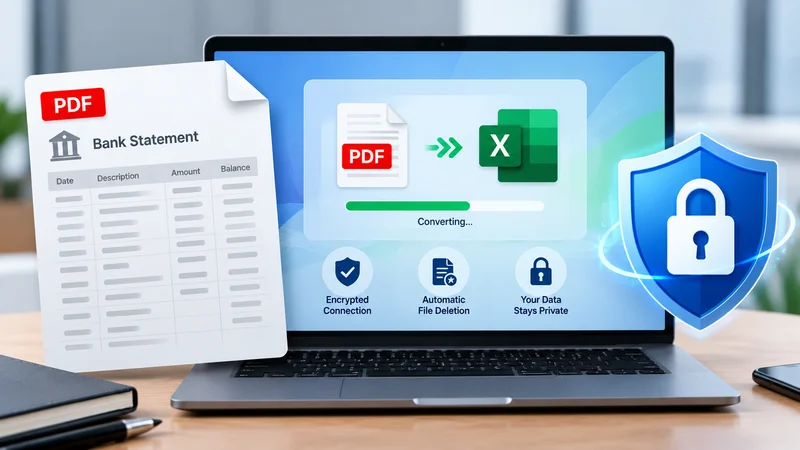
Bank statements and tax reports contain sensitive personal and financial information. Before uploading these files, consider how the tool handles your data and whether it offers clear security and privacy information. Online converters may be convenient, but review a few key details before using one.
What to Check Before Uploading
Spend a minute checking these three points before uploading a file.
- Check for HTTPS: Look for https:// in the address bar. HTTPS encrypts data sent between your device and the website.
- Review the File Deletion Policy: Check how long uploaded files are stored and whether they are automatically deleted after processing.
- Read the Privacy Policy: Check whether files are stored, shared, or used for other purposes. If the policy is unclear or unavailable, consider another tool.
How to Reduce Risk
With a trusted tool, a few simple habits can help reduce the risk of exposing sensitive financial information. Before uploading or downloading files, take these precautions to protect your data and avoid keeping unnecessary copies.
- Avoid Public Wi-Fi: Use a private, secure connection.
- Mask Sensitive Details: Hide unnecessary personal or financial information.
- Delete Files After Use: Securely delete downloaded files when no longer needed.
No online tool can guarantee zero risk. Review the tool’s privacy practices, protect sensitive information, and remove unnecessary copies after use. These steps can help reduce risk when converting financial PDFs online.
Common Mistakes to Avoid
Even when you follow the correct steps, small errors can still affect your data and waste time. One wrong digit can throw off your spreadsheet, especially when you convert password-protected PDF files. Here are five common mistakes to avoid.
Converting Without a Backup
Always keep the original password-protected PDF unchanged. Work with an unlocked copy instead. If something goes wrong during conversion, you can return to the original file without requesting another copy from your bank.
Skipping the Verification Step
A spreadsheet may look neat but still contain incorrect numbers. Before using the data, compare the opening balance, closing balance, total debits, and total credits with the original PDF. Check individual transactions as well.
Trusting the First Output
The converted file may not be completely accurate. Compare sample rows from the beginning, middle, and end of the spreadsheet with the original PDF. Pay particular attention to page breaks, where rows may be missing or duplicated.
Using Password-Cracking Tools
If you forget the PDF password, avoid using password-cracking software. Such tools may contain malware or put your sensitive data at risk. Instead, contact your bank or the person who sent the file. Ask them to resend the document or help you reset the password.
Uploading on Public Wi-Fi
Financial documents contain sensitive information. Avoid uploading them over public Wi-Fi. Use a secure internet connection and choose an online converter with clear security and privacy policies. After conversion, delete unnecessary copies of the files.
Avoiding these five mistakes can help protect your financial data and reduce the need for corrections. Keep a backup, verify the numbers, and use a reliable conversion method to improve accuracy.
Frequently Asked Questions
Can I Convert a Password-Protected PDF to Excel Directly?
Usually no. Most converters cannot read an encrypted file. Unlock a copy of the PDF with your password first, then convert it to Excel.
What If I Forgot the PDF Password?
Ask your bank or the sender to resend the file or reset the password. Avoid password-cracking tools, as they can be unsafe and may not be legal.
Will Formatting Stay the Same in Excel?
For text-based PDFs, the table and numbers usually carry over well. Fonts and column widths may change, so review the sheet after conversion.
Why Are My Numbers Not Adding Up in Excel?
They are most likely stored as text. Change the column format to Number or Currency, then try your SUM formula again.
Does This Work for Scanned PDFs?
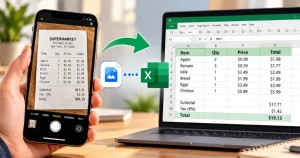
Yes, with OCR. Accuracy depends on the scan quality, so check your key figures. For photos or screenshots, you can use the image to Excel tool.
Is It Safe to Convert Bank Statements Online?
It can be, if the website uses HTTPS and has a clear privacy statement. Avoid public Wi-Fi and delete your files after use.
Final Thoughts
Locked financial statements do not have to slow you down. When you need to convert password-protected PDF files, the process comes down to three simple steps: unlock your own copy, convert it with a reliable tool, and verify the totals before you use the numbers.
That last step matters the most. A few minutes of checking can save you hours of fixing mistakes. Ready to get started? Try the PDF to Excel tool on PDF Converter. Turn your unlocked PDF into a clean Excel sheet in a few clicks.