 IMG to PDF
  Word to PDF
  Excel to PDF
  JPG to PDF
  PNG to PDF
  Text to PDF
  PPT to PDF
  PDF to Image
  PDF to Word
  PDF to Excel
  PDF to JPG
  PDF to PNG
  PDF to Text
  PDF to PPT
  Word to JPG
  Word to PNG
  IMG to Word
  IMG to PPT
  IMG to Excel
  IMG to Text
  Merge PDF
  Split PDF
  Organize PDF
  OCR PDF
  Delete Page
  Add Page To PDF
  Compress PDF
  PDF Form Filler
  Fill Out PDF
  Create Fillable PDF
  Edit PDF
  Crop PDF
  Sign PDF
  Rotate PDF
  Add Watermark
  Add Number page
  Protect PDF
  Unlock PDF
  Redact PDF
  PDF To PDF/A
  PDF Translator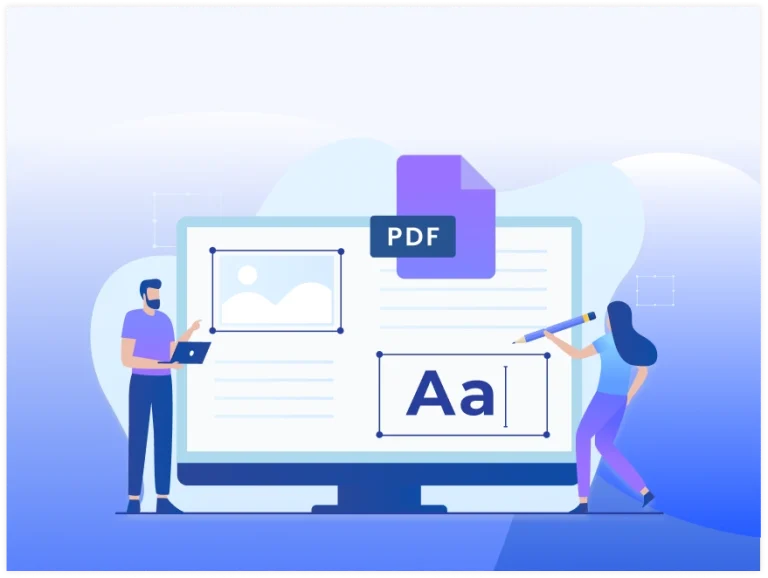

Fast Processing
Split PDF files in seconds with smooth, reliable performance. Save time by splitting large PDF files in just a few seconds.

Precise Control
Set your own breakpoints and pull out a single page or an entire range, your call every time.
Original Quality Kept Intact
Text, images, and formatting carry over exactly as they appeared in the source file, no re-compression, no blur.

Private By Design
Your files are handled under strict privacy protections and never shared, viewed, or exposed to anyone else.

Works On Any Device
Split PDFs on a laptop, tablet, or phone, Android or iOS, no desktop-only app required.

Nothing To Install
Everything runs in your browser, so there's no software to download, license, or keep updated.