 IMG to PDF
 Word to PDF
 Excel to PDF
 JPG to PDF
 PNG to PDF
 Text to PDF
 PPT to PDF
 PDF to Image
 PDF to Word
 PDF to Excel
 PDF to JPG
 PDF to PNG
 PDF to Text
 PDF to PPT
 Word to JPG
 Word to PNG
 IMG to Word
 IMG to PPT
 IMG to Excel
 IMG to Text
 Merge PDF
 Split PDF
 Organize PDF
 OCR PDF
 Delete Page
 Add Page To PDF
 Compress PDF
 PDF Form Filler
 Fill Out PDF
 Create Fillable PDF
 Edit PDF
 Crop PDF
 Sign PDF
 Rotate PDF
 Add Watermark
 Add Number page
 Protect PDF
 Unlock PDF
 Redact PDF
 PDF To PDF/A
 PDF Translator
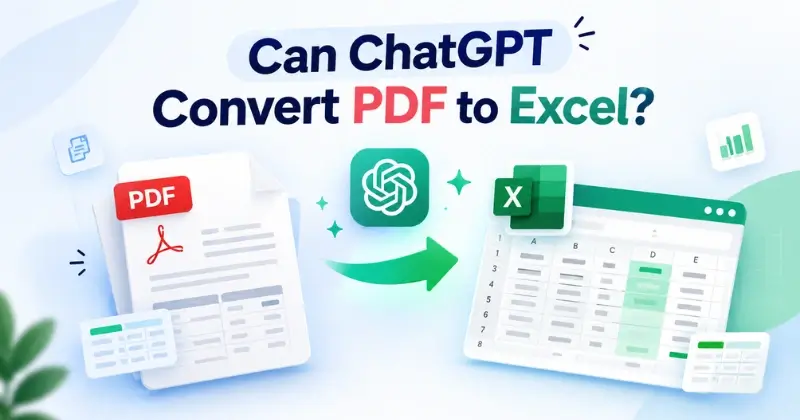
Yes, ChatGPT can convert data from many PDFs into a downloadable Excel file. It can extract tables, organize the information, and create an editable .xlsx spreadsheet. However, the results are not always accurate. Simple, text-based PDFs usually work better than scanned documents, complex tables, or files with unusual formatting.
You may also find missing rows, misplaced values, or formatting errors after conversion. So, always check the generated Excel file against the original PDF. In this guide, we’ll show you how to convert a PDF to Excel using ChatGPT, explain its limitations, and help you decide when a dedicated PDF converter may be more suitable.
Can ChatGPT Really Convert a PDF to Excel?
You may have seen blog posts claiming that ChatGPT cannot convert PDFs into Excel files. They suggest that ChatGPT is only useful for summarizing or discussing PDFs, not turning them into usable spreadsheets. That may have been true in the past, but it is no longer the case.
ChatGPT can process an uploaded PDF, extract structured data from tables, and create a downloadable spreadsheet. It can analyze the file, organize the extracted information, and generate an Excel document that you can open, edit, and use. This goes beyond simply copying and pasting text from a PDF.
However, being able to convert a PDF does not mean ChatGPT will always produce perfect results. The quality of the output depends heavily on the PDF itself. A clean, single-page table with selectable text is usually easier to process than a scanned invoice or a long financial report with complex formatting.
So, can ChatGPT convert PDF to Excel for complex documents? The answer depends on the PDF’s structure, formatting, and text quality.
How to Convert a PDF to Excel Using ChatGPT (Step by Step)
Converting a PDF into an Excel spreadsheet with ChatGPT is simple. However, getting accurate results takes more than uploading a file and waiting. The process has four basic steps: upload the PDF, give ChatGPT a clear instruction, download the Excel file, and review the results. Following each step carefully can help you create a more accurate and useful spreadsheet.
Step 1: Upload Your PDF Directly Into ChatGPT
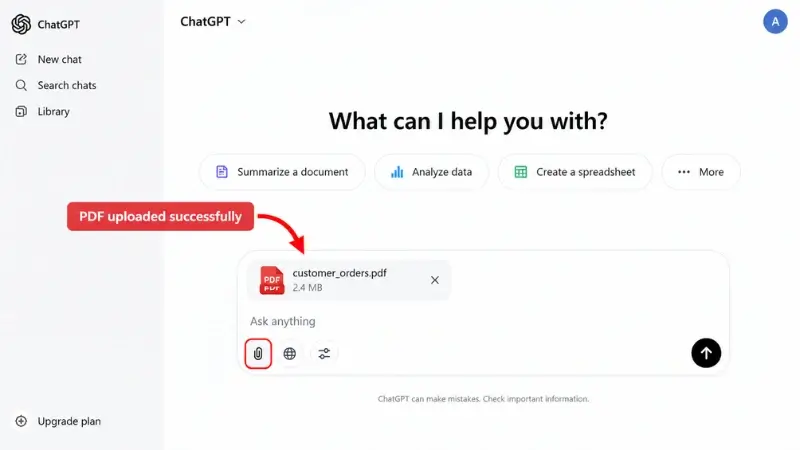
Start a new chat and use the attachment option to upload your PDF. Give ChatGPT a moment to process the file and analyze its contents.
Before continuing, check what type of PDF you have. A PDF with selectable text is usually easier to process than a scanned or image-based PDF. If the document is scanned, the extracted data may be less accurate because the text must first be recognized from the image.
Step 2: Ask ChatGPT to Extract and Structure the Data
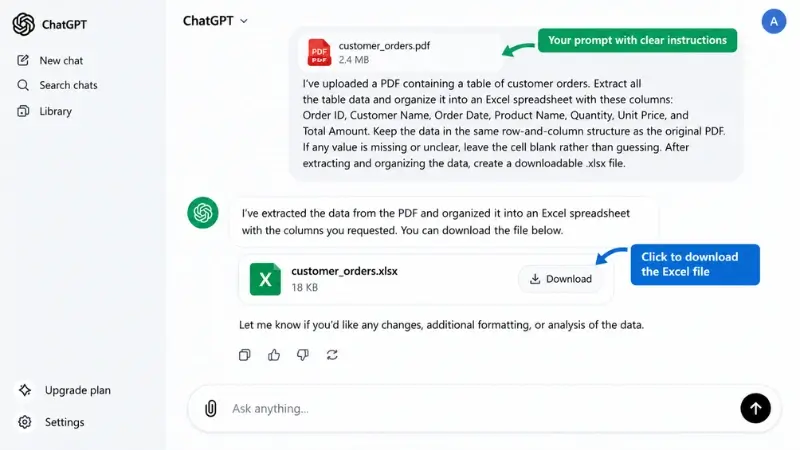
Your prompt can make a big difference in the quality of the resulting spreadsheet. Instead of simply asking ChatGPT to “convert this PDF to Excel,” explain what data you want and how you want it organized.
Specify the column names, row structure, number formats, and how ChatGPT should handle unclear information. For example, if you have a customer order PDF, you could use this prompt:
“I’ve uploaded a PDF containing a table of customer orders. Extract all the table data and organize it into an Excel spreadsheet with these columns: Order ID, Customer Name, Order Date, Product Name, Quantity, Unit Price, and Total Amount. Keep the data in the same row-and-column structure as the original PDF. If any value is missing or unclear, leave the cell blank rather than guessing. After extracting and organizing the data, create a downloadable .xlsx file.”
This gives ChatGPT clear instructions about both the data and the desired output.
Step 3: Download the Generated .xlsx File
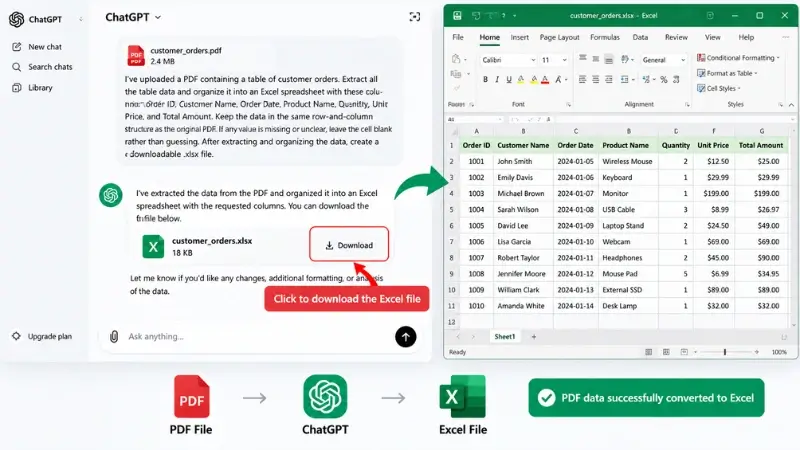
After processing the PDF, ChatGPT may provide the generated Excel file for download. Open or download the .xlsx file and save it to your computer.
At this point, you have an editable spreadsheet. However, you should not assume that every value was extracted correctly. The next step is important for checking the output.
Step 4: Review and Correct the Output
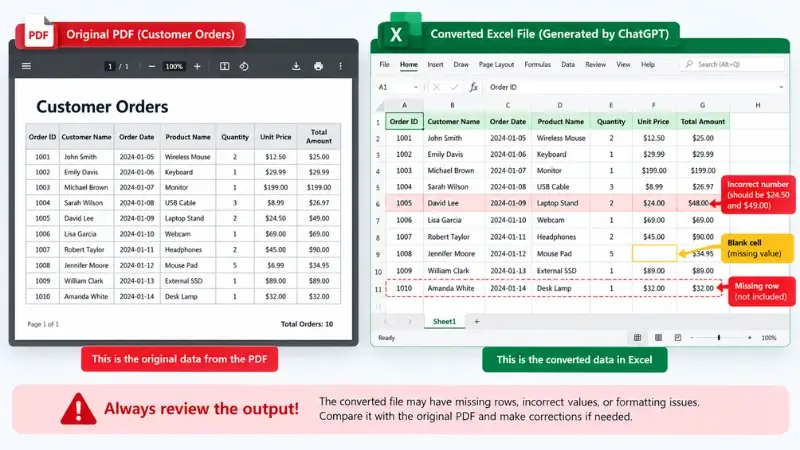
Reviewing the generated spreadsheet is an important part of the conversion process. Compare the Excel file with the original PDF and check key information such as order IDs, quantities, dates, and total amounts.
Pay particular attention to scanned or low-quality PDFs. Text recognition can sometimes confuse similar characters, such as “5” and “S” or “0” and “O.” ChatGPT may also miss rows, shift values into the wrong columns, merge cells incorrectly, or leave some fields blank.
For important documents involving invoices, financial records, or business reporting, verify the data carefully before using the spreadsheet. A few minutes of review can help you catch errors before they cause bigger problems.
The Real Limitations of Using ChatGPT for PDF to Excel
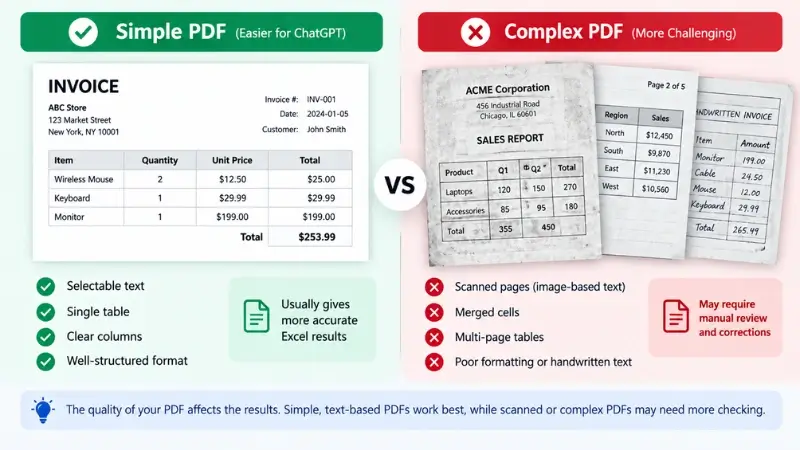
ChatGPT can be useful for converting PDFs into Excel files. However, it is important to understand where the process can go wrong. Complex documents may take more time to process and may require more manual corrections. Knowing these limitations can help you decide when ChatGPT is suitable and when you may need another tool.
Struggles With Complex or Multi-Page Tables
A simple table on a single page is usually easier to process. Multi-page tables can be more challenging, especially when they contain repeated headers, subtotal rows, or sections that continue across pages.
During extraction, ChatGPT may treat repeated headers as data rows or place information in the wrong section. It may also have difficulty keeping the original row structure when a table continues across multiple pages.
Merged Cells and Misaligned Columns Are Common
Some PDFs contain merged cells, inconsistent spacing, or columns that do not align clearly. This is common in documents created with design software or older systems.
When ChatGPT reconstructs these tables, values may end up in the wrong columns. Spanning cells can make this problem worse because a single value may visually cover multiple columns or rows in the original PDF.
As a result, the Excel file may not perfectly match the structure of the original document. Always check important data after conversion.
Scanned (Image-Based) PDFs Are Less Reliable
Scanned PDFs are more difficult to convert because the document contains images rather than selectable text. The system must recognize the text before it can organize the information into a spreadsheet.
OCR can sometimes misread characters, especially when the scan is blurry, faded, low-resolution, or handwritten. For example, it may confuse similar characters such as “5” and “S” or “0” and “O.”
This can be especially important when converting invoices, bank statements, receipts, or older documents. Always compare the extracted data with the original PDF when accuracy matters.
No Guaranteed Formatting Consistency Across Long Documents
Long documents can present another challenge. The extraction may look consistent on the first few pages but become less consistent later in the document.
You may notice changes in column order, number formatting, or missing fields. Repeated sections can also be organized differently from one page to another.
This matters when you need a uniform spreadsheet for reporting, accounting, or other important work. For long or complex PDFs, plan to review the output carefully before using the data.
ChatGPT vs. Claude vs. Gemini vs. a Dedicated PDF to Excel Converter
ChatGPT is not the only AI tool that can work with PDF files. Claude and Gemini also support document uploads and can analyze information from uploaded files. However, general-purpose AI tools and dedicated PDF-to-Excel converters serve somewhat different purposes.
If your goal is to extract, understand, or reorganize information, an AI assistant can be useful. If your main goal is converting PDF tables into an Excel file, a dedicated converter offers a more focused workflow.
ChatGPT vs. Claude vs. Gemini vs. a Dedicated PDF to Excel Converter
| Tool | Best Use | Excel Output |
|---|---|---|
| ChatGPT | Extract, analyze, and organize PDF data | Yes |
| Claude | Analyze and structure document data | Depends on workflow |
| Gemini | Analyze documents and work with Google tools | Depends on workflow |
| Dedicated Converter | Convert PDFs to Excel | Yes |
The main difference is how each tool is designed to handle documents. AI assistants give you more flexibility. You can ask follow-up questions, reorganize extracted data, and analyze the information. Dedicated converters focus more specifically on converting PDF content into spreadsheet formats.
ChatGPT supports PDF uploads and data analysis, allowing users to work with information from uploaded files. Its spreadsheet capabilities can also help users create and work with structured spreadsheet data.
Gemini also supports document uploads and analysis, while its Google ecosystem can be useful for users who already work with Google Sheets and other Google tools.
Ultimately, the best option depends on the task. For analyzing and reorganizing extracted data, an AI assistant can be useful. For a straightforward PDF-to-Excel conversion, a dedicated converter may provide a more focused workflow.
When to Use AI and When to Use a Dedicated Converter
Choosing between ChatGPT and a dedicated PDF converter depends on the type of document and the result you need. For simple, text-based PDFs with basic tables, ChatGPT can be a convenient option. For scanned documents, long reports, complex tables, or files where consistent formatting matters, a dedicated converter may provide a more focused workflow.
Here is a simple way to decide:
- Use ChatGPT when the PDF is short, the text is easy to read, and the document contains a simple table. It can be useful when you also want to analyze, reorganize, or ask questions about the extracted data.
- Use a dedicated converter when you need to process scanned PDFs, long reports, complex tables, or multiple documents. A dedicated tool may also be more convenient when your main goal is simply to convert PDFs into Excel files.
The amount of manual checking you are willing to do also matters. For a one-time conversion of a simple PDF, ChatGPT may be enough if you review the output afterward. For important business, financial, or reporting documents, check the converted spreadsheet carefully regardless of which tool you use.
In short, choose based on the document, your workflow, and how much accuracy and formatting consistency you need. ChatGPT offers flexibility for analysis and follow-up questions, while a dedicated converter focuses more directly on PDF conversion.
Frequently Asked Questions
Do I need ChatGPT Plus to convert a PDF to Excel?
No. ChatGPT supports file uploads on both free and paid plans, although usage limits vary by plan. If your account supports the required features on a paid plan, you can upload a PDF and ask ChatGPT to extract and organize its data.
Is it safe to upload sensitive documents (bank statements, contracts) to ChatGPT?
Use caution when uploading sensitive documents to any online AI service. Review the service’s privacy, data-use, and retention policies before uploading confidential files such as bank statements, contracts, or financial records.
Why did ChatGPT’s Excel output have merged or blank cells?
PDF formatting can cause this problem. Merged cells, uneven spacing, and rows that continue across lines can make table extraction difficult, causing ChatGPT to place values incorrectly or leave some cells blank.
Can ChatGPT handle scanned PDFs the same way as text-based ones?
Not always. Scanned PDFs are usually harder to process because their text must be recognized from images. This can make extraction less accurate than working with text-based PDFs.
Final Thoughts
ChatGPT is a useful option for quick PDF-to-Excel tasks, especially when working with simple, text-based PDFs. However, it is not a complete replacement for a dedicated PDF-to-Excel converter. Scanned documents, complex tables, and lengthy reports may require more checking and manual corrections.
Before choosing a tool, consider the type of PDF, the level of accuracy you need, and how much time you can spend reviewing the results. For simple tasks, ChatGPT can be convenient. For focused PDF conversion, a dedicated converter may be more suitable.