 IMG to PDF
 Word to PDF
 Excel to PDF
 JPG to PDF
 PNG to PDF
 Text to PDF
 PPT to PDF
 PDF to Image
 PDF to Word
 PDF to Excel
 PDF to JPG
 PDF to PNG
 PDF to Text
 PDF to PPT
 Word to JPG
 Word to PNG
 IMG to Word
 IMG to PPT
 IMG to Excel
 IMG to Text
 Merge PDF
 Split PDF
 Organize PDF
 OCR PDF
 Delete Page
 Add Page To PDF
 Compress PDF
 PDF Form Filler
 Fill Out PDF
 Create Fillable PDF
 Edit PDF
 Crop PDF
 Sign PDF
 Rotate PDF
 Add Watermark
 Add Number page
 Protect PDF
 Unlock PDF
 Redact PDF
 PDF To PDF/A
 PDF Translator
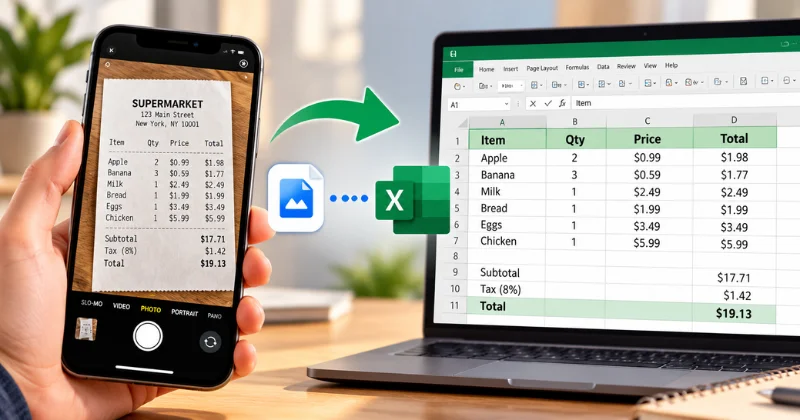
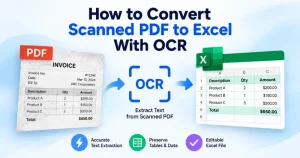
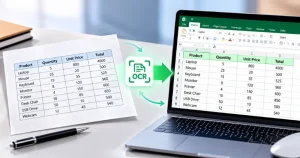
You can convert a phone photo to Excel using OCR technology. OCR extracts text, numbers, and table data from your image. It then organizes the extracted data into an editable Excel file. This is useful for receipts, invoices, reports, and printed tables. You can avoid typing every row into Excel manually. It also makes your data easier to sort, filter, and calculate.
The easiest option is an online Image to Excel Converter. Upload your photo, let the tool process it, and download your Excel file. In this guide, you will learn how to convert phone photos to Excel on Android and iPhone. You will also learn how to improve conversion accuracy.
Why Convert a Phone Photo to Excel?
A photo is just a picture. You cannot sort it, filter it, or apply a formula to it. Excel can carry out all of those tasks.
People often convert photos when they wish to:
- Track expenses from paper receipts
- Copy data from a printed report or textbook table
- Digitize an invoice for bookkeeping
- Transfer paper records into a spreadsheet
- Reduce time spent on repetitive data entry
If you only have a picture and require actual editable data, an image-to-Excel converter offers the simplest solution.
How Does Phone Photo to Excel Conversion Work?
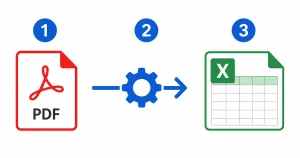
Phone photo conversion uses OCR to recognize text and numbers. Table recognition helps identify rows and columns. The extracted data is then structured into an Excel file.
How to Convert Phone Photo to Excel Online
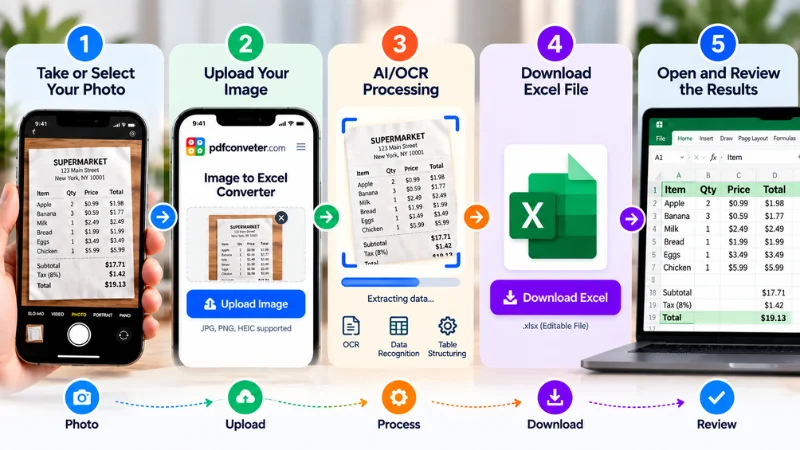
Want the quickest way to turn a photo into a spreadsheet? Use an online converter. It works on any phone, tablet, or computer with a browser. There’s no app to install and no account to create.
Just follow these simple steps:
- Open the PDF Converter in your browser.
- Pick the Image to Excel tool from the converter list.
- Select a JPG, PNG, or screenshot from your phone
- The tool reads and organizes your data.
- Save the .xlsx file and open it in Excel or Google Sheets.
- Compare the spreadsheet with your original photo. Pay extra attention to totals, dates, and decimal points.
How to Convert Phone Photo to Excel on Android
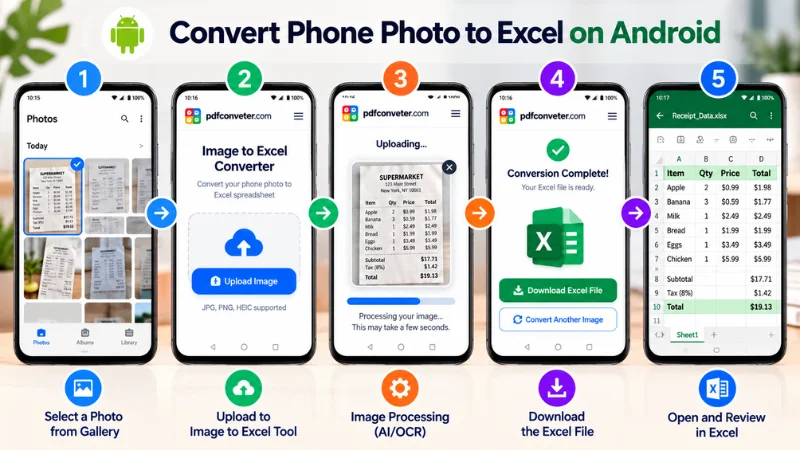
Many Android phones commonly save photos as JPG, depending on the camera settings and device. This makes photo-to-Excel conversion simple on Android.
- Take a clear photo in good light or choose one from your gallery.
- Open Chrome or another browser and visit the Image to Excel Converter.
- Tap the Image to Excel tool.
- Tap Upload and select the photo from your gallery.
- Wait a few seconds, then tap Download.
- Open it in Excel or Google Sheets and check the numbers.
Good to Know: Have a screenshot of a photo? The steps are the same. Just select the screenshot from your gallery. That’s it! Your photo is now an editable spreadsheet you can sort and calculate.
How to Convert iPhone Photo (HEIC) to Excel
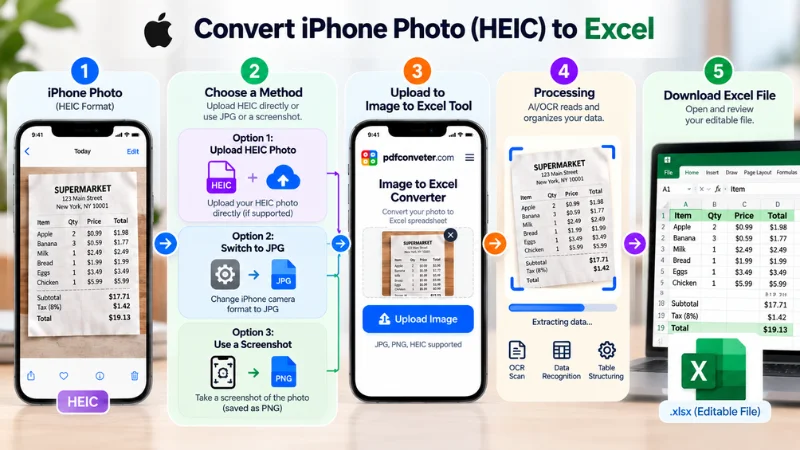
By default, iPhones save photos in HEIC format. HEIC saves storage space, but not every online converter supports it. If your converter supports HEIC, you can upload the photo directly. Otherwise, use JPG or a screenshot instead.
Option 1: Upload the HEIC Photo
If the converter supports HEIC, upload your photo directly.
- Open the PDF Converter.
- Choose the Image to Excel converter.
- Upload your HEIC photo.
- Download the Excel (.xlsx) file.
- Open it in Excel, Numbers, or Google Sheets.
Option 2: Switch Your Camera to JPG
If you plan to convert photos often, change your camera format once so you don’t have to think about it again.
- Open Settings on your iPhone.
- Tap Camera, then Formats.
- Select Most Compatible.
From now on, new photos will be saved as JPG. It is widely supported by online converters. Keep in mind that this only applies to photos taken after changing the setting. Older photos will stay in HEIC.
Option 3: Use a Screenshot
For an existing HEIC photo, you can use a screenshot.
- Open the photo on your iPhone.
- Take a screenshot.
- Upload the screenshot to the converter.
Screenshots are saved as PNG. Make sure the table fills most of the screen. Keep the text clear and easy to read.
Quick Tip: Always compare the Excel file with the original photo. Check totals, dates, and decimals before using the data.
What Types of Photos Can You Convert to Excel?
You can convert many types of document photos to Excel, including:
- Receipts: Convert purchase details and expense records.
- Invoices: Extract item names, prices, dates, and totals.
- Printed Tables: Turn rows and columns into editable data.
- Reports: Convert numerical data from printed reports.
- Price Lists: Move product names and prices into spreadsheets.
- Inventory Records: Digitize product lists and stock information.
- Screenshots: Convert tables or data saved as phone screenshots.
- Forms: Extract structured information from simple printed forms.
Clear, well-lit photos usually produce better results. Complex layouts may require some manual corrections.
Tips for Accurate Conversion from Phone Photos
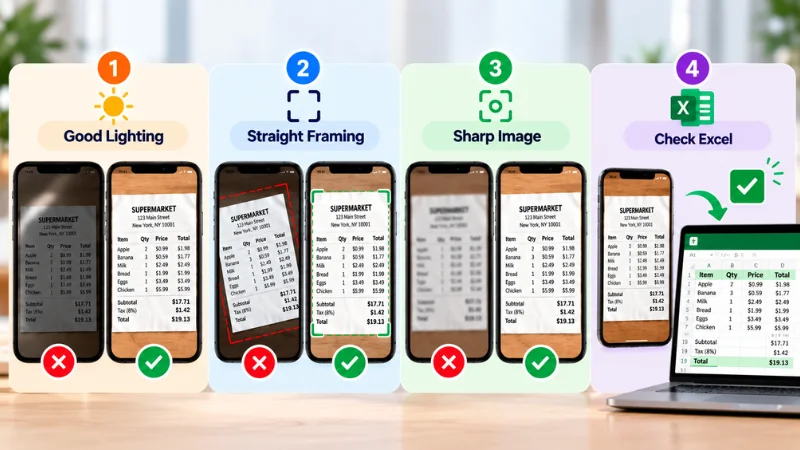
A clear photo helps produce cleaner conversion results. Good lighting, proper framing, and sharp images make text and numbers easier to recognize.
Get the Lighting Right
Good lighting helps the tool capture text and numbers clearly.
- Use natural daylight or bright indoor lighting.
- Avoid shadows across the table or document.
- Avoid flash when photographing glossy receipts. It can cause glare.
Frame the Photo Properly
A straight, well-framed photo helps preserve rows and columns.
- Hold your phone directly above the document.
- Make the table fill most of the frame.
- Remove unnecessary areas around the document.
- Flatten the paper to avoid distorted text or numbers.
Keep the Image Sharp
A sharp photo makes small details easier to recognize.
- Hold your phone steady when taking the photo.
- Tap the screen to focus before capturing the image.
- Move closer instead of using digital zoom.
- Make sure the text is clear before uploading.
Check the Converted File
Always review the Excel file before using the data.
- Compare the spreadsheet with the original photo.
- Check totals, dates, and decimal points carefully.
- Look for missing or incorrectly recognized values.
- Fix any errors before sharing or using the file.
Ready to Convert Your Photo?
Ready to convert your photo? Upload it to our Image to Excel Converter and get an editable Excel file without manual data entry.
Common Problems & Quick Fixes
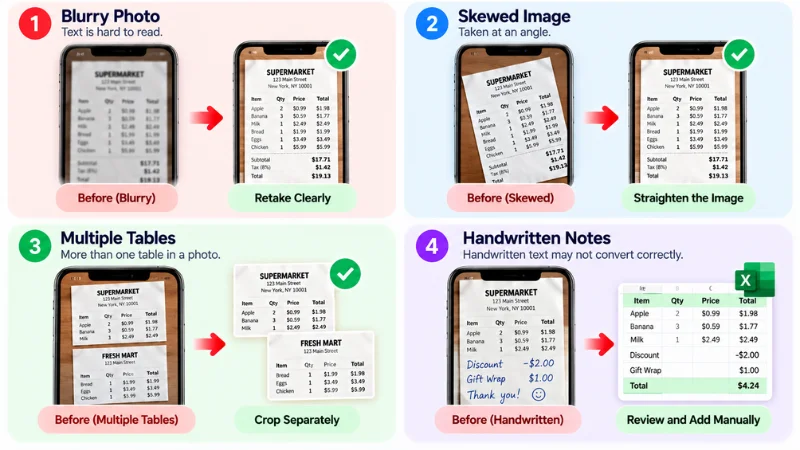
Poor-quality photos can affect conversion results. Blur, shadows, and angled images can make text and numbers harder to recognize. Most problems are easy to fix with a better photo.
Blurry Photo
A blurry photo can cause incorrect results. Small numbers and characters may be difficult for the tool to recognize.
How to Fix It
- Retake the photo and tap the screen to focus.
- Hold your phone steady while taking the photo.
- Rest your elbows on a table for extra stability.
- If needed, increase brightness and contrast before uploading.
Skewed or Angled Image
An angled photo can make rows and columns appear slanted. This may make it harder for the tool to identify the table correctly.
How to Fix It
- Take the photo directly above the page.
- Keep the document flat and level.
- Use your phone’s crop and straighten tools to correct the angle.
Multiple Tables in One Photo
A single photo may contain two or more tables. This can make it harder for the tool to keep rows and columns organized.
How to Fix It
- Crop each table into a separate image.
- Convert each image separately.
- Copy the results into separate sheets in Excel.
Low Accuracy on Handwritten Notes
Handwritten text can be harder to recognize than printed text. Cursive or unclear handwriting may lead to less accurate results.
How to Fix It
- Use clear block letters whenever possible.
- Take the photo in good lighting and keep it sharp.
- Review every number manually before using the converted data.
How We Tested Photo-to-Excel Conversion
We tested the conversion process using common image types. The review focused on data and table structure.
| Photo Type | What We Checked |
|---|---|
| Receipt | Item names, prices, dates, and totals |
| Invoice | Product details, quantities, and amounts |
| Printed Table | Rows, columns, and cell values |
| Screenshot | Text clarity and table structure |
| Low-Quality Photo | Missing or unclear characters |
| Handwritten Notes | Text and number recognition |
We compared the converted spreadsheet with the original photo. This helped us identify data needing manual correction. Clear, sharp images were easier to review. We recommend checking important numbers before using the spreadsheet.
Frequently Asked Questions
Can I Convert a Phone Photo to Excel for Free Without Any App?
Yes. You can use your phone’s browser without installing an app. Open the PDF Converter, choose Image to Excel, upload your photo, and download the spreadsheet.
Does This Work With HEIC Photos From an iPhone?
If the converter supports HEIC, you can upload the photo directly. If it does not, change your iPhone camera format to JPG or use a screenshot of the photo.
How Accurate Is Converting a Photo of a Table to Excel?
Accuracy depends on the photo quality. Clear, well-lit printed tables usually produce better results. Blur, shadows, tilted angles, and handwriting can affect accuracy. Always compare the Excel file with the original photo before using the data.
Can I Convert Multiple Phone Photos to One Excel File?
If the converter supports multiple photos, you can combine the results into one Excel file. Each photo can be placed in a separate sheet to keep the data organized.
Is It Safe to Upload Phone Photos of Receipts or Invoices Online?
Be careful when uploading documents with financial or personal information. Crop or cover sensitive details such as card numbers, addresses, and phone numbers before uploading.
Can I Convert a Screenshot From My Phone Directly to Excel?
Yes. A screenshot is an image, so you can upload it like any other image. A clear screenshot may also produce better results than a blurry camera photo.
Does Converting a Phone Photo to Excel Work Offline?
No. An online converter needs an internet connection to upload and process your image. You can take the photo offline and convert it later when you are connected.
Final Thoughts
Turning a phone photo into an Excel spreadsheet can be quick and simple. Take a clear photo, upload it to our Image to Excel Converter, download your file, and check the data.
Whether you have a receipt, invoice, or printed table, you can avoid manual data entry. A quick review also helps catch errors in numbers, dates, and totals before you use the spreadsheet.