 IMG to PDF
 Word to PDF
 Excel to PDF
 JPG to PDF
 PNG to PDF
 Text to PDF
 PPT to PDF
 PDF to Image
 PDF to Word
 PDF to Excel
 PDF to JPG
 PDF to PNG
 PDF to Text
 PDF to PPT
 Word to JPG
 Word to PNG
 IMG to Word
 IMG to PPT
 IMG to Excel
 IMG to Text
 Merge PDF
 Split PDF
 Organize PDF
 OCR PDF
 Delete Page
 Add Page To PDF
 Compress PDF
 PDF Form Filler
 Fill Out PDF
 Create Fillable PDF
 Edit PDF
 Crop PDF
 Sign PDF
 Rotate PDF
 Add Watermark
 Add Number page
 Protect PDF
 Unlock PDF
 Redact PDF
 PDF To PDF/A
 PDF Translator
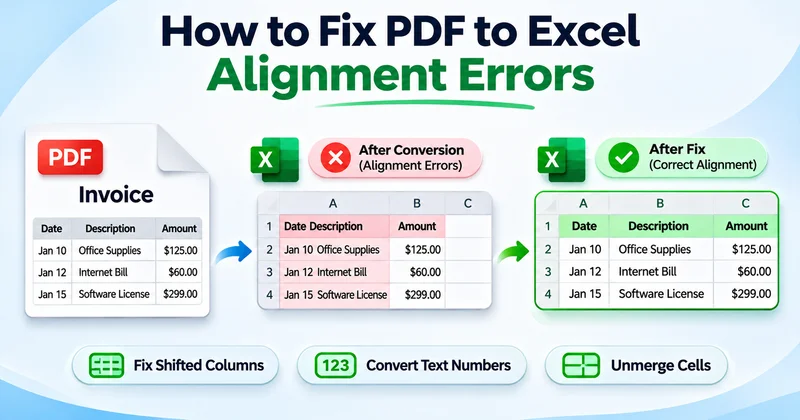
You converted a PDF to Excel and expected a clean spreadsheet. Instead, the columns are shifted. The numbers won’t add up, and cells are merged in odd places. You can fix PDF to Excel alignment errors fast. You don’t need to retype anything.
These errors happen because a PDF stores where text sits on a page. It doesn’t store the table structure. So Excel has to guess where each column starts and ends. It often guesses wrong.
In this guide, you’ll learn the three most common alignment errors, how to fix each one fast, and how to avoid them next time. These fixes work on invoices, bank statements, and financial reports.
Why PDF to Excel Alignment Errors Happen
Alignment errors happen because a PDF and an Excel sheet keep data in two very different ways. Once you know the reason, it is much easier to choose the right fix.
PDFs Are a Visual Layout, Not a Data Structure
A PDF primarily preserves how content appears on a page rather than storing data in a spreadsheet structure. Some PDFs contain tagged or structured information, but many store text as individually positioned elements. This makes it difficult for Excel to identify the correct rows and columns during conversion.
Scanned PDFs vs. Text-Based PDFs
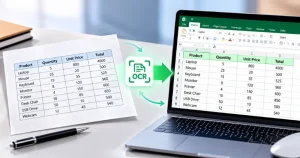
A text-based PDF has real text that you can select with your cursor. The converter can read the characters directly, so most errors are small spacing or column problems. A scanned PDF is an image of a page, so it requires OCR to extract text. Poor-quality scans can cause OCR errors, such as misreading 0 as O or merging columns.
If you cannot select text, your PDF is likely scanned. Learn how to handle scanned PDF to Excel with OCR before you clean the sheet.
Multi-Line Cells, Spacing Used as Columns, and Headers/Footers
Some habits in the original PDF cause problems almost every time. Multi-line cells are one of them. When a single cell holds two or three lines of text, the converter often treats each line as a new row, and your data moves out of line.
Spacing used as columns is another. Many documents use blank space instead of table borders to separate columns. The converter cannot see invisible lines, so it may join two columns into one or split one column into two.
Headers and footers also cause trouble. Page numbers, company names, and repeated titles get pulled into the sheet as data rows. They break your table into parts and push everything below them out of place.
Converter Limitations: Free vs. Advanced Tools
Not every converter handles tables the same way. Basic free tools often read a PDF page as plain text and ignore the table structure completely. The result is one long column of mixed data, or columns that drift out of line from page to page.
Advanced tools can detect table borders, recognize repeated header rows, and keep numbers and text in separate columns. Many also include OCR for scanned files. Even the best tool is not perfect, which is why the fixes in the next sections still matter.
Common Alignment Errors (and How to Spot Them)
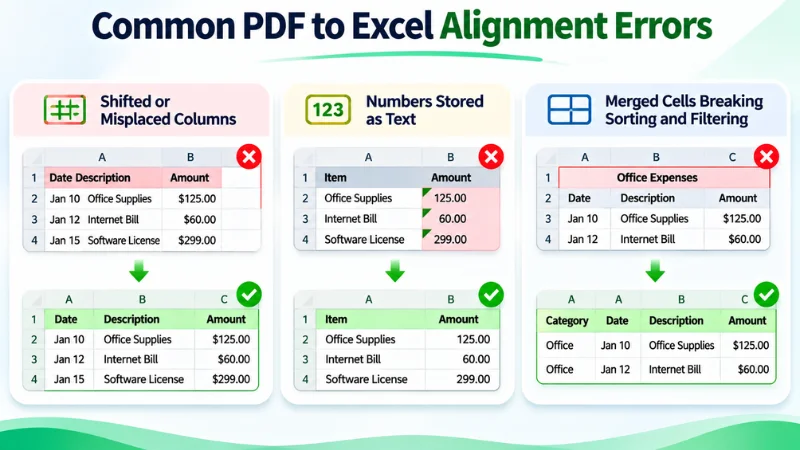
Before you fix anything, it helps to know which error you are dealing with. Each one has a clear sign you can check in a few seconds.
Shifted or Misplaced Columns
This is the most common error. Data from one column moves into the next one, or two columns get squeezed into a single cell. For example, a date and a description may sit together in column A, while column B is empty.
How to Spot It
- Headings do not match the data under them.
- Some columns are empty while others are overfilled.
- Totals and amounts sit in the wrong column.
- The data moves left or right from one page of the PDF to the next.
Numbers Stored as Text (Left-Aligned, Green Triangle)
Sometimes the numbers look correct, but Excel treats them as plain text. This happens when the converter adds extra spaces, apostrophes, or currency symbols to the values.
How to Spot It
- Numbers sit on the left side of the cell instead of the right.
- A small green triangle appears in the top-left corner of the cell.
- SUM shows 0 or leaves out some values.
- The status bar shows only a Count and no Sum when you select the cells.
Merged Cells Breaking Sorting and Filtering
To copy the look of the PDF, many converters merge cells in headings, descriptions, or grouped rows. This looks fine on screen, but it stops Excel from working with the data properly.
How to Spot It
- Excel shows the message “To do this, all the merged cells need to be the same size” when you sort.
- Filters skip some rows or show blank values.
- Cells in a column are different sizes.
- Selecting one cell highlights a whole block.
How to Fix Shifted Columns After PDF to Excel Conversion
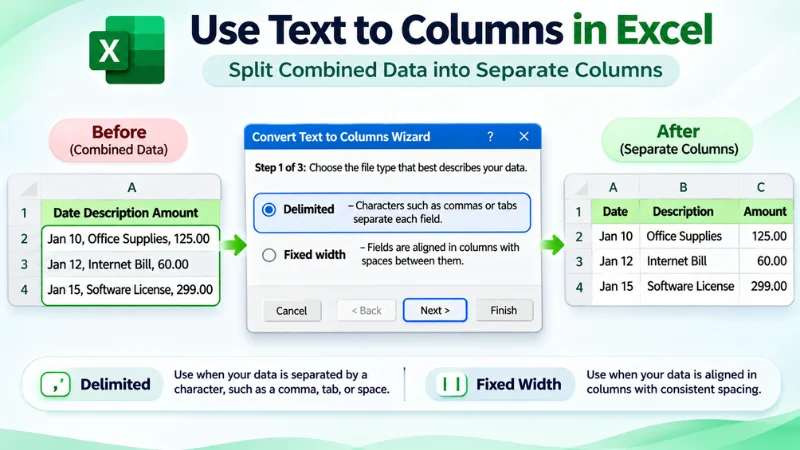
Shifted columns can be repaired inside Excel without converting the file again. Pick the method that matches your data. Text to Columns works best for combined data, Flash Fill for patterns, and manual moves for a few small errors.
Use Text to Columns (Delimited or Fixed Width)
Text to Columns splits one column into several. It is the fastest fix when two or more values are joined in the same cell.
- Select the column that holds the combined data.
- Go to the Data tab and click Text to Columns.
- Choose Delimited if the values are separated by a space, comma, tab, or another character. Choose Fixed width if the values line up at the same position in every row.
- For Delimited, tick the correct separator. For Fixed width, click in the preview to set the break lines.
- Click Next, choose the format for each new column (General, Text, or Date), and click Finish.
Tip: Make sure there are empty columns to the right of your data first. Otherwise, Excel will ask to overwrite the existing cells.
Use Flash Fill for Pattern-Based Splitting
Flash Fill learns a pattern from your example and applies it to the rest of the column. It is useful when the data has no clear separator.
- Next to your data, type the result you want for the first row, such as 2026-03-12.
- Start typing the second row. Excel shows a grey preview.
- Press Enter to accept, or press Ctrl + E to run Flash Fill.
- Check a few rows.
Tip: Flash Fill does not update when the data changes, so copy the results and paste them as values.
Cut and Paste or Drag Misplaced Data Manually
When only a few cells are in the wrong place, moving them by hand is quicker than using a tool.
- Select the misplaced cells.
- Press Ctrl + X to cut them.
- Click the correct cell and press Ctrl + V to paste.
You can also drag the data. Select the cells, move your cursor to the edge until it becomes a four-arrow icon, and drag them to the right place. Hold Shift while dragging to insert the data between two columns without overwriting anything.
Tip: Always check the totals against the original PDF after moving data, so you know nothing was lost.
How to Convert Text Numbers to Real Numbers in Excel
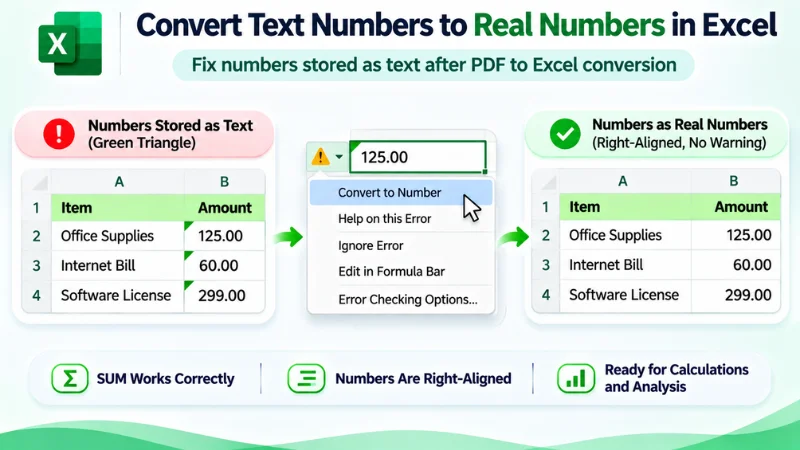
When Excel treats numbers as text, formulas like SUM ignore them. Use the method below that matches your data, starting with the simplest one.
Convert Using the Error-Warning Icon
- Select the cells with the green triangle.
- Click the small warning icon that appears next to them.
- Choose Convert to Number.
Tip: If the icon does not appear, use one of the methods below.
Paste Special: Multiply by 1
- Type 1 in an empty cell and copy it with Ctrl + C.
- Select the cells that hold the text numbers.
- Go to Home → Paste → Paste Special.
- Choose Multiply and click OK.
- Delete the cell where you typed 1.
Use the VALUE() Function
- In a new column, type =VALUE(A2) and press Enter.
- Drag the formula down to the end of your data.
- Copy the results and paste them as values over the original column.
Remove Currency Symbols, Commas, and Non-Breaking Spaces (SUBSTITUTE)
If the methods above do not work, the cells probably contain hidden characters. Use SUBSTITUTE to remove them before converting.
=VALUE(SUBSTITUTE(SUBSTITUTE(SUBSTITUTE(A2,”$”,””),”,”,””), CHAR(160),””))
This removes the dollar sign, the commas, and non-breaking spaces, then converts the result to a number. Change the “$” to the symbol in your file, such as “€” or “£”.
Tip: Remove commas only if your file uses them as thousand separators. In some regions, a comma is the decimal mark.
How to Verify the Fix
- Alignment check: The numbers should now sit on the right side of the cell, and the green triangle should be gone.
- SUM test: Select the column and check that the status bar shows a Sum. You can also type =SUM(A2:A20) and compare the result with the total in the original PDF.
- Count check: Use =COUNT(A2:A20) and make sure it matches the number of values in your list.
How to Fix Merged Cells After PDF to Excel Conversion
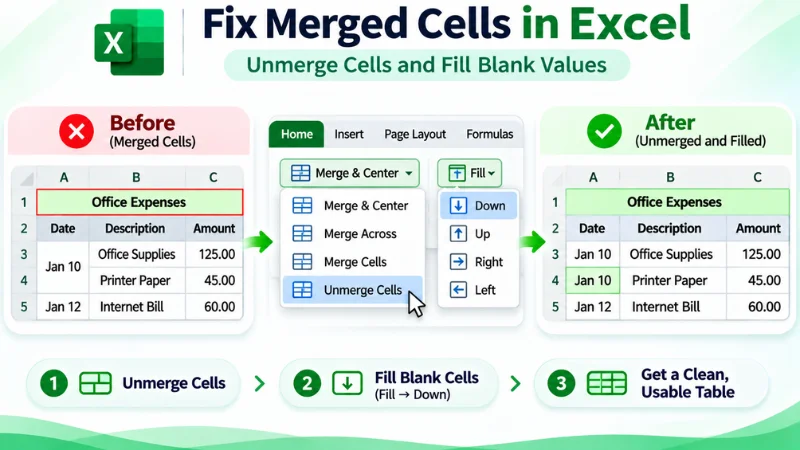
Merged cells and split headers stop Excel from sorting, filtering, and building PivotTables. Fix them in the order below: unmerge first, then rebuild the header, then remove the space.
Unmerge Cells and Fill Blanks (Go To Special: Blanks)
- Select the column or range with merged cells.
- Go to Home → Merge & Center and click Unmerge Cells. Only the top cell keeps its value, and the rest become blank.
- With the range still selected, press Ctrl + G and click Special.
- Choose Blanks and click OK.
- Type = and press the Up Arrow key to point at the cell above.
- Press Ctrl + Enter to fill all the blank cells at once.
- Copy the column and paste it as values to make the data permanent.
Tip: Only use this fill when the blanks should repeat the value above, such as a category or date that covers several rows.
Rebuild a Single-Row Header
PDFs often split a heading across two or three rows, such as “Invoice” on one row and “Date” on the next. Excel needs one header row to work properly.
- Insert a new row above your data if you need space.
- Type the full heading in one cell per column, such as “Invoice Date” or “Total Amount”.
- Delete the old header rows.
- Make each heading short, clear, and different from the others.
Tip: Avoid blank header cells. A column without a heading cannot be filtered or used in a PivotTable.
Remove Empty Rows and Columns
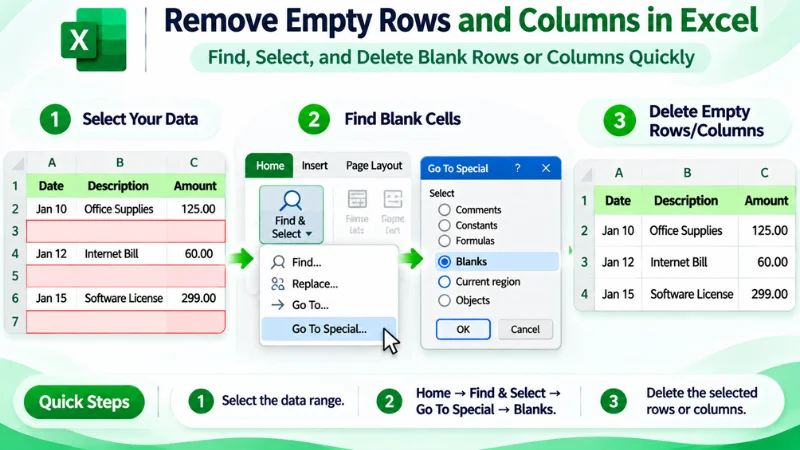
Sometimes, PDF-to-Excel conversion creates extra blank rows or columns that affect the spreadsheet’s structure. You can remove them using Excel’s Go To Special feature.
- Select the relevant data range.
- Press Ctrl + G, then click Special.
- Select Blanks and click OK.
- Review the highlighted cells carefully before deleting anything.
- Delete only rows or columns that are completely empty across the entire row or column.
Important: Do not delete an entire row or column just because one or more cells are blank. Other cells in that row or column may contain important data. Always verify that the entire row or column is empty before deleting it.
How to Clean PDF Data After Excel Conversion
When the columns look right, converted text often carries extra spaces, hidden characters, and line breaks. These cause failed lookups, wrong sorting, and uneven cells. Clean them with the steps below.
TRIM, CLEAN, and SUBSTITUTE(CHAR(160))
Each function removes a different problem:
- TRIM removes extra spaces at the start, end, and between words.
- CLEAN removes hidden characters that do not print.
- SUBSTITUTE(CHAR(160)) replaces non-breaking spaces, which TRIM cannot remove on its own.
Use All Three Together
=TRIM(CLEAN(SUBSTITUTE(A2,CHAR(160),” “)))
- In a new column, type the formula above and press Enter.
- Drag it down to the end of your data.
- Copy the results and paste them as values over the original column.
- Delete the helper column.
Tip: Always paste as values before deleting the original data, or the formulas will break.
Find and Replace for Line Breaks (Ctrl+J)
PDF text often has line breaks inside cells, which makes rows tall and messy.
- Select the cells you want to clean.
- Press Ctrl + H to open Find & Replace.
- Click in the Find what box and press Ctrl + J. The box will look empty, but it now holds a line break.
- In Replace with, type a single space.
- Click Replace All.
Tip: Use a space in the Replace box so words do not join together. Leave it empty only if you want to remove the break completely.
Fix Text Wrap and Cell Alignment Settings
Sometimes the data is correct, but the cell settings make it look wrong.
- Select the data range.
- Go to Home and click Wrap Text to turn it off if text looks stacked or cut off.
- Set the alignment: left for text, right for numbers.
- Double-click the border between column headers to auto-fit the column width.
Tip: Alignment settings only change how data looks. If numbers still sit on the left after you right-align them, they are still stored as text and need the fixes from the earlier section.
Fix Alignment Errors with Power Query (Advanced Method)
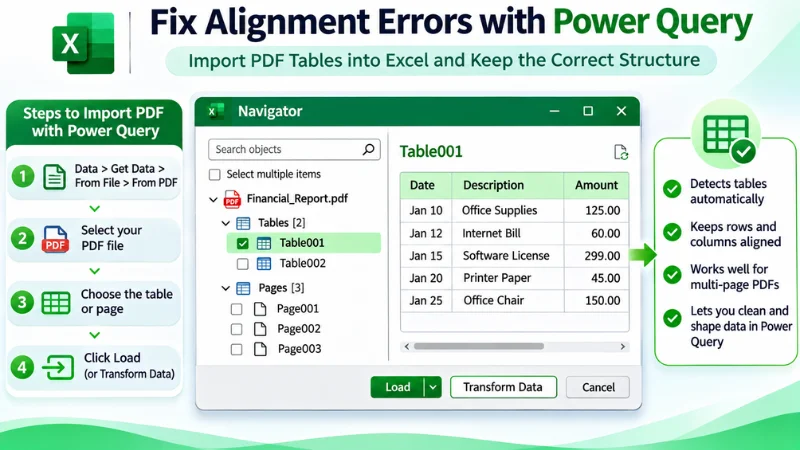
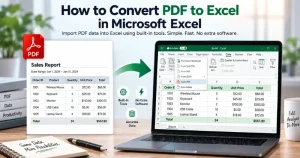
Power Query is built into Excel and can extract tables from many text-based PDFs. Instead of converting the PDF with a separate tool, you can import the file directly into Excel and clean up the extracted data. It works best with PDFs that contain selectable text and clearly structured tables.
Import the PDF Directly With Data, Get Data, From PDF
- Open a blank Excel workbook.
- Go to the Data tab and click Get Data → From File → From PDF.
- Select your PDF file and click Import.
- In the Navigator window, Excel will display the tables and pages it detects. Select an item to preview its contents.
Tip: Choose an item marked as a Table, such as Table001, whenever possible. Select a Page only when the required table is not detected, as page-level extraction may require more cleanup.
Select the Table, Transform, and Promote Headers
- Select the table you need and click Transform Data to open the Power Query Editor.
- Go to Home → Use First Row as Headers if the first row contains the actual column headings.
- Check the data type icon in each column header and assign the correct type, such as Text, Whole Number, Decimal Number, or Date.
- Use Split Column to separate combined values and Remove Rows to remove unnecessary page headers, footers, or blank rows.
- Use Fill → Down when blank cells should repeat the value from the cell above.
- Click Close & Load to load the cleaned table into Excel.
Want the full import steps? Read our guide to convert PDF to Excel in Microsoft Excel.
Tip: If your PDF contains the same table across multiple pages, you may be able to combine the extracted tables using the Navigator’s Combine option or Append Queries in Power Query.
How to Prevent Alignment Errors Before Converting
The easiest way to fix alignment errors is to stop them before they start. A few minutes of preparation can save you a long cleanup in Excel.
Use a Text-Based PDF Over a Scanned One
If you can get the original file, always use it. PDFs exported from accounting software, banking portals, or Word and Excel contain real text, which converts far more cleanly than a scan. To check, try selecting a word with your cursor. If it highlights, the file is text-based.
Use OCR for Scanned Files
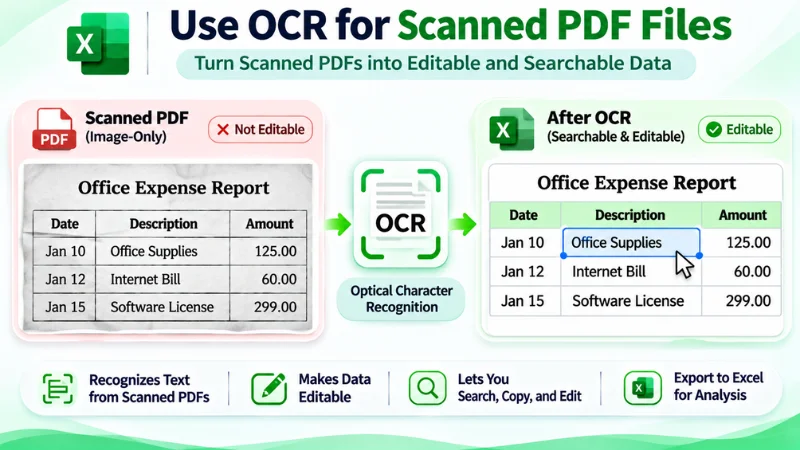
If you only have a scanned PDF, run OCR first so the converter can read the text. Make sure the scan is clear, straight, and at least 300 DPI. A tilted or blurry scan leads to misread numbers and joined columns.
Pick a Converter That Detects Table Structure
Choose a tool that recognizes table borders, repeated headers, and separate columns, not one that copies the page as plain text. Test it on one page first and check the result before converting the full file. Using a Mac? See how to extract PDF tables to Excel on Mac.
Convert One Page or Table at a Time
For long or complex documents, convert one table or a small page range at a time. This makes errors easier to find and keeps a problem on one page from spreading to the rest of the file. You can combine the results in Excel afterward.
Check Page Orientation and Margins
Make sure the pages are upright and the table is not cut off at the edges. Rotate sideways pages before converting, and crop away extra margins, logos, and footers if you can. A clean page gives the converter less to misread.
Manual Fix vs. Automated Tool: Which Is Better?
Neither option is always better. The right choice depends on the size of your file, the quality of the PDF, and how often you do this work.
| Feature | Manual Excel Fix | Automated Converter |
| Time | More time for large files | Usually faster |
| Accuracy | Depends on manual checks | Depends on tool quality |
| Scanned PDFs | Requires OCR first | Requires OCR support |
| Best Use | Small, one-time files | Large or recurring conversions |
When to Use a Manual Fix
Use Excel’s built-in tools when the table is small and only has a few errors, such as one column that shifted or a handful of numbers stored as text. It costs nothing, and you stay in full control of the data.
When to Use a Converter Tool
Use a dedicated converter when you work with long reports, scanned files, or documents with complex layouts. It is also the better choice if you convert PDFs often, because fixing the same errors every time wastes hours.
A good converter reads table structure, keeps numbers and text in separate columns, and uses OCR for scanned pages, so far fewer errors reach your spreadsheet.
Need cleaner results from the start? Try our PDF to Excel converter and check your next file for alignment errors before you open it in Excel.
Frequently Asked Questions
Why does my PDF to Excel conversion mess up columns?
A PDF stores text positions, not real rows and columns. The converter has to guess the table structure, and it often guesses wrong when the table has no borders or has multi-line cells.
Why are my numbers left-aligned and not calculating?
Excel is treating them as text, usually because of extra spaces or currency symbols. Convert them to real numbers, and they will right-align and calculate normally.
Can I fix alignment errors without re-converting?
Yes. Use Text to Columns, TRIM, and Find & Replace to fix most errors directly in Excel. Re-convert only if the original scan is poor quality.
How do I fix merged cells after PDF to Excel?
Select the cells and click Merge & Center → Unmerge Cells. Then use Go To Special → Blanks to fill the empty cells.
Is Power Query better than a converter for tables?
For clean, text-based PDFs, yes. For scanned or complex PDFs, a converter with OCR works better.
Conclusion
Alignment errors look scary. They are easy to fix. If columns are in the wrong place, split the data with Text to Columns, Flash Fill, or Power Query. If numbers will not add up, change them to numbers and check the total against the PDF. If merged cells and extra spaces appear, unmerge the cells, fill the cells, and clean the text with TRIM and CLEAN.
You can also avoid most of these problems from the start. Use a PDF that allows text selection. If the PDF is a scan, use OCR. Pick a converter that can read tables well.