 IMG to PDF
 Word to PDF
 Excel to PDF
 JPG to PDF
 PNG to PDF
 Text to PDF
 PPT to PDF
 PDF to Image
 PDF to Word
 PDF to Excel
 PDF to JPG
 PDF to PNG
 PDF to Text
 PDF to PPT
 Word to JPG
 Word to PNG
 IMG to Word
 IMG to PPT
 IMG to Excel
 IMG to Text
 Merge PDF
 Split PDF
 Organize PDF
 OCR PDF
 Delete Page
 Add Page To PDF
 Compress PDF
 PDF Form Filler
 Fill Out PDF
 Create Fillable PDF
 Edit PDF
 Crop PDF
 Sign PDF
 Rotate PDF
 Add Watermark
 Add Number page
 Protect PDF
 Unlock PDF
 Redact PDF
 PDF To PDF/A
 PDF Translator
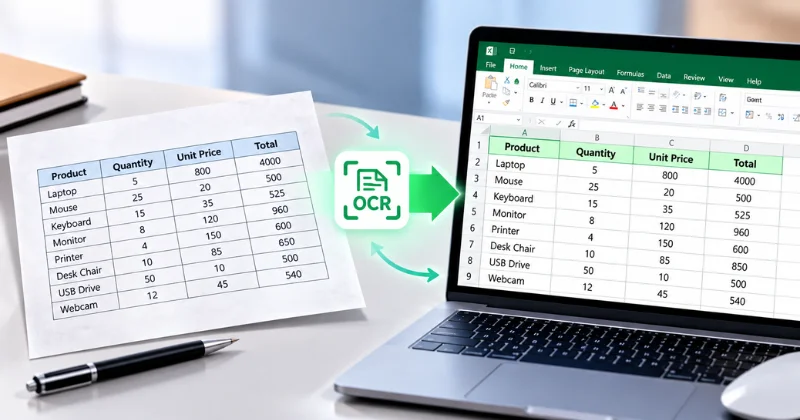
Having a printed table, screenshot, or handwritten note can be frustrating. You may need to turn it into an editable Excel file. Manually retyping rows and columns takes time. It can also lead to errors and repeated data-entry work. An online Image to Excel Converter can simplify this process. You can upload a table photo and convert it into editable spreadsheet data. For better results, use a clear and high-resolution image. Always review the converted data before using it.
Why Convert a Photo of a Table to Excel?
Converting a table photo makes the data editable and easier to manage. It also saves time compared with manually retyping the information. Here are some practical benefits:
- Convert large tables without manually typing every row and column.
- Reduce common typing and transcription mistakes.
- Use Excel formulas to calculate sums, averages, and percentages.
- Organize rows and filter information based on specific criteria.
- Turn table data into charts, reports, and pivot tables.
What Types of Table Photos Can You Convert to Excel?
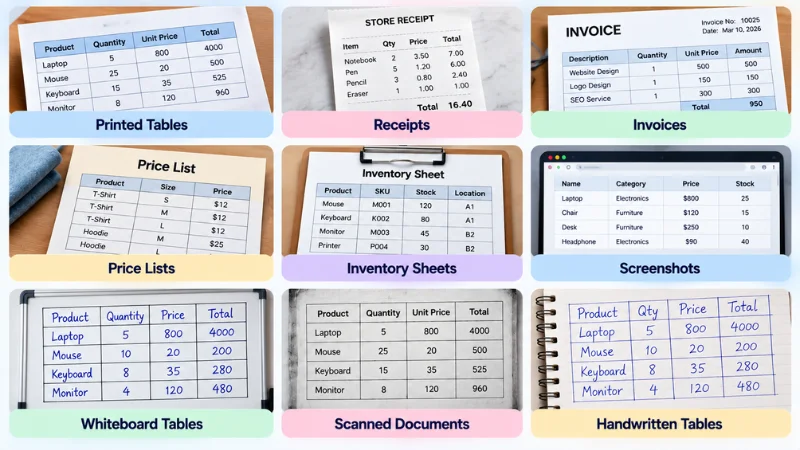
You can convert many types of table images to Excel. Clear images usually produce better conversion results.
Common examples include:
- Printed Tables: Convert tables from books, documents, and reports.
- Receipts: Extract item names, prices, dates, and totals.
- Invoices: Convert product details, quantities, and amounts.
- Price Lists: Turn product or service prices into editable rows.
- Screenshots: Extract tables from websites, apps, and digital documents.
- Whiteboard Tables: Convert clearly written tables from whiteboards.
- Scanned Documents: Extract table data from scanned pages.
- Handwritten Tables: Convert some handwritten tables with OCR technology.
For better results, use clear and well-lit images. Avoid blurry photos, heavy shadows, and distorted table layouts.
How to Convert a Photo of a Table to Excel Online for Free
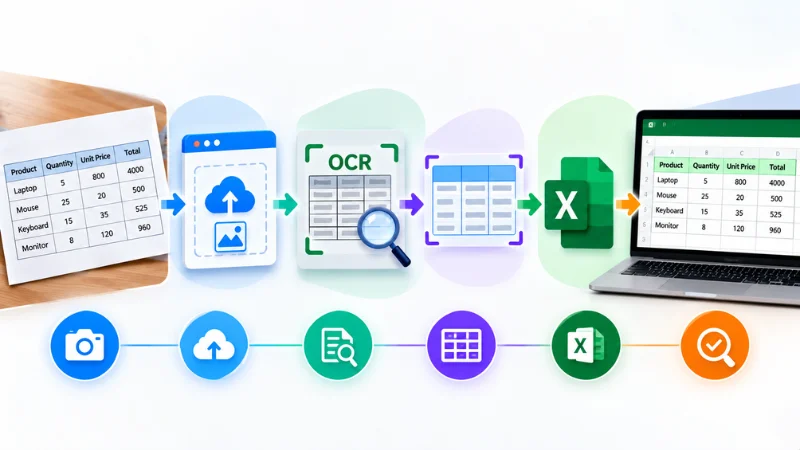
Using an online converter is a simple way to extract table data from images. These tools support common formats such as JPG, JPEG, and PNG. They use Optical Character Recognition (OCR) to extract text and numbers.
1. Open an Image to Excel Converter
Open a reliable online image-to-Excel converter in your browser.
2. Upload Your Table Photo
Select and upload your table image. Most tools support JPG, JPEG, and PNG files, including screenshots and smartphone photos.
3. Process the Table Structure
Click the Convert button to start the process. The OCR engine scans the image and identifies the table structure. It then converts the extracted text and numbers into structured spreadsheet data.
4. Review the Extracted Data
Review the preview generated by the tool. Check the table headers, row alignment, columns, and numbers against the original photo.
5. Download the Excel File
Download the converted file after processing. The output is usually available as an XLSX or CSV file.
6. Open and Format the File
Open the downloaded spreadsheet in Microsoft Excel or Google Sheets. Perform a quick final check of the numbers and formulas.
Adjust column widths and fix any minor OCR errors. You can also format cells as numbers, currency, dates, or other data types.
How to Get the Best Accuracy from Table Photos
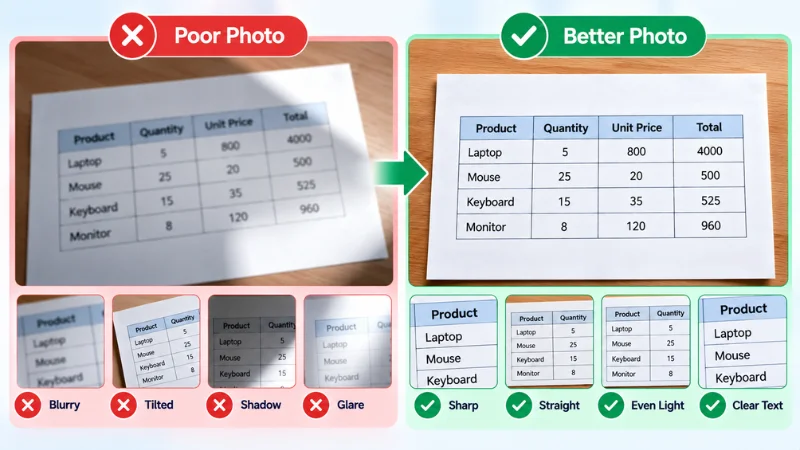
Optical Character Recognition (OCR) engines rely heavily on image clarity to distinguish cell borders, letters, and numbers. Preparing your photo before conversion can reduce errors and manual editing.
Ensure High Resolution and Sharp Focus
Use a clear, high-resolution photo so individual characters and numbers remain crisp. Avoid blurred images or photos taken with a dirty camera lens.
Align the Camera Parallel to the Table
Position your camera directly above the document and keep it level. Extreme angles can distort column lines and make it harder for OCR engines to detect the correct structure.
Eliminate Shadows and Glare
Capture your photo under bright, even lighting. Direct flash or strong overhead light can create glare on glossy paper. This can make numbers and text harder to recognize.
Crop Unnecessary Backgrounds
Trim away non-table areas, such as desk surfaces and margins. This helps the converter focus on the relevant table structure.
Keep Rows and Columns Distinct
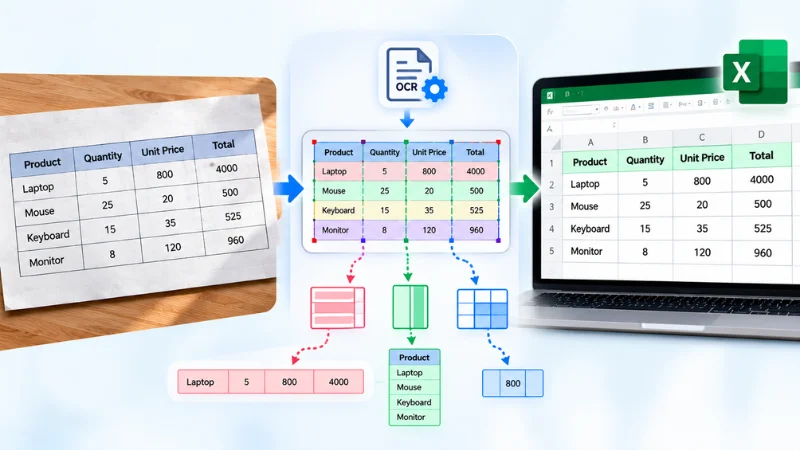
Ensure grid lines, cell borders, and column spacing are clearly visible. This can help prevent adjacent data from merging into a single cell.
Use Original Digital Files for Screenshots
When converting a table from a computer or mobile screen, use the device’s native screenshot tool. Avoid taking a photo of the monitor or phone screen.
Check Handwritten Tables Carefully
Modern OCR tools can process some handwritten tables. However, varied handwriting styles and hand-drawn grids can reduce accuracy. Always review handwritten conversions and make corrections when needed.
How to Convert Table Photo to Excel on Mobile (Android & iPhone)
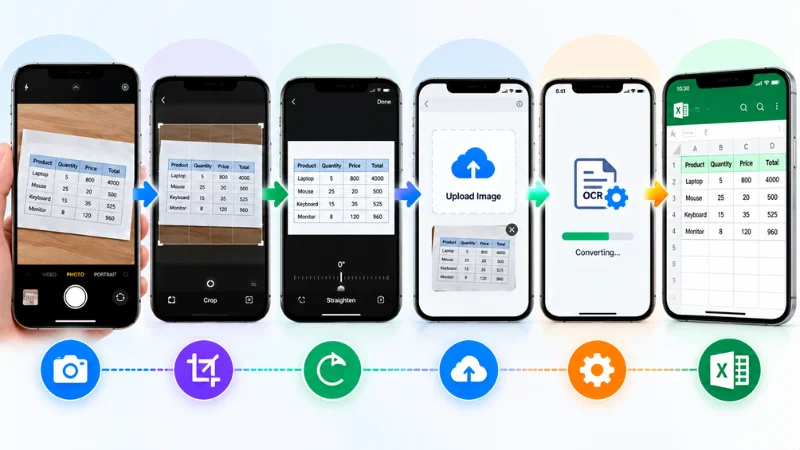
You can take a photo of a paper table or whiteboard. Then, you can convert it to Excel using your phone. Most online converters work through mobile browsers on Android and iPhone. If you are using a phone, see our guide on how to convert a phone photo to Excel for detailed steps.
1. Take a Clear Photo
Open your smartphone’s camera app and position it directly above the document. Ensure proper lighting so the numbers and column headers are crisp and readable.
2. Crop and Straighten the Image
Crop out non-table areas to prevent OCR errors. Use your phone’s photo editor to remove margins, desk space, or nearby text. Use the rotation tool to align the table rows properly.
3. Open the Converter in a Mobile Browser
Launch Chrome, Safari, or another mobile browser. Then, open the online Image to Excel Converter.
4. Upload the Image
Tap the upload button and select the cropped photo. You can choose it from your photo library or file manager.
5. Download the Excel File
Tap the Convert button and wait for the OCR process to finish. Then, save the resulting XLSX or CSV file to your mobile storage.
6. Open the File in a Mobile Spreadsheet App
Open the downloaded file in Microsoft Excel, Google Sheets, or Apple Numbers. Review the column alignment and numbers before editing the spreadsheet.
Common Problems When Converting Table Photos
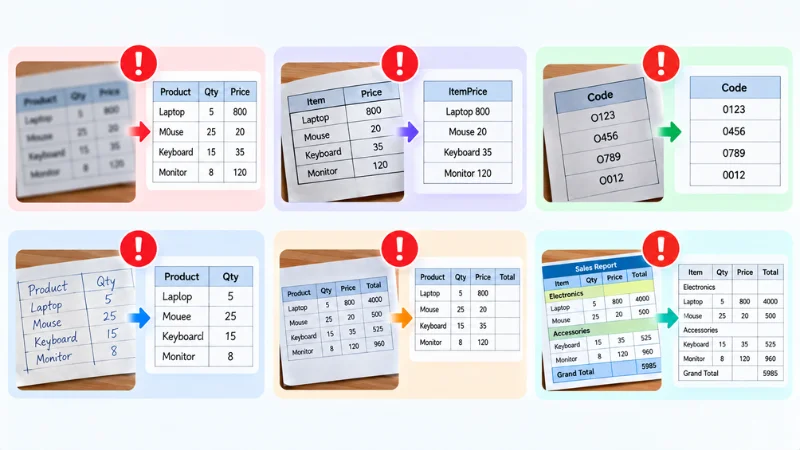
Modern OCR tools can produce good results, but conversion is not always error-free. Knowing the common problems can help you identify errors quickly.
Incorrect Text Recognition
Blurry photos and low-resolution scans can affect OCR accuracy. Uneven lighting can also cause letters or numbers to be misread.
Shifted or Merged Columns
Faint table borders can make column detection difficult. Inconsistent spacing can also cause data to move into the wrong cells.
Confused Numerical Characters
Some characters look very similar to OCR systems. For example, 0 and O can sometimes be confused. The number 1 can also be confused with lowercase l or uppercase I. Such errors can affect financial figures and numerical IDs.
Handwriting Errors
Handwritten tables can be difficult for OCR tools to process. Different handwriting styles, pen pressure, and spacing can affect recognition.
Missing or Omitted Data
Small, faded, cropped, or blocked text may not be recognized. Shadows can also prevent some information from being extracted.
Lost or Altered Formatting
Some formatting may not transfer perfectly during conversion. Merged cells, custom colors, and text alignment may need manual adjustment.
Frequently Asked Questions
Can I Convert a Photo of a Table to Excel for Free Online?
Yes, you can convert a photo of a table to Excel online for free. Free image-to-Excel tools can extract table data and create editable spreadsheet files. Limits may vary by tool.
How Accurate Is Converting a Table Photo to Excel?
Accuracy depends on the quality and structure of the table photo. Results depend on image quality, text clarity, table structure, and handwriting. Clear, straight, high-resolution images usually produce better results.
Does It Work With Handwritten Tables?
Yes, some OCR tools can convert handwritten tables to Excel. However, handwriting recognition may be less accurate than printed text. Always review important data after conversion.
Can I Convert a Screenshot of a Table to Excel?
Yes, you can convert a screenshot of a table to Excel. For best results, the screenshot should have clear text and a visible table structure.
Will the Columns and Rows Stay in the Correct Order?
Yes, most table-conversion tools try to preserve the original rows and columns. Complex layouts, merged cells, or poor image quality can affect the structure. You may need minor adjustments after conversion.
Is It Safe to Upload Photos of Important Tables Online?
It depends on the converter’s privacy and data-handling practices. Check its privacy policy before uploading sensitive information. Avoid uploading confidential data unless you trust the service.
Conclusion
Converting a table photo to Excel can simplify data management. For better results, use a clear, well-lit, and properly aligned image. After conversion, review the spreadsheet for errors before using the data. Ready to digitize your paper records and screenshots? You can use an Image to Excel Converter to extract table data directly from your image.