 IMG to PDF
 Word to PDF
 Excel to PDF
 JPG to PDF
 PNG to PDF
 Text to PDF
 PPT to PDF
 PDF to Image
 PDF to Word
 PDF to Excel
 PDF to JPG
 PDF to PNG
 PDF to Text
 PDF to PPT
 Word to JPG
 Word to PNG
 IMG to Word
 IMG to PPT
 IMG to Excel
 IMG to Text
 Merge PDF
 Split PDF
 Organize PDF
 OCR PDF
 Delete Page
 Add Page To PDF
 Compress PDF
 PDF Form Filler
 Fill Out PDF
 Create Fillable PDF
 Edit PDF
 Crop PDF
 Sign PDF
 Rotate PDF
 Add Watermark
 Add Number page
 Protect PDF
 Unlock PDF
 Redact PDF
 PDF To PDF/A
 PDF Translator
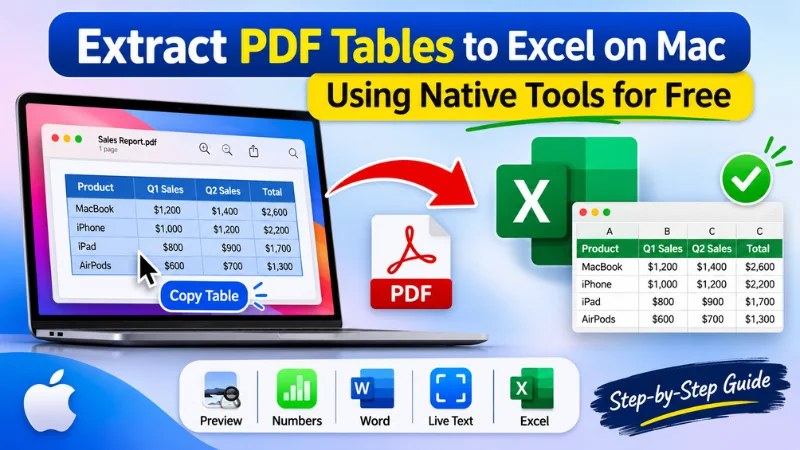
You select a table in a PDF, copy it, and paste it into Excel. Instead of neat rows and columns, everything lands in a single column. If that has happened to you, you’re not alone, and it isn’t your fault. If you want to extract PDF tables to Excel on Mac, most guides tell you to use Data > Get Data > From PDF. That works on Windows, but Excel for Mac doesn’t include that connector, so you need another route.
The good news is that your Mac includes free tools like Preview and Numbers to help extract PDF tables. You can also use optional tools such as Microsoft Word, Excel’s Data from Picture feature, or an online PDF converter, depending on your needs and available access. This guide walks you through each free method and shows which one fits your PDF best. You’ll also learn how to fix the messy data that usually comes out at the end.
Before You Start: Check Your PDF Type
Before extracting PDF tables to Excel on Mac, identify your PDF type. Text-based PDFs let you select text directly, while scanned PDFs require OCR to recognize their content.
Text-Based PDF vs. Scanned PDF
| Feature | Text-Based PDF | Scanned PDF |
| Created from | Word, apps, websites | Paper scans |
| Text selectable | Yes | No |
| Search (Cmd + F) | Works | Usually doesn’t work |
| Table extraction | Direct copy-paste | Requires OCR |
| Best methods | Preview, Numbers | Live Text |
If you can select and copy text from your PDF, it is likely text-based. If not, it may be scanned.
Quick Test: Can You Select Text in Preview?
- Open the PDF in Preview.
- Select the Text Selection tool.
- Try highlighting a few words in the table.
- If the text highlights, your PDF is text-based. If not, it may be scanned.
You can also press Command + F and search for a visible word. If Preview finds it, the PDF contains searchable text.
Which Method Works for Which PDF Type?
Use this table to choose the right extraction method:
| PDF Type | Best Method |
| Text-based, simple table | Preview copy-paste |
| Text-based, complex table | Numbers → Excel |
| Scanned, short table | Live Text |
| Large, multi-page PDF | Online PDF to Excel converter |
Once you identify your PDF type, you can choose the right method and avoid unnecessary trial and error.
Method 1: Copy Table from Preview and Paste into Excel
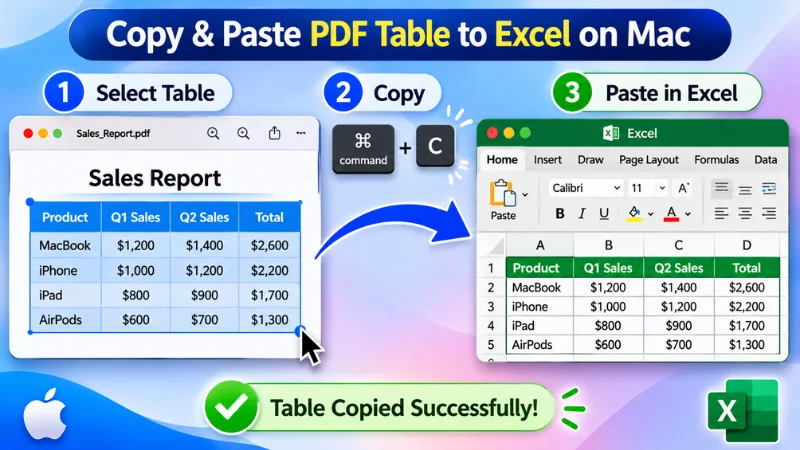
The fastest way to extract PDF tables to Excel on Mac is to copy the table from Preview and paste it straight into Excel. It takes less than a minute and works best on text-based PDFs with small, simple tables.
Steps to Copy a PDF Table into Excel
- Open the PDF in Preview.
- Click the Text Selection tool and drag across the table to select it.
- Press Command + C to copy.
- Open Excel, click cell A1, and press Command + V.
Why Does This Method Work?
In a text-based PDF, the table is made of real text, so Preview can select and copy it. Excel then pastes that text into cells, with no extra software needed.
If your table has many columns, or cells with spaces inside them (like “New York” or “Net Profit”), Text to Columns may split the data in the wrong place. In that case, Method 2 is the better choice.
Method 2: Use Numbers as a Bridge, Then Export to Excel
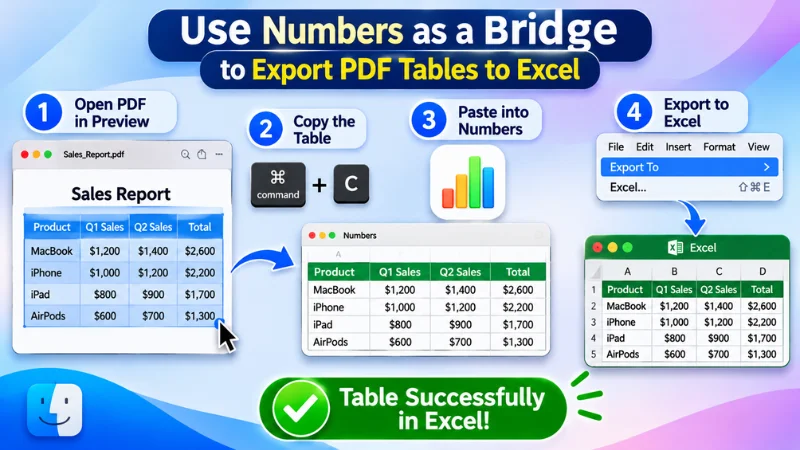
Numbers is free on every Mac, and it handles pasted PDF tables better than Excel does. That makes it one of the most reliable ways to extract PDF tables to Excel on Mac, especially for text-based PDFs with several columns.
Steps to Convert PDF Tables Using Numbers
- Open the PDF in Preview, select the table with the Text Selection tool, and press Command + C.
- Open Numbers and create a blank spreadsheet.
- Click an empty cell and press Command + V.
- Clean up the table. Fix any merged cells and check that the headers sit in the right place.
- Go to File > Export To > Excel.
- Click Next, save the .xlsx file, and open it in Excel.
Why Use Numbers to Convert PDF Tables?
Numbers can preserve the row and column structure of pasted PDF tables more effectively in some cases. This can reduce manual cleanup before exporting the spreadsheet to Excel.
However, complex layouts with merged headers or tables spanning multiple pages may still need adjustments. Compare the exported file with the original PDF before using the data.
Method 3: Extract Tables from Scanned PDFs on Mac
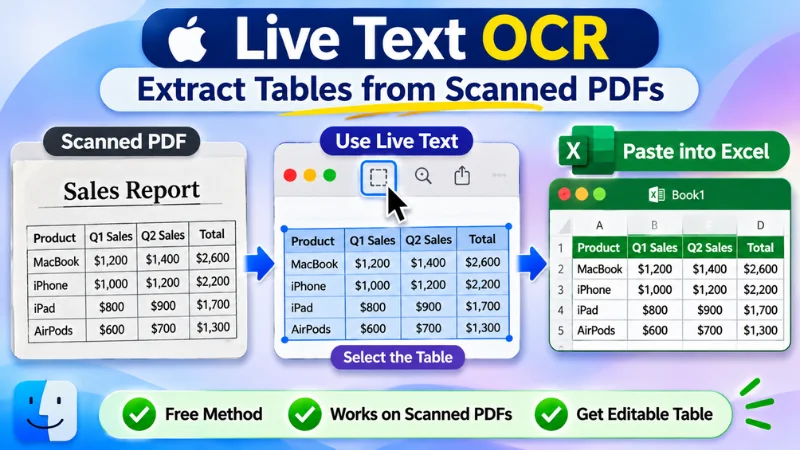
Scanned PDFs are the hardest case, because they contain no real text to copy. To extract PDF tables to Excel on Mac from a scanned file, you need OCR (text recognition).
Steps to Extract Tables Using Live Text
- Open the scanned PDF in Preview, or open the image in Photos.
- Hover over the table text. When Live Text is active, the cursor changes to a text cursor.
- Drag to select the text and press Command + C.
- Paste it into Numbers or Excel.
Why Use Live Text for Scanned PDFs?
Live Text works well for short lists and quick copies. With multi-column tables, the alignment can come out uneven.
Method 4: Use a Free PDF to Excel Converter on Mac
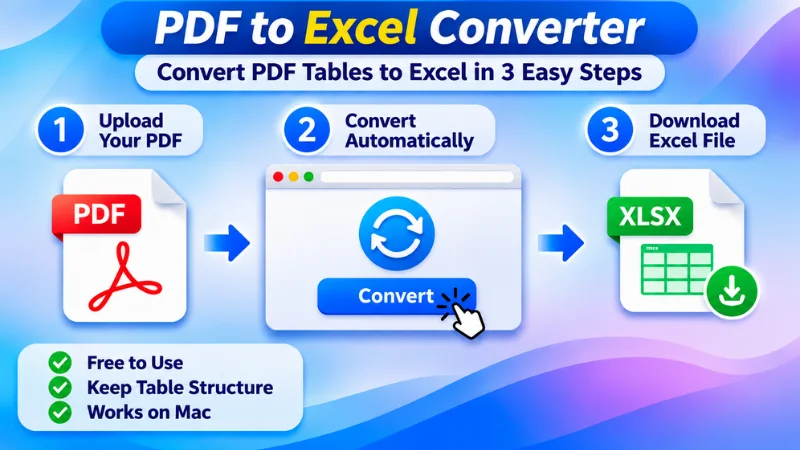
If the built-in tools take too long or break your table, a free online PDF-to-Excel converter is the easiest way to extract PDF tables to Excel on Mac. It works in your browser, so you don’t need to install anything. Most converters read both text-based and scanned PDFs and give you an editable Excel file.
Steps to Convert PDF to Excel Online
- Open a PDF to Excel converter such as PDF Converter in Safari or Chrome.
- Select PDF to Excel from the list of tools.
- Upload your PDF, or drag and drop it onto the page.
- Start the conversion and wait a few seconds.
- Download the .xlsx file.
- Open it in Excel and compare the table with your original PDF.
Why Use an Online PDF to Excel Converter?
The converter detects the table structure automatically, so you skip copy-paste, Text to Columns, and most of the cleanup.
Cleaning Up Your Data After Extraction
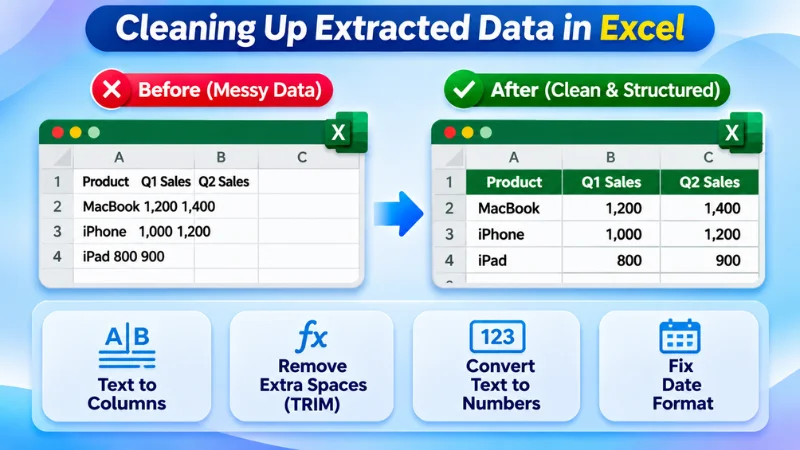
Even a good extraction leaves some mess behind. After you extract PDF tables to Excel on Mac, these fixes clear up most of it.
- Text to Columns: If all the data sits in one column, select it and go to Data > Text to Columns. Choose Delimited, then split by Space or Tab.
- TRIM: Extra spaces break formulas, sorting, and lookups.
- Text to Numbers: If a number is left-aligned or shows a green triangle, Excel is treating it as text.
- Date Formats: Select the date column and set the correct format under Home > Number Format.
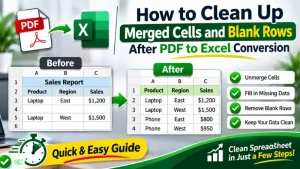
- Merged Cells and Blank Rows or Columns: Select merged cells and click Home > Merge & Center to unmerge them, then fill in any gaps.
Common Problems and Fixes
Even when you extract PDF tables to Excel on Mac the right way, a few problems can still show up. Here are the most common ones and how to fix each.
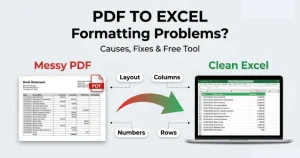
- All Data Appears in One Column: Use Data > Text to Columns to separate the values.
- Numbers Appear as Text: Select the cells and choose Convert to Number.
- Rows and Columns are Misaligned: Try copying the table through Numbers or Word instead.
- Scanned PDF Text Cannot Be Selected: Use Live Text or Excel’s Data from Picture feature.
Most of these problems take less than a minute to fix. If the same issues keep coming back, try the method from this guide.
Which Method Should You Choose?
Each method in this guide works best in a different situation. Use this table to compare them side by side and pick the right way to extract PDF tables to Excel on Mac for your file.
| Method | PDF type | Accuracy | Speed | Best for |
| Preview copy-paste | Text-based | Medium | Very fast | simple tables |
| Numbers | Text-based | High | Fast | Multi-column tables |
| Live Text | Scanned | Medium | Fast | Short lists and quick copies |
| Online PDF to Excel converter | Both | High | Fast | Large, multi-page, or bulk files |
Text-based PDFs work best with Numbers, while scanned PDFs work best with Data from Picture. Whichever you choose, compare the final data with the original PDF before you use it.
Limitations of Native Mac Tools
Native Mac tools are free and private, and they work well for small jobs. But when you extract PDF tables to Excel on Mac with Preview, Numbers, or Live Text, you will run into a few limits:
- Large or Complex Tables: Tables with hundreds of rows, merged headers, or nested columns often break and need a lot of manual cleanup.
- Multi-Page Tables: You have to extract each page separately and join the pieces yourself.
- Bulk PDFs: Processing many files one by one is slow and repetitive.
If these problems come up often, a dedicated PDF converter can save you a lot of time. A tool like a PDF converter reads the table structure for you and gives you an editable Excel file without the manual steps.
Tips for Accurate Results
Accuracy matters when you extract PDF tables to Excel on Mac, because one wrong digit can throw off an entire report. These four habits help you catch errors early:
1. Verify Against the Source
Keep the original PDF open beside your spreadsheet and spot-check several rows before you start working with the data.
2. Reconcile the Totals
If the PDF includes a total row, confirm that your Excel sum matches it exactly.
3. Zoom in Before You Select or Capture
Larger, sharper text gives cleaner results, especially when OCR is involved.
4. Keep Sensitive Documents Offline
For sensitive files such as bank statements, contracts, and client records, prefer offline tools like Preview and Numbers. Avoid uploading confidential documents to online converters unless you trust their privacy and data-handling policies.
Frequently Asked Questions
Can Excel for Mac import tables from PDF directly?
No. Excel for Mac doesn’t include the “From PDF” connector that Windows has. To extract PDF tables to Excel on Mac, you need to go through Preview, Numbers, or Word first.
How do I convert a PDF to Excel on Mac for free?
Copy the table in Preview, paste it into Numbers, then export it as an Excel file. This works well for text-based PDFs and costs nothing.
Can I extract tables from a scanned PDF on Mac?
Yes. Take a screenshot of the table and use Excel’s Data from Picture. Check the result for OCR mistakes before using the numbers.
Why does my table paste into one column?
Excel reads the copied text as one continuous stream. Use Data > Text to Columns to split it, or paste into Numbers first to keep the structure.
Does Numbers keep table formatting better than Excel?
Yes, Numbers can preserve the row and column structure of pasted PDF tables more effectively in some cases. However, complex tables may still require manual adjustments.
Is Preview able to export PDF to Excel?
No. Preview can only select and copy content from a PDF. You still need to paste the table into Numbers or Excel yourself.
Conclusion
You can extract PDF tables to Excel on Mac for free, without installing anything extra. For text-based PDFs, Preview and Numbers give clean results with little effort. For scanned PDFs, Live Text will do the job. Whichever method you choose, compare the final numbers with the original PDF before you use them.
Native Mac tools work well for small and simple tables. But if you deal with large, complex, or multi-page PDF tables, manual cleanup takes time. In that case, try the free PDF to Excel converter to get an editable spreadsheet in seconds.