 IMG to PDF
  Word to PDF
  Excel to PDF
  JPG to PDF
  PNG to PDF
  Text to PDF
  PPT to PDF
  PDF to Image
  PDF to Word
  PDF to Excel
  PDF to JPG
  PDF to PNG
  PDF to Text
  PDF to PPT
  Word to JPG
  Word to PNG
  IMG to Word
  IMG to PPT
  IMG to Excel
  IMG to Text
  Merge PDF
  Split PDF
  Organize PDF
  OCR PDF
  Delete Page
  Add Page To PDF
  Compress PDF
  PDF Form Filler
  Fill Out PDF
  Create Fillable PDF
  Edit PDF
  Crop PDF
  Sign PDF
  Rotate PDF
  Add Watermark
  Add Number page
  Protect PDF
  Unlock PDF
  Redact PDF
  PDF To PDF/A
  PDF Translator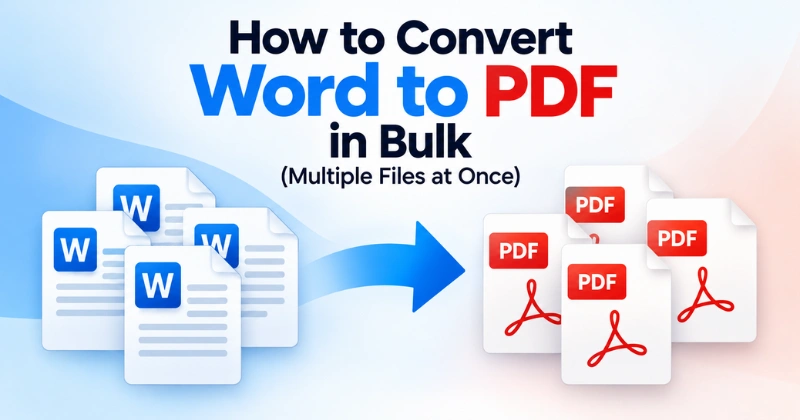
Need to convert multiple Word files to PDF at once? A bulk Word-to-PDF converter can process several DOC or DOCX files in one batch. This saves time compared with opening and converting each document separately.
Converting Word files to PDF also helps preserve the document’s layout when sharing or storing files. Fonts, margins, images, and other elements are generally retained, although complex documents may need a quick formatting check after conversion.
With PDF Conveter, you can convert Word documents to PDF online without installing desktop software. This guide explains how to convert Word files in bulk, compare online and offline methods, and avoid common conversion problems.
A Quick Way to Convert Word to PDF in Bulk
To convert multiple Word files to PDF, select your DOC or DOCX files in a bulk Word-to-PDF converter. Start the conversion, wait for the files to process, and download the resulting PDFs. For sensitive documents, consider a local conversion method instead of uploading files online.
Separate PDFs or One Merged PDF?
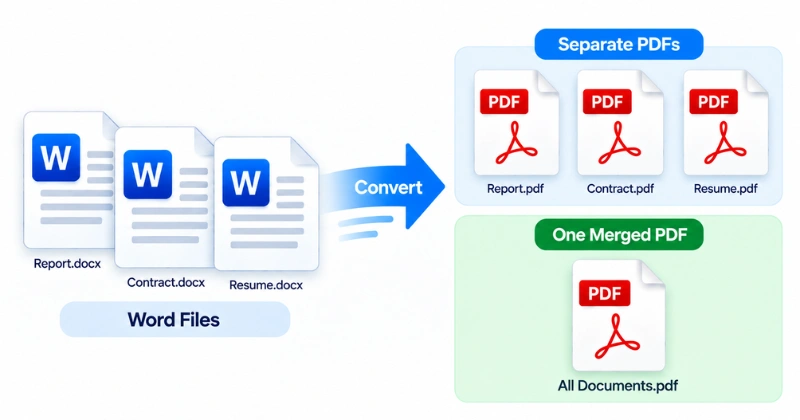
Before converting your files, decide whether you need separate PDFs or one merged PDF.
Separate PDFs
Bulk conversion usually creates a separate PDF for each Word document. For example:
- Resume.docx → Resume.pdf
- Report.docx → Report.pdf
- Contract.docx → Contract.pdf
This option works well when you need to send or store each document separately.
One Merged PDF
If you want all documents in one file, you need a PDF merging step unless your converter supports combining files.
Bulk conversion and PDF merging are different processes. Choose the option that matches how you plan to use the files.
Method 1: Bulk Convert Word Files Online
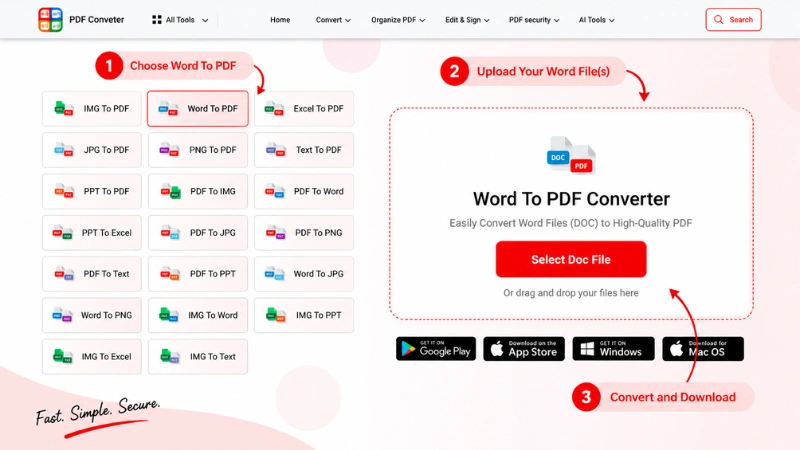
An online converter can be useful when you need to process several Word files without installing desktop software. Instead of opening and converting each document separately, you can select multiple DOC or DOCX files and process them in one batch.
How to Convert Word Files Online
- Open a Word-to-PDF converter in your browser.
- Select the DOC or DOCX files you want to convert.
- Start the conversion.
- Wait for the files to finish processing.
- Download the converted PDF files.
- Open a few PDFs and check their formatting.
This method can work on computers and mobile devices, depending on the converter and browser you use.
Method 2: Bulk Convert Using Microsoft Word Print Queue
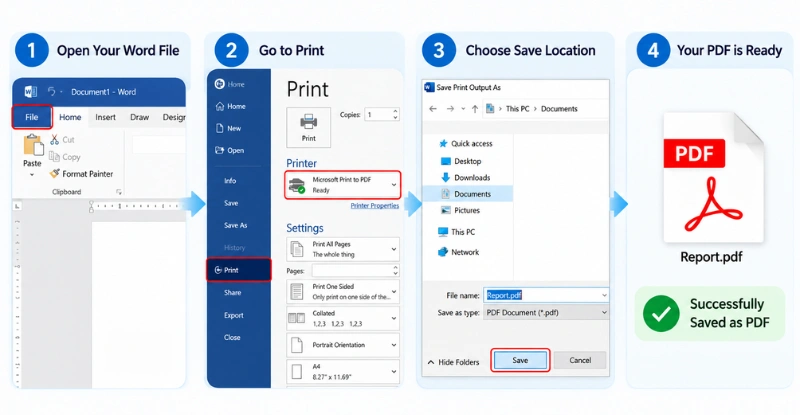
Windows users can use Microsoft Print to PDF for local Word-to-PDF conversion without uploading documents online. Word supports printing through File > Print, and Windows manages pending jobs through its print queue.
How to Convert Word Files Using Print Queue
- Open the Word document in Microsoft Word.
- Select File → Print.
- Choose Microsoft Print to PDF.
- Click Print.
- Choose a location and filename.
- Open the saved PDF and check the formatting.
For multiple files, the exact workflow can vary by Windows and Word setup. If you need to process large or recurring batches, VBA or another automation method can reduce manual work.
Method 3: Bulk Convert Word Files on Mac (Automator)
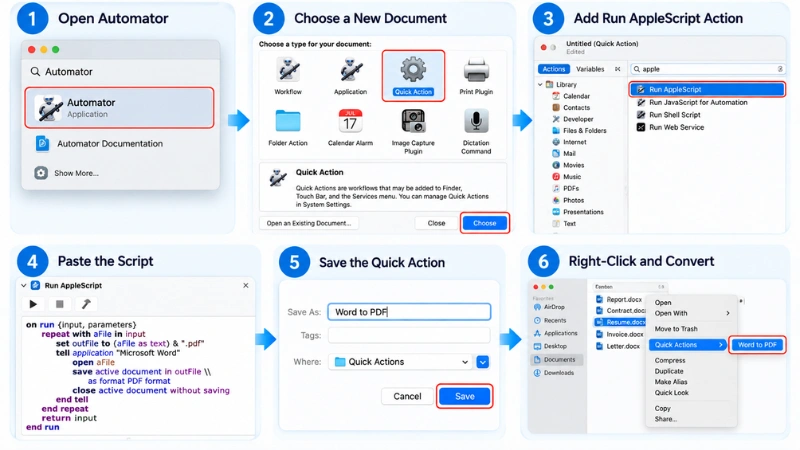
Mac users can build a reusable Automator workflow to convert multiple Word files to PDF without opening each one manually.
- Open Automator → New Document → Quick Action.
- Set Workflow receives current to files or folders in Finder.
- Search for Run AppleScript and add it to the workflow.
- Add a script that opens each Word file and saves it as a PDF.
- Save the Quick Action with a name like Convert Word to PDF.
- Select your Word files in Finder → Quick Actions → run the workflow.
The script may need small changes based on your macOS and Word versions. For a single file, Microsoft Word can save the document directly as a PDF without Automator. If you also need to edit PDF files on Mac, see our guide on how to convert PDF to Word on Mac.
Method 4: Bulk Convert Using a VBA Macro
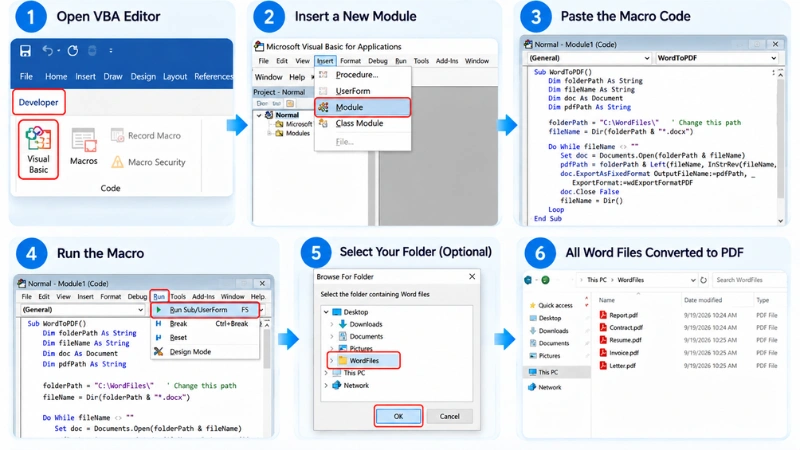
If you regularly convert many Word files on Windows, a VBA macro can automate the process. It can open each document, save it as a PDF, and move to the next file automatically.
How It Works
- Open Microsoft Word and access the VBA editor.
- Create a macro to open Word files from a folder.
- Set the macro to save each file as a PDF.
- Run the macro to process the files automatically.
- Check the output folder for the converted PDFs.
This method works well for recurring batches but requires some VBA knowledge and setup. Microsoft Word supports macros for automating repeated tasks.
If you are not comfortable with VBA, an online Word-to-PDF converter may require less setup for occasional conversions. Only run VBA macros from trusted sources, because malicious macros can pose security risks.
Is It Safe to Bulk Upload Word Documents Online?
Online Word-to-PDF conversion can be convenient, but you should consider the information in your files before uploading them. Documents may contain personal, business, financial, or other sensitive information.
Before using an online converter, check that the website uses HTTPS and review its privacy policy. Look for information about how files are processed, stored, and deleted.
For highly confidential documents, consider an offline method instead. Microsoft Word automation or a local VBA macro can process files on your computer without uploading them to an online service.
If you use PDF Conveter, review its current privacy and security information before uploading sensitive documents.
Common Bulk Conversion Problems & Fixes
Bulk conversion can save time, but some files may still cause problems. Here are common issues and simple ways to fix them.
Formatting Breaks or Shifts After Conversion
Some Word documents may look slightly different after conversion. This can happen with unusual fonts, complex tables, text boxes, images, or other detailed formatting. See our guide on how to convert Word to PDF without losing formatting for more tips.
Before converting a large batch, check the original Word files for unusual formatting. After conversion, open a few PDFs and check the text, images, tables, page breaks, and overall layout.
Some Files Fail to Convert
Not every file may convert successfully. A document may be damaged, password-protected, or saved in an unsupported format.
If a file fails, open it in Microsoft Word to check whether it works normally. You can also save a fresh DOCX copy and try converting it again.
Output File Names Become Confusing
Converted PDFs can sometimes have confusing or duplicate names. To avoid this, give your Word files clear and unique names before conversion.
Instead of generic names such as Document1.docx and Document2.docx, use descriptive names such as Project-Report.docx and Client-Agreement.docx.
Which Method Should You Use?
The right method depends on your file count, privacy needs, and workflow.
| Situation | Suitable Method |
| A few files | Online converter or Microsoft Word |
| Multiple files | Bulk online converter |
| Recurring batches | VBA or local automation |
| Sensitive documents | Local conversion |
| Mac automation | Automator or another local workflow |
An online converter can be practical when you want to process files without installing software. Local automation may be more suitable when you regularly process sensitive documents or large batches.
Frequently Asked Questions
How Do I Convert Multiple Word Documents to PDF at Once?
You can convert multiple Word documents at once with a bulk Word-to-PDF converter. Select your DOC or DOCX files and start the conversion. Check the tool’s upload limits before processing large batches.
Can I Convert Word Files to PDF Without Installing Software?
Yes, an online Word-to-PDF converter lets you convert files directly in your browser. For sensitive documents, consider using a local conversion method.
Will Bulk Converting Word to PDF Change My Formatting?
Bulk conversion usually preserves the original formatting, but complex elements can sometimes shift. Check important PDFs for fonts, images, tables, and page layout after conversion.
Can I Combine Multiple Word Files Into One PDF?
Yes, but conversion and merging are usually separate steps. Convert the Word files first, then merge the resulting PDFs if your converter does not support both.
Is It Safe to Upload Word Documents to an Online Converter?
Online conversion can be suitable for non-sensitive documents. But you should review the service’s privacy and security practices first.
How Do I Convert Word Documents to PDF on a Mac?
You can save Word documents as PDFs directly from Microsoft Word on Mac. For multiple files, you can also use an online converter or a suitable local workflow.
Can I Convert Word Files to PDF in Bulk on Windows?
Yes. Windows users can use an online bulk converter, Microsoft Word, or a VBA macro. VBA can help automate recurring Word-to-PDF conversions.
What Should I Do If Some Word Files Fail to Convert?
First, open the original file and check that it works correctly. Then save a fresh DOCX copy and try converting it again, or process the file separately.
Conclusion
Bulk converting Word files to PDF can save time when you have multiple documents to process. An online converter can handle quick batches, while VBA or local automation can support recurring workflows.
Before uploading sensitive documents, review the converter’s privacy practices. After conversion, check important PDFs for formatting, images, tables, and page breaks.
Ready to convert your Word files? Try PDF Conveter’s online Word to PDF tool and convert your documents directly in your browser.