 IMG to PDF
  Word to PDF
  Excel to PDF
  JPG to PDF
  PNG to PDF
  Text to PDF
  PPT to PDF
  PDF to Image
  PDF to Word
  PDF to Excel
  PDF to JPG
  PDF to PNG
  PDF to Text
  PDF to PPT
  Word to JPG
  Word to PNG
  IMG to Word
  IMG to PPT
  IMG to Excel
  IMG to Text
  Merge PDF
  Split PDF
  Organize PDF
  OCR PDF
  Delete Page
  Add Page To PDF
  Compress PDF
  PDF Form Filler
  Fill Out PDF
  Create Fillable PDF
  Edit PDF
  Crop PDF
  Sign PDF
  Rotate PDF
  Add Watermark
  Add Number page
  Protect PDF
  Unlock PDF
  Redact PDF
  PDF To PDF/A
  PDF Translator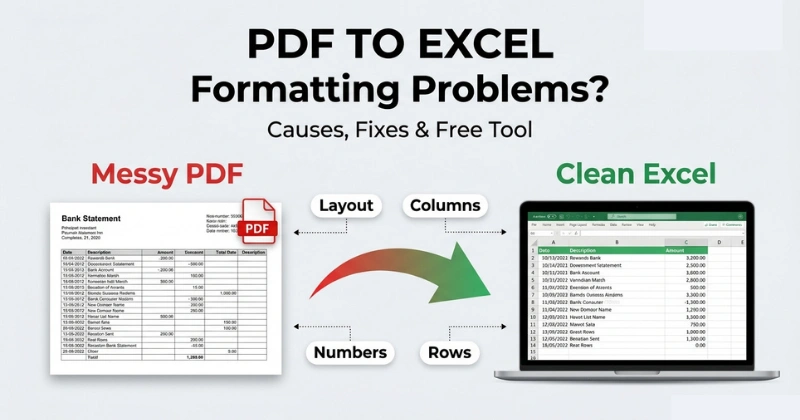
You take a PDF table and try to turn it into Excel, but the result is messy. Columns don’t line up. Numbers jump to the wrong spots. Merged cells make everything hard to read. This happens because PDFs are built to preserve the formatting, not to be editable like spreadsheets. The data gets distorted during conversion.
There’s a way to fix it. This guide explains why PDF tables break in Excel and shows how to use tools, built-in Excel features, OCR, or a little manual work to get your data back in shape. You’ll learn how to fix columns, numbers, headers, and rows. You’ll also learn how to prevent common conversion errors.
Why PDF to Excel Conversion Breaks Formatting (Root Causes)
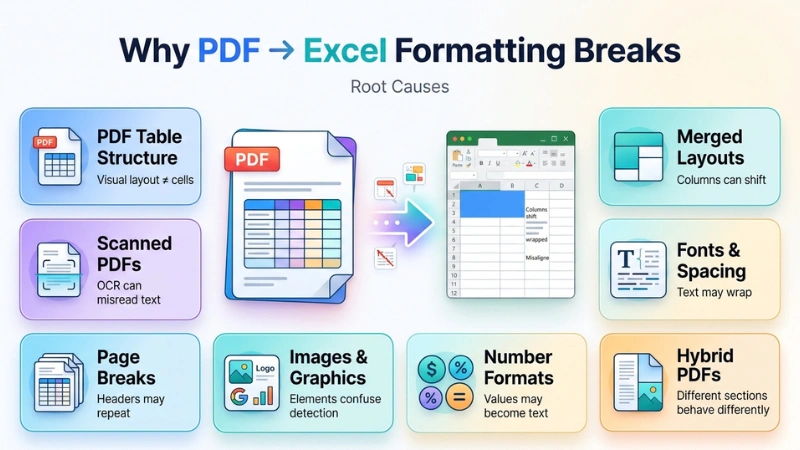
PDFs are built to preserve how a document looks on a page, while Excel is built to organize information into rows, columns, and cells. During conversion, the software has to reconstruct a spreadsheet from the PDF’s visual layout. If the original document does not provide a clear data structure, formatting problems can appear.
PDFs Don’t Always Store Tables the Way Excel Does
A PDF may look like a spreadsheet table, but it does not always store the content as rows and columns. Text and numbers may simply be positioned at specific coordinates on the page, while Excel organizes information into a structured grid of cells.
During conversion, the software has to determine which text belongs to each row and column. Irregular spacing, complex headers, and missing borders can cause columns to shift or data to appear in the wrong cells.
Merged Cells and Complex Layouts
Headers, titles, subtotals, and other sections often use merged cells or irregular spacing. A converter may interpret these elements as separate columns or rows. This can cause headers to shift, cells to merge incorrectly, or data to appear under the wrong heading.
Scanned PDFs Need OCR
A scanned PDF is usually an image rather than editable text. Before the data can become an Excel spreadsheet, OCR must recognize the words, numbers, and table structure. Blurry scans, low resolution, skewed pages, unusual fonts, and handwritten information can all increase recognition errors.
Fonts, Spacing, and Line Breaks
PDFs can use custom fonts, positioning, and hidden line breaks to control how text appears. During conversion, these details may be interpreted differently. A long product description, address, or invoice item may therefore wrap into additional rows or columns.
Tables That Continue Across Pages
Multi-page tables create another challenge. The same header may appear at the top of every page, while rows continue across page breaks. A converter may treat each repeated header as new data, creating duplicate rows in Excel.
Images, Logos, and Decorative Elements
Converters do not always know whether an image is part of the data or simply part of the page design. Logos, icons, watermarks, charts, and other graphics can sometimes be imported into the spreadsheet or interfere with table detection.
Numbers and Regional Formatting
Numbers can also lose their usable format during conversion. Currency symbols, thousands separators, decimal marks, percentages, dates, and negative values may be interpreted as text instead of numbers. This is especially important for business spreadsheets because text-formatted numbers may not sum, sort, or calculate correctly.
Hybrid PDFs Can Contain Mixed Content
Some PDFs contain both selectable text and scanned images. One section may convert cleanly while another section produces missing or garbled data. This mixed structure can make the conversion less predictable and may require OCR to scan PDF to Excel for only certain parts of the document.
Native vs. Scanned vs. Hybrid PDFs
The PDF type affects Excel conversion accuracy. Native PDFs contain selectable text, scanned PDFs require OCR, and hybrid PDFs combine both, so different sections may convert differently.
| PDF Type | Native PDF | Scanned PDF | Hybrid PDF |
| What It Contains | Selectable digital text | Page images | Text + images |
| Excel Conversion | Usually easier | More difficult | Depends on content |
| OCR Needed | No | Yes | Sometimes |
| Common Issues | Complex layouts, merged cells | OCR errors, missing numbers | Mixed conversion results |
Native PDFs: contain digital text that you can usually select and copy. They are often easier to convert because the text is already machine-readable, although complex layouts or poorly structured tables can still cause errors.
Scanned PDFs: are usually made from page images rather than digital text. They need OCR to recognize the words and numbers before the content can be extracted into Excel. Blurry scans, low resolution, skewed pages, and unusual fonts can increase recognition errors.
Hybrid PDFs: contain both digital text and images. For example, one page may have selectable text while another contains a scanned table. As a result, some parts may convert cleanly while others may need OCR or manual cleanup.
The 6 Most Common PDF-to-Excel Formatting Problems (and How to Fix Each)
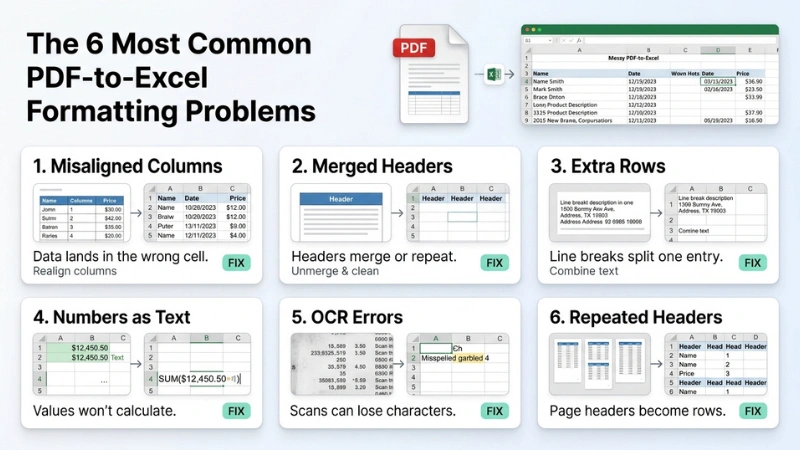
Structure each as: what it looks like → why it happens (1 line, cross-referencing causes above) → fix. Cover, at minimum:
PDF-to-Excel conversions can change the way tables, text, and numbers are arranged. The good news is that most formatting problems have a common cause and a practical fix.
1. Misaligned Columns / Data Landing in the Wrong Cell
What it looks like: Names, prices, dates, or other data appear under the wrong column or shift into nearby cells.
Why it happens: The PDF stores text by position rather than as a true spreadsheet table, so the converter may misread the layout.
Quick Fix
Check the imported columns and move misplaced data into the correct cells. For repeated problems, try Excel’s Data → Get Data → From PDF or a different PDF-to-Excel converter.
2. Merged or Duplicated Header Cells
What it looks like: Column headings appear merged, repeated, or spread across several cells.
Why it happens: Merged cells and complex header layouts can be difficult for conversion software to interpret correctly.
Quick Fix
Unmerge the affected cells in Excel and place each heading in its correct column. For repeated headers, remove duplicate rows after conversion.
3. Wrapped Text Creating Extra Rows
What it looks like: A single product name, address, or description is split across multiple rows instead of staying in one cell.
Why it happens: Line breaks and wrapped text in the PDF can be interpreted as separate rows during conversion.
Quick Fix
Check the affected cells for unwanted line breaks. Use Find & Replace, Power Query, or manual editing to combine split text where needed.
4. Numbers Stored as Text (Won’t Sum, Sort, or Calculate)
What it looks like: Numbers look correct, but Excel will not add, sort, or calculate them properly.
Why it happens: Currency symbols, commas, spaces, decimal formats, or OCR errors can cause numeric values to be imported as text.
Quick Fix
Select the cells and use Convert to Number. You can also remove unwanted characters with Find & Replace and then apply the correct number format.
5. Missing or Garbled Data From Scanned/Image PDFs
What it looks like: Some words or numbers are missing, misspelled, or replaced with random characters.
Why it happens: Scanned PDFs contain images instead of editable text, so the converter must recognize the content using OCR.
Quick Fix
Use an OCR-enabled PDF-to-Excel converter. For important documents, compare the converted spreadsheet with the original PDF and correct recognition errors manually.
6. Repeated Header Rows in Multi-Page Tables
What it looks like: The same column headings appear again every time the PDF starts a new page.
Why it happens: The converter may treat each page’s repeated header as a new table row.
Quick Fix
Delete the duplicate header rows manually for small files. For larger spreadsheets, use Power Query to filter out repeated header rows automatically.
4 Ways to Convert PDF to Excel with Better Formatting
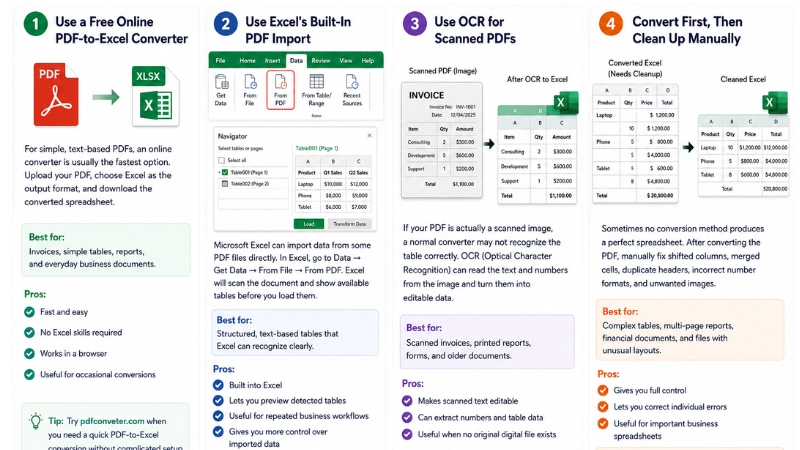
The best method depends on the type of PDF, how complex the table is, and whether the file contains searchable text or scanned images. Here are four practical ways to convert PDF to Excel while keeping as much formatting and data structure as possible.
1. Use a Free Online PDF-to-Excel Converter
For simple, text-based PDFs, an online converter can be a quick and convenient option. Upload your PDF, choose Excel as the output format, and download the converted spreadsheet.
Best for: Invoices, simple tables, reports, and everyday business documents.
Pros:
- Fast and easy
- No Excel skills required
- Works in a browser
- Useful for occasional conversions
Tip: Try pdfconveter.com, when you need a quick PDF-to-Excel conversion without complicated setup.
2. Use Excel’s Built-In PDF Import
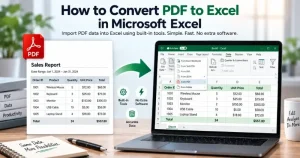
Microsoft Excel can import data from some PDF files directly. In Excel, go to Data → Get Data → From File → From PDF. Excel can detect available tables or data from supported PDFs and let you preview what can be imported before loading it.
Best for: Structured, text-based tables that Excel can recognize clearly.
Pros:
- Built into Excel
- Lets you preview detected tables
- Useful for repeated business workflows
- Gives you more control over imported data
However, complex layouts, merged cells, and scanned PDFs may still require cleanup.
3. Use OCR for Scanned PDFs
If your PDF is actually a scanned image, a normal converter may not recognize the table correctly. OCR (Optical Character Recognition) can read the text and numbers from the image and turn them into editable data.
Best for: Scanned invoices, printed reports, forms, and older documents.
Pros:
- Makes scanned text editable
- Can extract numbers and table data
- Useful when no original digital file exists
OCR is not perfect. Poor scan quality, unusual fonts, handwritten text, and complex tables can cause errors.
4. Convert First, Then Clean Up Manually
Sometimes, no conversion method produces a perfect spreadsheet. After converting the PDF, manually fix shifted columns, merged cells, duplicate headers, incorrect number formats, and unwanted images.
Best for: Complex tables, multi-page reports, financial documents, and files with unusual layouts.
Pros:
- Gives you full control
- Lets you correct individual errors
- Useful for important business spreadsheets
For large or complicated files, combining a good converter with manual Excel cleanup can be more effective than relying on one method alone.
Converting U.S. Business Documents: What to Expect
U.S. businesses use PDFs for invoices, bank statements, tax records, sales reports, purchase orders, contracts, and financial documents. When these files are converted to Excel, the results can vary depending on how the original PDF was created.
Common formatting issues include:
- Invoices: Product names, quantities, prices, and totals may shift into columns.
- Bank statements: Transaction dates, descriptions, deposits, and withdrawals can become misaligned.
- Reports: Currency symbols, commas, percentages, and negative numbers may be imported incorrectly.
- Tax documents: Forms with boxes and multiple sections may require cleanup after conversion.
- Sales reports: Repeated headers and multi-page tables can create rows.
- Purchase orders: Item codes, quantities, and pricing columns may not line up correctly.
- Scanned documents: OCR is often required before the data can be edited in Excel.
For U.S. business documents, always review the spreadsheet before using it for accounting, reporting, payroll, tax preparation, or other important work. Check numbers, dates, totals, formulas, and column alignment carefully.
How to Prevent Formatting Problems Before You Convert
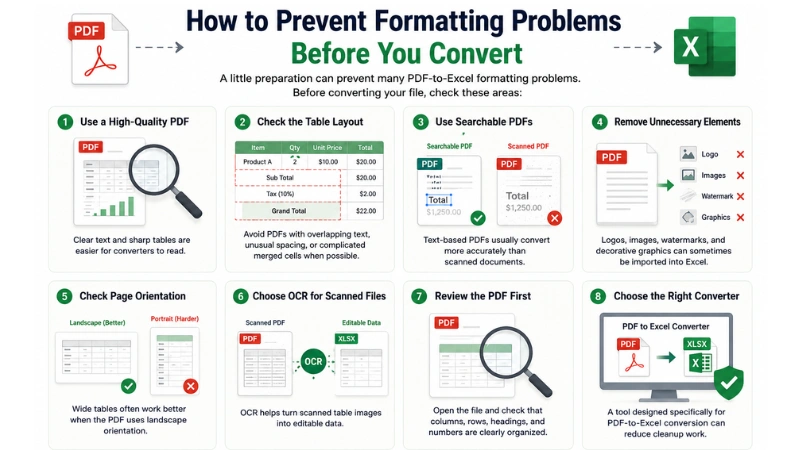
A little preparation can prevent many PDF-to-Excel formatting problems. Before converting your file, check these areas:
- Use a high-quality PDF: Clear text and sharp tables are easier for converters to read.
- Check the table layout: Avoid PDFs with overlapping text, unusual spacing, or complicated merged cells when possible.
- Use searchable PDFs: Text-based PDFs usually convert more accurately than scanned documents.
- Remove unnecessary elements: Logos, images, watermarks, and decorative graphics can sometimes be imported into Excel.
- Check page orientation: Wide tables often work better when the PDF uses landscape orientation.
- Choose OCR for scanned files: OCR helps turn scanned table images into editable data.
- Review the PDF first: Open the file and check that columns, rows, headings, and numbers are clearly organized.
- Choose the right converter: A tool designed specifically for PDF-to-Excel conversion can reduce cleanup work.
Conclusion
PDF-to-Excel conversion does not always go smoothly. Columns can shift, text can land in the wrong cells, and numbers may need some cleanup. The good news is that these problems are usually easier to fix once you understand what caused them.
Before converting a PDF, check whether it contains selectable text or scanned images. Then choose the right approach for the file, whether that means using a PDF-to-Excel converter, OCR for scanned documents, or cleaning up the spreadsheet after conversion. If you need a simple way to turn PDF tables into editable Excel data, try the free PDF-to-Excel and Excel-to-PDF converter from pdfconveter.com
Frequently Asked Questions
Why does my PDF table split into extra columns when I convert it to Excel?
This usually happens because the PDF keeps text based on where it’s on the page instead of as an actual table. The converter might see spaces, lines, or separate pieces of text as columns. Complex layouts, irregular spacing, and merged-looking table areas can also cause column errors.
Why do numbers from my PDF show up as text in Excel?
Numbers may be imported as text because of currency symbols, spaces, number formatting, or OCR errors. Select the affected cells and use Convert to Number in Excel. If needed, remove unwanted symbols or spaces and apply the correct number format.
Can I convert a scanned PDF to Excel and keep the formatting?
Yes, scanned PDFs usually need OCR. OCR is a process that turns text from a scanned image into data that can be edited. However, some tables that are hard to read, writing that is not clear, poor-quality scans, and strange page setups might still need someone to fix them after the conversion is done.
Why did the logo or a stray image get pulled into my spreadsheet?
PDF converters may extract logos, icons, charts, or decorative images along with the surrounding page content. This can happen when images are positioned near a table or when the page uses a complex layout. If the image is imported as a separate object, you can usually select and delete it in Excel.
Why does a wide PDF table convert incorrectly in Excel?
Wide tables can be difficult to interpret during conversion, especially when they have many columns or complex layouts. Data may shift into the wrong columns. Using a landscape layout and cleaning up the spreadsheet afterward can help.
How do I remove repeated header rows from a multi-page PDF table?
Repeated headers may be imported as extra rows when they appear on each PDF page. After conversion, use Find & Replace to locate them and remove the unwanted rows. For large files, Power Query can help filter out repeated headers.
Will my Excel formulas carry over from the PDF?
Usually no. A PDF generally keeps the shown result of the original Excel formulas. When one turns it back into Excel, one may see the values as text or numbers. The original Excel formulas usually have to be rebuilt by hand.