 IMG to PDF
  Word to PDF
  Excel to PDF
  JPG to PDF
  PNG to PDF
  Text to PDF
  PPT to PDF
  PDF to Image
  PDF to Word
  PDF to Excel
  PDF to JPG
  PDF to PNG
  PDF to Text
  PDF to PPT
  Word to JPG
  Word to PNG
  IMG to Word
  IMG to PPT
  IMG to Excel
  IMG to Text
  Merge PDF
  Split PDF
  Organize PDF
  OCR PDF
  Delete Page
  Add Page To PDF
  Compress PDF
  PDF Form Filler
  Fill Out PDF
  Create Fillable PDF
  Edit PDF
  Crop PDF
  Sign PDF
  Rotate PDF
  Add Watermark
  Add Number page
  Protect PDF
  Unlock PDF
  Redact PDF
  PDF To PDF/A
  PDF Translator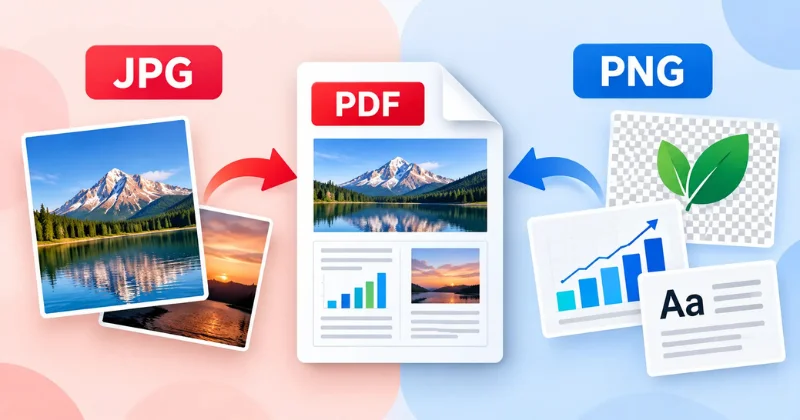
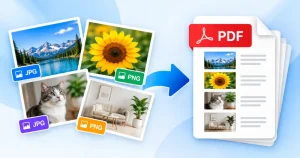
A form to upload. A receipt to send. A scan to share. Sometimes, you need to turn an image into a PDF. But should you choose JPG or PNG?
The right choice depends on image quality, file size, and how you plan to use the PDF. JPG usually creates smaller files, while PNG can preserve sharp text and graphics with lossless compression.
In this guide, we’ll compare JPG to PDF and PNG to PDF, explain where each format works best, and help you choose the right option for your needs.
JPG vs PNG: What’s the Difference?
JPG and PNG are the two image formats you will meet often, and on screen they can look almost the same. The real difference is in how each one stores your picture. That small difference is what shapes the quality and size of your PDF.
What Is JPG?
JPG makes files smaller by getting rid of details that people rarely see. This is known as compression. It was created for photos, where soft colors and gentle shades cover up the loss nicely. The problem is that quality can drop a little every time you save the JPG file again.
What Is PNG?
PNG uses lossless compression, which preserves the original pixel data when the image is saved without other changes. Because of that, PNG handles text, clean lines, and flat graphics very well. PNG supports transparent backgrounds, while JPG does not.
JPG to PDF vs PNG to PDF: At a Glance
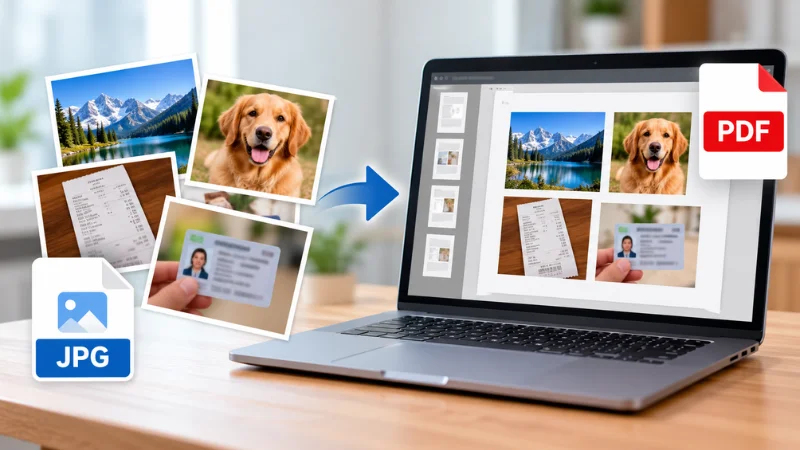
Choosing between JPG and PNG depends on your priorities. JPG usually creates smaller files, while PNG is often better for preserving sharp text and graphics.
| Feature | JPG to PDF | PNG to PDF |
| Compression | Lossy | Lossless |
| File Size | Usually smaller | Often larger |
| Text Clarity | May blur small text | Preserves sharp edges |
| Transparency | Not supported | Supported in PNG |
| Best For | Photos and scans | Screenshots and graphics |
Choose JPG when file size matters most and PNG when text clarity matters more. However, the best choice also depends on your image and the converter you use. Let’s look at when each format works best.
JPG to PDF: When Should You Use It?
JPG is a practical choice for photos because it usually keeps file sizes small and is widely supported. It is not the right fit for every image. Let’s look at the situations where JPG to PDF makes sense and the one place where you should be careful.
Photos and Scanned Documents
Photos are where JPG is at its best. Colors, shadows, and skin tones look natural. The file stays light. For scans like an ID copy or a page you photographed with your phone, JPG usually does a great job.
Large Image Collections
Ten receipts. Twenty scanned pages. A whole folder of pictures. Packed into one PDF, these can get big fast. JPG keeps the size down so the file is easier to email or share on chat apps.
When File Size Matters
Plenty of job portals, university sites, and government forms set a limit, often around 2 MB. A PDF built from JPG images has a chance of slipping under that line.
Limitations of JPG to PDF
JPG is not perfect. It is better to know that upfront. Around small text or thin lines, you may spot faint blocky marks or a slight blur. If your page has letters, zoom in after converting and make sure everything is easy to read.
So if your picture is a photo or a simple scan and you need a file that’s small and easy to send, turning JPG into PDF is usually a good choice. If clear text or clean lines are more important than the file size, there is another option that is worth considering.
PNG to PDF: When Should You Use It?
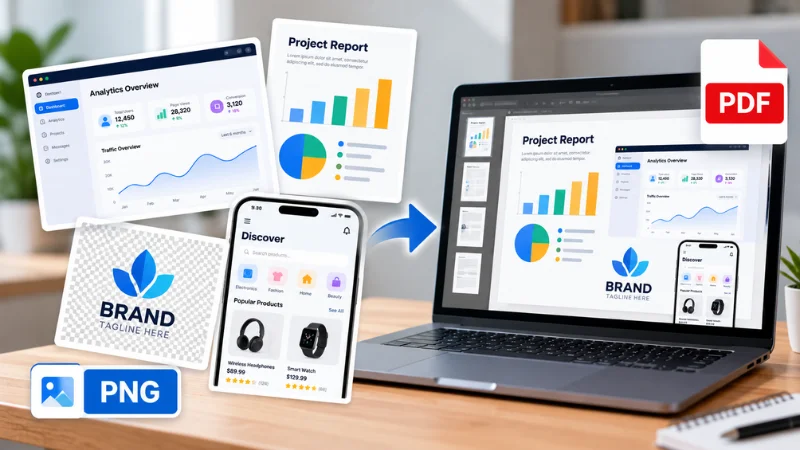
PNG is a good choice for screenshots, text, and graphics because its lossless compression preserves image details. However, PNG files are often larger than JPG files. Here’s when converting PNG to PDF makes sense.
Screenshots and Text-Heavy Images
App screens, step-by-step guides, and charts often work well as PNG images. PNG can preserve sharp text, numbers, and thin lines without introducing additional lossy compression. If your image contains lots of text or detailed interface elements, PNG is often a good option.
Logos and Graphics
Logos, icons, and illustrations often contain solid colors and sharp edges. PNG can preserve these details without adding JPEG-style compression artifacts, helping graphics retain their intended appearance when viewed or zoomed in.
Transparent Images
PNG supports transparent backgrounds, making it useful for logos and graphics that need to blend into different backgrounds. However, how transparency appears in a PDF depends on the converter. We’ll explain this in the next section.
When Quality Preservation Matters
PNG is often a good choice for certificates, design mockups, and other images where preserving fine details matters. Its lossless compression retains the original image data during PNG encoding. However, some PDF converters may resize or recompress images, which can affect the final quality.
Limitations of PNG to PDF
File size is the main drawback. PNG files are often larger than comparable JPG files, which can also result in larger PDFs. This may cause problems with email attachments or upload limits, so check the final PDF’s file size before sharing it.
If your image contains text, sharp edges, or fine details, PNG to PDF is often a strong choice. Just keep file size in mind. Next, let’s compare JPG and PNG directly to see how they differ in image quality and file size.
JPG to PDF vs PNG to PDF: Which Has Better Quality?
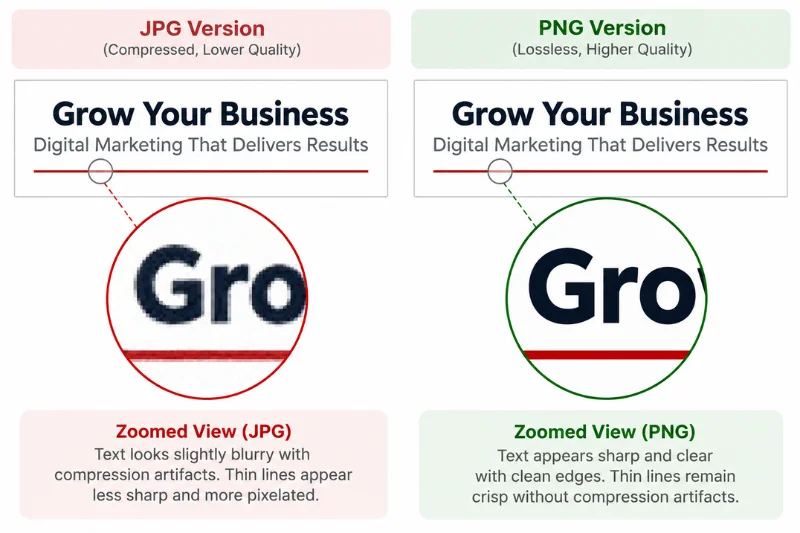
The answer depends on the image. Differences are often more noticeable in text, sharp edges, and fine details.
How Compression Affects Image Quality
JPG uses lossy compression, which removes some image data to reduce file size. PNG uses lossless compression, preserving the original pixel data when saved without other changes. However, processing during PDF conversion can still affect quality.
When JPG Artifacts Become Noticeable
JPG artifacts are more noticeable:
- Around text and thin lines
- Near sharp edges, such as logos
- In images saved as JPG multiple times
In photographs, these imperfections may be less noticeable.
Does the PDF Itself Change Quality?
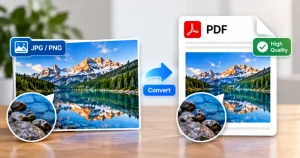
Converting an image to PDF does not automatically reduce quality. However, some converters may resize or recompress images, affecting the final result.
PNG is often better for text and sharp details, while JPG works well for photos. File size also matters, so let’s compare which format usually creates a smaller PDF.
JPG vs PNG for Scanned Documents
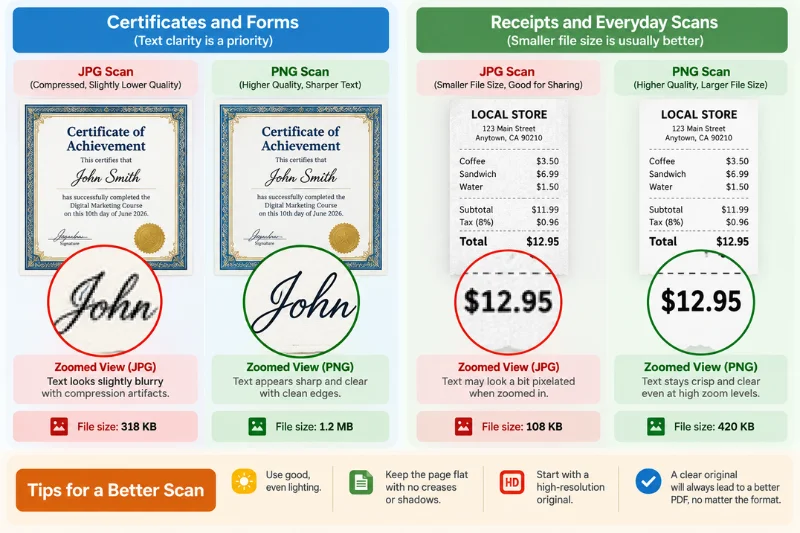
Scanning a document seems easy until you have to choose a format. A scan needs to be clear enough to read. Also small enough to send. That is a thing to balance, and the best choice depends on what you are scanning and where it is going. Let’s look at a few situations.
Certificates and Forms
If you are converting an existing image of a document and text clarity is a priority, PNG can help preserve sharp edges. However, the best format also depends on the original image quality, the converter, and any file-size restrictions.
Receipts and Everyday Scans
For scans, JPG works well. It keeps the file small and easy to share, which is what you need when you are sending many pages at once.
Tips for a Better Scan
The format is important. The scan itself is just as important. A few simple habits can make a difference:
- Use good, even lighting.
- Keep the page flat with no creases or shadows.
- Start with a high-resolution original.
A clear original will always lead to a better PDF than a blurry one saved in the best format. For everyday scans, JPG is often practical when file size matters. PNG can be useful when preserving sharp text is a priority.
JPG vs PNG for Images With Text
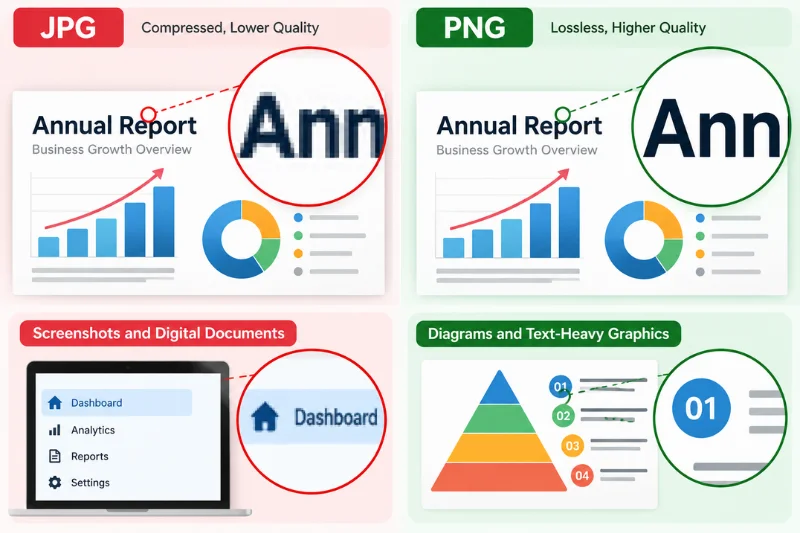
Text-heavy images can reveal quality differences between JPG and PNG, especially around small letters and thin lines. Here’s what to consider when choosing a format.
Screenshots and Digital Documents
PNG is often a good choice for screenshots containing menu labels, numbers, and thin lines because its lossless compression preserves sharp details.
Diagrams and Text-Heavy Graphics
Charts, diagrams, and infographics often look sharper in PNG. JPG compression may create blur or artifacts around text and thin lines, especially when images are enlarged or printed.
How to Check Text Sharpness in Your PDF
You don’t need special tools to check text sharpness:
- Download and open the PDF.
- Zoom in on the smallest text.
- Check whether the letters remain clear and readable.
PNG is often preferable for text-heavy images, but the final result also depends on how the converter processes the image. Text clarity is one factor to consider. If your image has a transparent background, the format matters too.
JPG vs PNG for Transparent Images
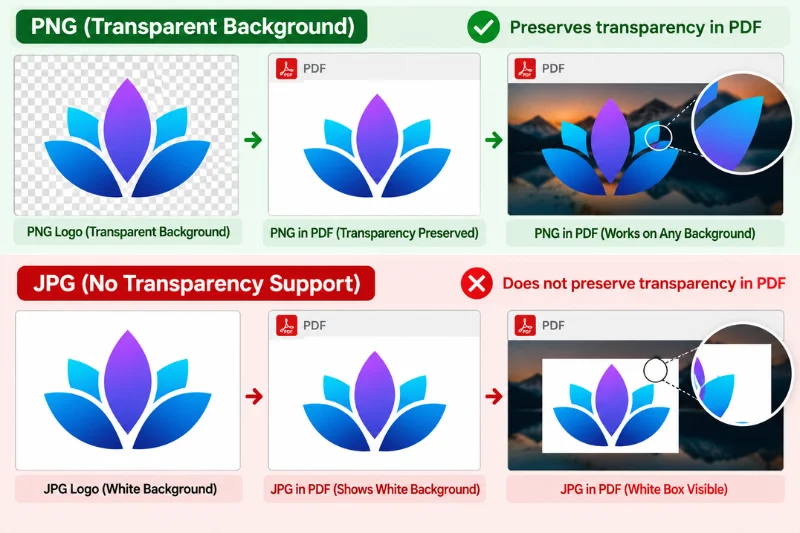
PNG supports transparency, while JPG does not. This makes PNG a better choice for transparent logos, icons, and graphics that need to retain a clean appearance when converted to PDF.
PNG’s Transparency Advantage
Use PNG when working with transparent logos, product graphics, icons, or designs that need to blend into different backgrounds. Its transparent areas can help preserve the intended appearance of these elements in your documents.
How PDF Converters Handle Transparency
When converting a PNG to PDF, the converter may preserve transparency or place the image against a solid background, depending on its settings and how the PDF is generated. If transparency matters, check your converter’s output rather than assuming the original PNG’s transparent areas will remain unchanged.
Check Transparency in the Final PDF
After conversion, open the PDF and inspect the logo or graphic against its intended background. Check for unwanted white boxes, solid backgrounds, or visible edges around transparent areas. If the result does not look right, try another converter or adjust its background settings.
How to Choose Between JPG to PDF and PNG to PDF
You’ve seen how JPG and PNG compare in image quality, file size, text clarity, and transparency. Now, let’s make the choice simple.
Choose JPG when smaller file sizes matter most. Choose PNG when preserving sharp text, graphics, and fine details is more important. The best format depends on the type of image and how you plan to use the PDF.
Choose by Use Case
- Photos: JPG
- Smaller PDF file size: JPG
- Everyday document scans: JPG
- Screenshots with text: PNG
- Logos and graphics: PNG
- Images with transparency: PNG
- Preserving fine details: PNG
If both formats seem suitable, consider your priority. Would you rather have a smaller PDF or preserve more image detail? Your answer will help you choose.
Once you’ve selected the right format, converting it to PDF takes just a few steps. Let’s start with how to convert JPG to PDF.
How to Convert JPG to PDF
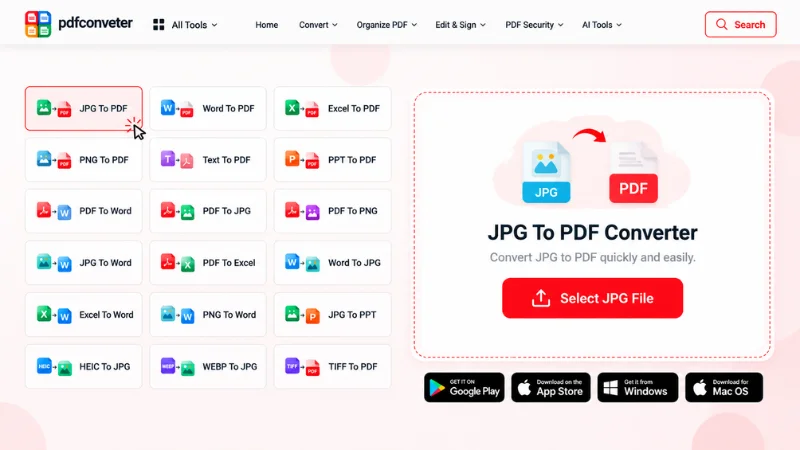
Converting a JPG to a PDF takes less than a minute. There is no need to install anything or learn any skills. All you need is your image and a few simple steps. Here is how it works.
Step 1: Open the tool
Go to PDF Converter and choose the JPG to PDF tool. It opens right in your browser, so there is nothing to install.
Step 2: Select your JPG
Pick the image from your phone or computer. Choose the clearest version you have.
Step 3: Convert your image
The tool turns your JPG into a PDF for you. This usually takes only a moment.
Step 4: Download and check
Save the PDF, then open it and look at the quality and file size. Make sure it is ready before you upload or send it.
How to Convert PNG to PDF
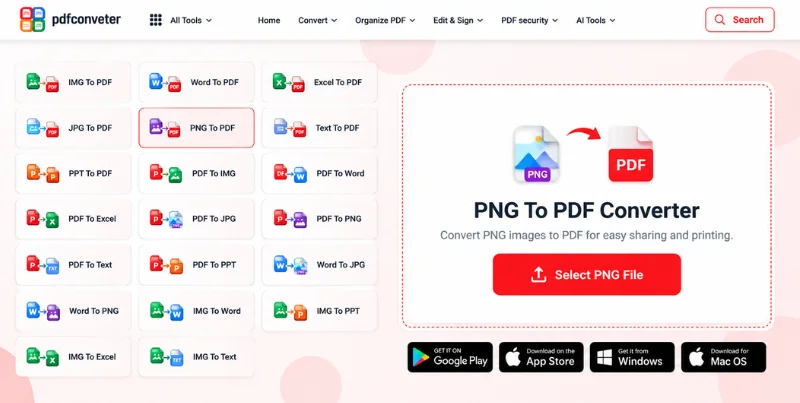
Have a PNG file you want to turn into a PDF? Maybe it’s a screenshot, a logo, or a design you want to share. The process is simple and works much like converting a JPG to PDF.
Follow these four steps to convert your PNG file.
Step 1: Open the Tool
Go to PDF Converter and select the PNG to PDF tool.
Step 2: Select Your PNG
Choose the PNG image from your phone or computer.
Step 3: Convert Your Image
Start the conversion and let the tool turn your PNG into a PDF.
Step 4: Download and Check
Download the PDF and open it to check the image quality and file size. Make sure it meets your requirements before uploading or sharing it.
Quick Tip: PNG files are often larger than JPG files, so the resulting PDF may also be larger. Check the file size before uploading or emailing it to ensure it meets any size limits.
Frequently Asked Questions
Is JPG or PNG better for PDF?
JPG is usually better for photos and smaller PDF files. PNG is often better for screenshots, text, logos, and graphics that need sharp details or transparency. The best choice depends on your image and priorities.
Is JPG to PDF smaller than PNG to PDF?
Usually, yes. JPG-to-PDF files are often smaller, especially when they contain photographs. However, the final size depends on image content, resolution, compression settings, and the PDF converter used.
Does PNG have better quality than JPG when converted to PDF?
PNG often preserves text, sharp edges, and fine details better because it uses lossless compression. JPG uses lossy compression, which can reduce image detail. However, converter settings can also affect the final PDF quality.
Should I convert scanned documents to PDF as JPG or PNG?
JPG is often suitable for everyday document scans when smaller file sizes matter. PNG can be a better option when preserving sharp text is important, such as for certificates or detailed forms. Always check readability before sharing.
Can I convert multiple JPG or PNG images into one PDF?
Yes, you can combine multiple JPG or PNG images into a single PDF using a suitable converter. This is useful for organizing receipts, forms, photos, and scanned pages into one file for easier sharing.
Does converting JPG or PNG to PDF reduce image quality?
Not necessarily. Converting an image to PDF does not automatically reduce its quality. However, some converters may resize or recompress images. Use a high-quality original and check the exported PDF before sharing it.
Conclusion
JPG and PNG both work well for PDFs, but the right choice depends on your needs. JPG is usually better for photos, everyday scans, and smaller file sizes. PNG is often better for screenshots, text-heavy images, logos, and graphics where preserving fine details matters. Before sharing or uploading your PDF, check its image quality and file size to make sure it meets your requirements.
Try It Yourself: Still unsure? Convert a JPG and a PNG version of the same image to PDF using our converter tool. Then compare the results side by side to see how quality and file size differ.