 IMG to PDF
  Word to PDF
  Excel to PDF
  JPG to PDF
  PNG to PDF
  Text to PDF
  PPT to PDF
  PDF to Image
  PDF to Word
  PDF to Excel
  PDF to JPG
  PDF to PNG
  PDF to Text
  PDF to PPT
  Word to JPG
  Word to PNG
  IMG to Word
  IMG to PPT
  IMG to Excel
  IMG to Text
  Merge PDF
  Split PDF
  Organize PDF
  OCR PDF
  Delete Page
  Add Page To PDF
  Compress PDF
  PDF Form Filler
  Fill Out PDF
  Create Fillable PDF
  Edit PDF
  Crop PDF
  Sign PDF
  Rotate PDF
  Add Watermark
  Add Number page
  Protect PDF
  Unlock PDF
  Redact PDF
  PDF To PDF/A
  PDF Translator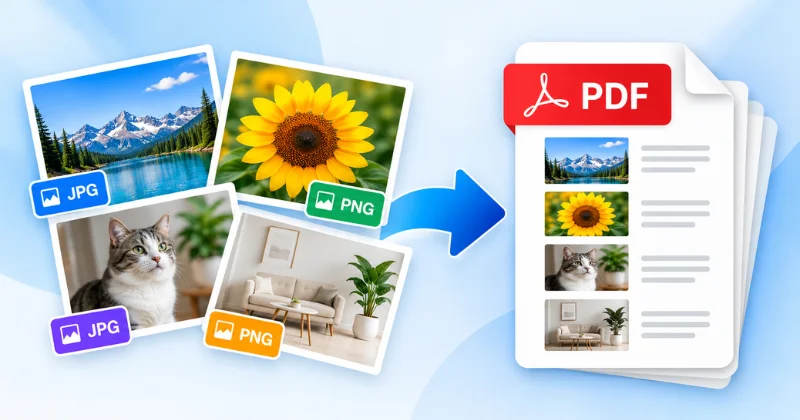
You can convert multiple images to one PDF in minutes. Use free online tools or built-in device options. This keeps your photos, screenshots, or documents together. It also makes sharing, printing, and submitting files easier. In this guide, you’ll learn several free conversion methods. You’ll also learn how to keep the correct image order.
Convert Multiple Images to One PDF in 7 Easy Steps
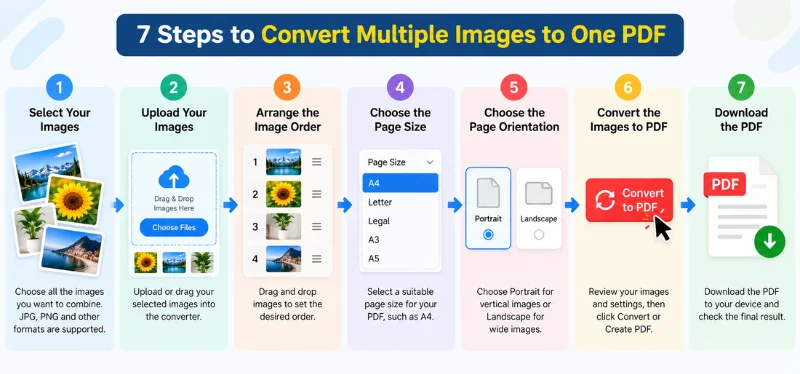
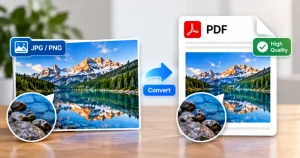
To convert multiple images to one PDF, upload your images to an image to PDF tool, arrange them in the correct order, choose your page settings, and click Convert. You can then download the finished PDF and check each page before sharing.
1. Select Your Images
Choose all the images you want to combine. You can select JPG, PNG, or other supported formats. For easier sorting, rename your files before uploading. For example, use page-01.jpg, page-02.jpg, and page-03.jpg.
2. Upload Your Images
Open your preferred image-to-PDF converter. Upload or drag your selected images into the tool. Make sure every image appears before continuing.
3. Arrange the Image Order
Check the order of your uploaded images. Drag and drop images to change their positions. The first image usually becomes the first PDF page.
4. Choose the Page Size
Select a suitable page size for your PDF. A4 works well for documents and printed files. For photos, you may prefer a size matching your images.
5. Choose the Page Orientation
Choose Portrait for vertical images. Choose Landscape for wide images. Check the preview to avoid unwanted cropping.
6. Convert the Images to PDF
Review your images and selected settings. Then click Convert, Create PDF, or a similar button. The tool will combine your images into one PDF file.
7. Download the PDF
Download the finished PDF to your device. Open it and check every page before sharing. Make sure the image order, quality, and layout look correct.
How to Convert Multiple Images to One PDF on Windows
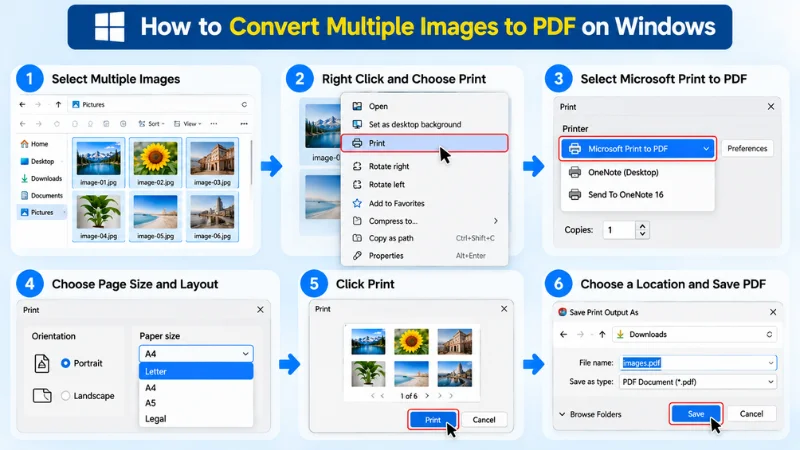
Windows includes a built-in Microsoft Print to PDF option. You can use it to combine multiple images into one PDF.
Using Microsoft Print to PDF
- Open File Explorer on your Windows computer.
- Select the images you want to combine.
- Right-click the selected images and choose Print.
- Select Microsoft Print to PDF as the printer.
- Choose a suitable paper size and layout.
- Check the image preview and page order.
- Click Print.
- Choose where to save the PDF.
- Enter a file name and click Save.
Note: The Print option may vary by Windows version and image type. If you do not see it, try Show more options or use a dedicated image-to-PDF tool.
How to Convert Multiple Images to One PDF on Mac
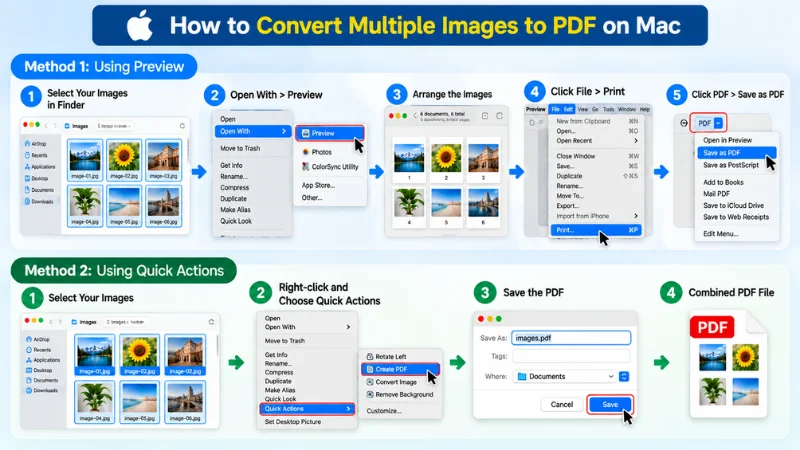
Mac users can combine multiple images into one PDF. You can use built-in macOS tools for this process.
Using Preview
- Open Finder and select your images.
- Right-click the selected images and choose Open With > Preview.
- Arrange the images in the desired order using the sidebar.
- Open File and choose Print.
- Click the PDF button in the print window.
- Select Save as PDF.
- Enter a file name and choose a save location.
- Click Save.
Using Quick Actions
- Select the images in Finder.
- Right-click the selected images.
- Choose Quick Actions.
- Select Create PDF.
- Save the generated PDF.
Note: Quick Actions works on macOS Monterey (12) or later. Older versions may not show Create PDF. In that case, use Preview instead.
How to Convert Multiple Images to One PDF on iPhone
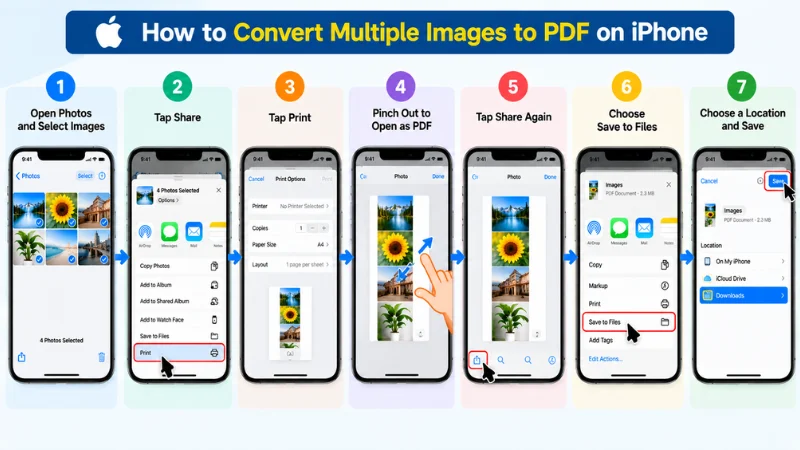
You can combine multiple images into one PDF on iPhone. The Photos app provides a simple way to do this.
Steps
- Open the Photos app on your iPhone.
- Select the images you want to combine.
- Tap Share, then choose Print.
- In the print preview, pinch out with two fingers to open it as a PDF.
- Tap the Share button again.
- Choose Save to Files and select a location.
How to Convert Multiple Images to One PDF on Android
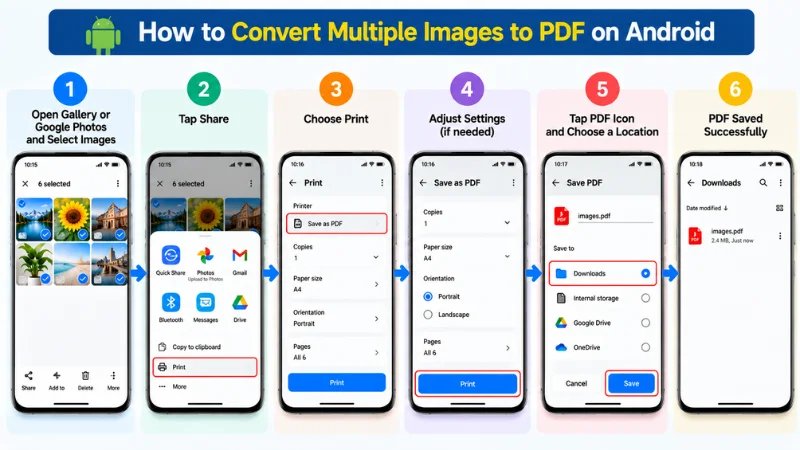
You can combine multiple images into one PDF on Android. The exact steps may vary by phone brand.
Steps
- Open Gallery or Google Photos.
- Select the images you want to combine.
- Tap Share, then choose Print.
- Open the printer dropdown and select Save as PDF.
- Tap the PDF icon and choose a save location.
Note: Results depend on your phone brand and app version. Some Gallery or Google Photos versions may print only one image at a time. If that happens, use an image-to-PDF app or an online tool.
Online vs Offline Ways to Convert Images to One PDF
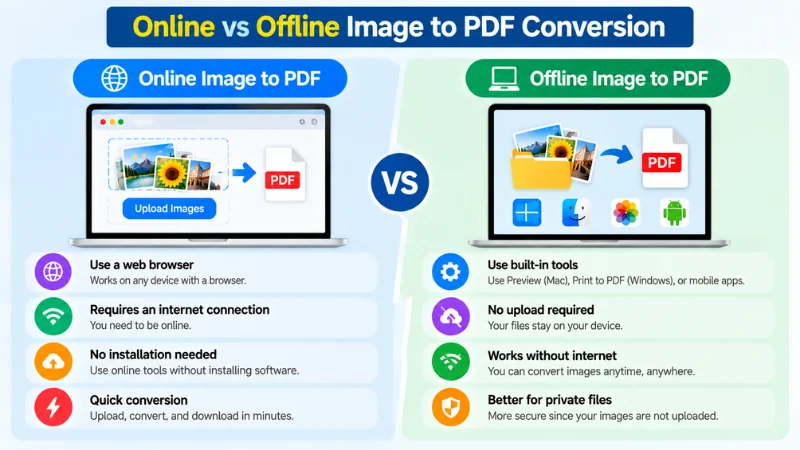
You can convert images using online or offline methods. Each method works well for different situations.
| Method | Internet | Software | Best For |
| Online Tool | Usually Yes | No installation | Quick conversions |
| Print to PDF | No | Built-in | Windows users |
| Mac Preview | No | Built-in | Mac users |
| Mobile Print / PDF | Usually No | Built-in | Phone users |
| Desktop Converter | No | Yes | Large batches |
Online Tools
Online converters are convenient when you need a quick solution. You can upload images and download the finished PDF. Before uploading files, check the tool’s privacy policy. Make sure you understand how uploaded images are handled.
Need a quick option? Use the Image to PDF converter to combine your images online in a few clicks.
Offline Tools
Offline methods keep the conversion process on your device. They can be useful for private documents and photos. Built-in tools also work without installing extra software. Desktop converters may provide more options for large batches.
How to Keep PDF Quality and Reduce File Size
A good PDF should stay clear without being too large. A few settings can help balance quality and file size.
- Use Good Resolution: Start with clear, high-quality images.
- Compress Carefully: Reduce file size while keeping good quality.
- Use JPG for Photos: JPG may help reduce photo file sizes.
- Avoid Unnecessary Cropping: Keep important details visible.
- Keep the Aspect Ratio: Prevent stretching or distortion.
- Check the Final PDF: Review quality, layout, and file size.
Frequently Asked Questions
How Can I Convert Three Images to One PDF?
Select the three images in an image-to-PDF tool. Arrange them in the correct order, then click Convert or Create PDF. The tool will combine the images into one PDF with each image on a separate page.
How Do I Convert More Than 100 Images to PDF?
First, check your converter’s image and file limits. If it cannot process all images together, split them into smaller batches. Convert each batch, then merge the PDF files into one document.
Can I Combine JPG and PNG Into One PDF?
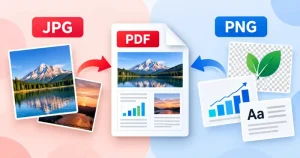
Yes, you can combine JPG and PNG images if the tool supports both formats. Upload the images, arrange them in the desired order, and create the PDF. Always check the supported formats first.
Can I Convert Images Without Installing Software?
Yes, you can use an online image-to-PDF converter without installing software. Upload your images, arrange them, and create the PDF in your browser. An internet connection is usually required.
How Do I Keep Images in the Correct Order?
Arrange the images before creating the PDF. You can also rename them with numbers, such as page-01.jpg, page-02.jpg, and page-03.jpg. This makes the desired order easier to manage.
How Do I Convert Images to PDF Without Losing Quality?
Start with good-quality original images and avoid excessive compression. Check the PDF after conversion to make sure the images remain clear and sharp.
Conclusion
Converting multiple images into one PDF is simple and quick. You can use built-in tools or online converters. Choose the method that fits your device and needs. Before sharing, check the image order, quality, and file size. Need to combine images quickly? Convert your images into one PDF with PDF Conveter today.