 IMG to PDF
  Word to PDF
  Excel to PDF
  JPG to PDF
  PNG to PDF
  Text to PDF
  PPT to PDF
  PDF to Image
  PDF to Word
  PDF to Excel
  PDF to JPG
  PDF to PNG
  PDF to Text
  PDF to PPT
  Word to JPG
  Word to PNG
  IMG to Word
  IMG to PPT
  IMG to Excel
  IMG to Text
  Merge PDF
  Split PDF
  Organize PDF
  OCR PDF
  Delete Page
  Add Page To PDF
  Compress PDF
  PDF Form Filler
  Fill Out PDF
  Create Fillable PDF
  Edit PDF
  Crop PDF
  Sign PDF
  Rotate PDF
  Add Watermark
  Add Number page
  Protect PDF
  Unlock PDF
  Redact PDF
  PDF To PDF/A
  PDF Translator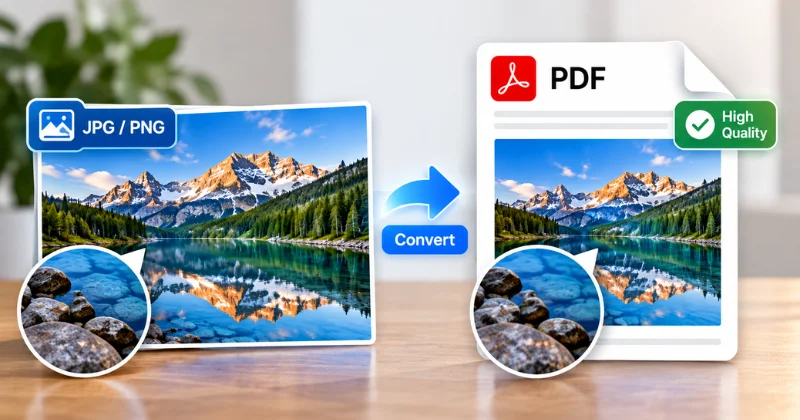
Converting an image to PDF should not make it look blurry. However, compression, low resolution, and resizing can reduce image quality. This can make text look fuzzy and edges look rough.
In this guide, you’ll learn how to convert an image to PDF without losing quality. You’ll also learn how to check your PDF and avoid common mistakes that reduce image quality.
Why Do Images Lose Quality When Converted to PDF?
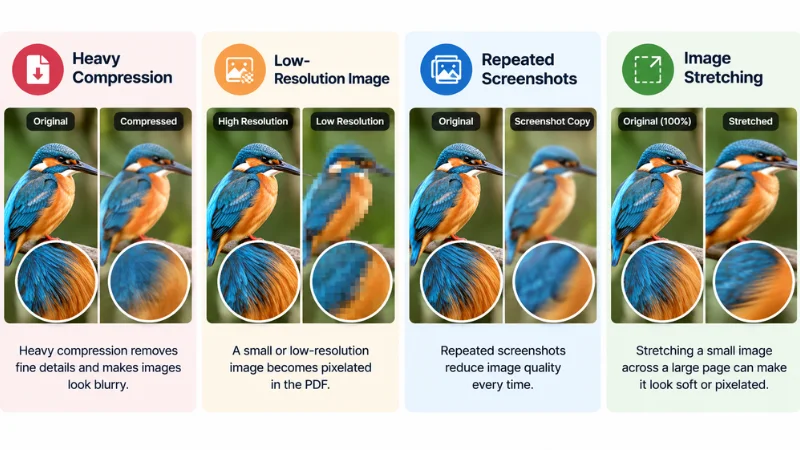
An image does not always get blurry because of the PDF format. In most cases, compression, low resolution, or resizing causes quality loss.
Heavy Compression
Some converters compress images to reduce file size. Too much compression can remove fine details and make images look blurry.
Low-Resolution Original
A small or blurry image cannot become sharper after conversion. The PDF can only preserve the quality of the original image.
Screenshots of Screenshots
Repeated screenshots can reduce image detail. Each new capture may contain less detail than the original.
Stretching an Image
A small image stretched across an A4 page can look soft or pixelated. Keep the image size suitable for the PDF page.
It also helps to understand how JPG and PNG handle image compression. JPG uses lossy compression, which can remove some image detail. PNG uses lossless compression, so it preserves the details in the saved image.
What Image Quality Should You Use Before Converting?
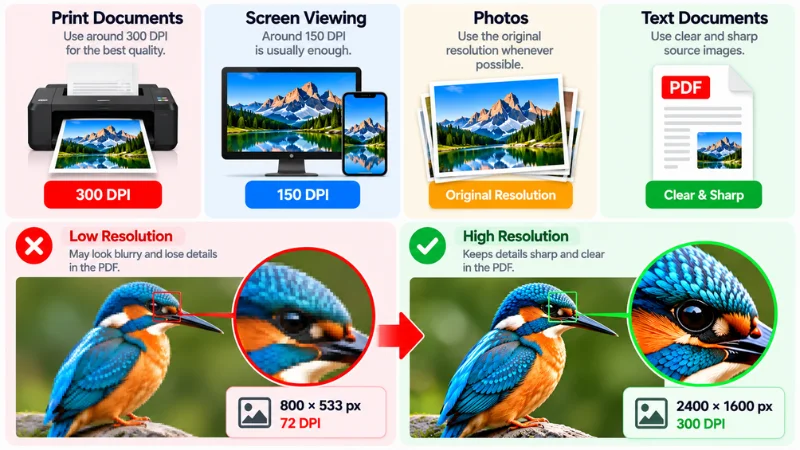
Start with the highest-quality original image available. Avoid enlarging small images before conversion. For print documents, around 300 DPI can provide good results. For screen viewing, around 150 DPI may be enough.
- Print Documents: Use around 300 DPI when possible.
- Screen Viewing: Around 150 DPI may be enough.
- Text Documents: Use clear and sharp source images.
- Photos: Keep the original resolution whenever possible.
DPI alone cannot improve a low-resolution image. The original pixel dimensions also affect image quality.
How to Convert Image to PDF Without Losing Quality (Step-by-Step)
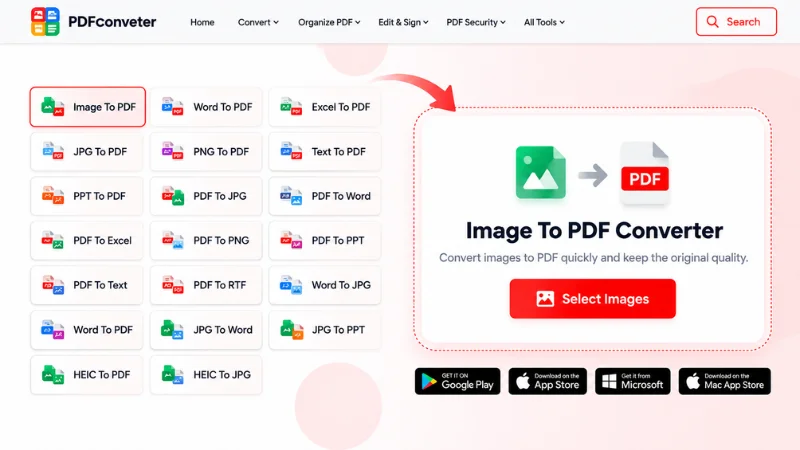
Once your image is ready, converting it to PDF is simple. Follow these steps to convert your image while preserving its quality.
Step 1: Open the PDF Converter
Go to the PDF Converter website on your phone or computer. There’s nothing to install and no account to set up.
Step 2: Pick the Original Image
Choose the original JPG or PNG from your device. Skip copies sent through chat apps. They’re often already compressed.
Step 3: Upload and Convert
Upload your image and start the conversion. Don’t resize or crop it first unless you have to. Unnecessary edits can sometimes reduce image detail.
Step 4: Download and Check the PDF
Download the PDF and open it. Zoom in to 200% and check the text and edges. If it looks soft, go back and use a higher-resolution original.
Best Practices for Converting Images to PDF
Follow these habits to preserve the original image. Avoid aggressive compression when quality matters more than file size.
| Area | What To Do |
| Image Quality | Use the highest-quality original |
| Compression | Keep it low |
| Resolution | Keep the original size |
| Resizing | Avoid when possible |
| Cropping | Only when needed |
| Page Size | Match the image when possible |
| Document Photos | Avoid shadows and keep your phone steady |
| White Space | Trim extra margins before converting |
These habits help preserve text, edges, and fine details. Always check the final PDF before sharing or printing it.
Common Mistakes That Reduce PDF Quality
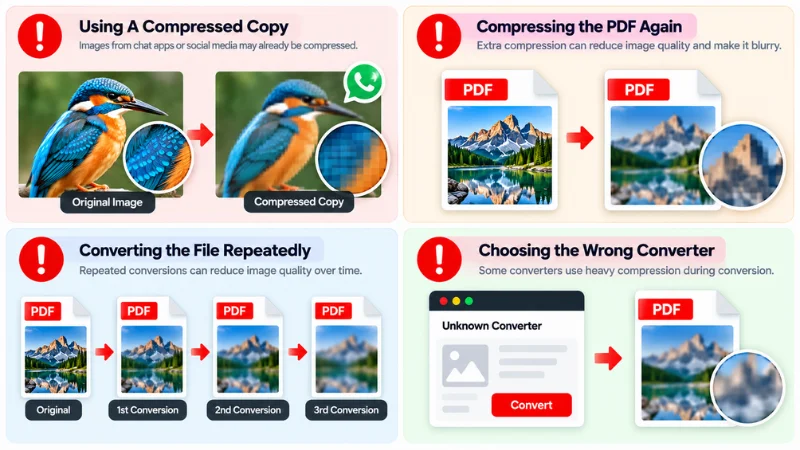
Even with the right converter, a few mistakes can reduce PDF quality. Avoid these common problems to keep your images clear and sharp:
- Using a Compressed Copy: Images shared through chat apps or social platforms may already be compressed. Use the original file whenever possible.
- Compressing the PDF Again: Extra compression can reduce image quality. Avoid compressing the PDF unless you need a smaller file.
- Converting the File Repeatedly: Repeated image-to-PDF and PDF-to-image conversions can affect quality. Convert directly from the original image when possible.
- Choosing the Wrong Converter: Some converters apply strong compression during conversion. Choose a tool that preserves image quality while creating the PDF.
How to Check If Your PDF Quality Is Good
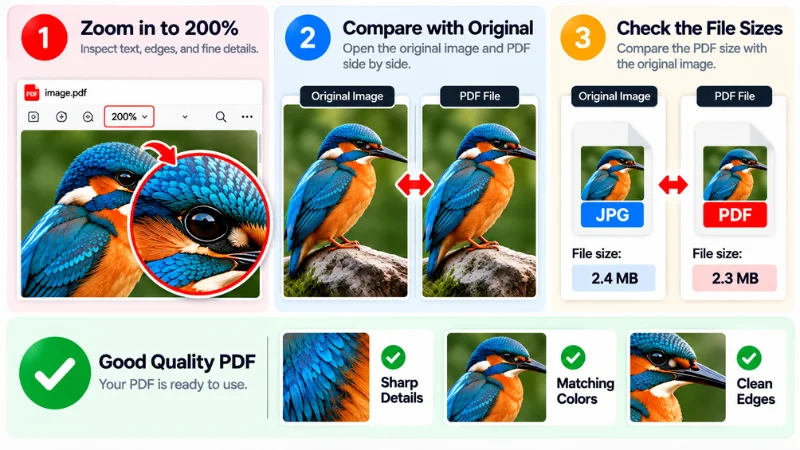
After downloading your PDF, check the file before sharing or submitting it. These three simple checks can help you spot common quality problems.
Zoom In to 200%
Zoom in to 200% and inspect the text, edges, and fine details. Look for blurry letters, jagged edges, or missing details.
Put the PDF Side by Side With the Original
Open the original image and PDF side by side. Check whether the text, colors, edges, and details look consistent.
Check the File Sizes
Compare the PDF size with the original image. A much smaller file can be a sign of stronger compression, but file size alone does not prove quality loss.
If everything looks correct, your PDF is ready to use. If something looks off, fix the image and convert it again.
How to Convert Multiple Images to One PDF Without Losing Quality
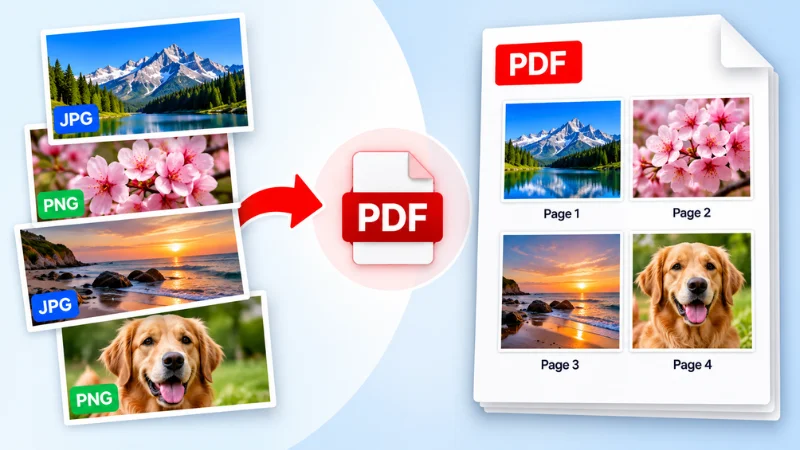
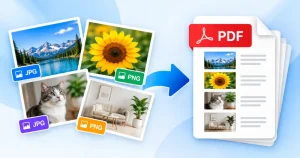
Select the original images you want to combine. Skip compressed copies from messaging apps or social platforms. Upload the images together and convert them into one PDF. Check each page after downloading.
Avoid stretching small images across large pages. Images with similar dimensions give a more consistent result. If a page looks blurry, check the original image first.
Want the full steps? Read our guide to convert multiple images to one PDF.
Frequently Asked Questions
Does Converting an Image to PDF Reduce Quality?
Not by itself. Image quality usually drops because of heavy compression, resizing, or a low-resolution original.
Which Format Is Best for Converting to PDF, JPG or PNG?
PNG works well for screenshots, logos, graphics, and text-heavy images. JPG is better for photographs when you want a smaller file size.
Why Is My PDF Blurry After Conversion?
A low-resolution image, heavy compression, or excessive resizing can make a PDF blurry. Use the original image and avoid unnecessary compression.
Can I Convert a Screenshot to PDF Without Losing Quality?
Yes, if the screenshot has enough resolution and is not compressed. Use the original screenshot file and avoid taking another screenshot of it.
Is It Safe to Use an Image to PDF Converter?
It depends on the converter and its privacy practices. Check the site’s privacy policy before uploading files. Avoid uploading sensitive documents to tools you do not trust.
Conclusion
Converting an image to PDF does not have to reduce its quality. Start with a clear original image and avoid heavy compression or unnecessary resizing. Before sharing the PDF, zoom in and check the text, edges, and fine details.
Now that you know how to convert an image to PDF without losing quality, try the Image to PDF tool. Upload your image and create a clear, high-quality PDF in just a few steps.