 IMG to PDF
  Word to PDF
  Excel to PDF
  JPG to PDF
  PNG to PDF
  Text to PDF
  PPT to PDF
  PDF to Image
  PDF to Word
  PDF to Excel
  PDF to JPG
  PDF to PNG
  PDF to Text
  PDF to PPT
  Word to JPG
  Word to PNG
  IMG to Word
  IMG to PPT
  IMG to Excel
  IMG to Text
  Merge PDF
  Split PDF
  Organize PDF
  OCR PDF
  Delete Page
  Add Page To PDF
  Compress PDF
  PDF Form Filler
  Fill Out PDF
  Create Fillable PDF
  Edit PDF
  Crop PDF
  Sign PDF
  Rotate PDF
  Add Watermark
  Add Number page
  Protect PDF
  Unlock PDF
  Redact PDF
  PDF To PDF/A
  PDF Translator
Image to PDF conversion problems like blurry output, incorrect orientation, unsupported formats, or large file sizes can make a simple task frustrating. In this guide, you’ll learn why these issues occur and how to fix them step by step, so you can create a clear, properly formatted PDF for assignments, forms, receipts, and other documents.
Quick Fixes for Common Image to PDF Problems
Short on time? This table shows the most common image-to-PDF conversion problems and the quickest fix for each one.
| Problem | Quick Fix |
| Blurry output | Use the original, high-resolution image |
| Unsupported format | Convert to JPG or PNG |
| Large file size | Resize the image or compress the PDF |
| Rotated image | Rotate and save before converting |
| Image doesn’t fit | Crop the image first |
| Text can’t be selected | Use a separate OCR tool |
| Conversion fails | Reload, check internet, or switch browser |
| PDF won’t open | Install a PDF viewer and re-download |
Common Image to PDF Conversion Problems and Their Fixes
Image-to-PDF conversion problems can affect image quality, file size, orientation, and usability. Here are eight common issues, along with their causes and practical solutions.
1. Blurry or Low-Quality PDF Output
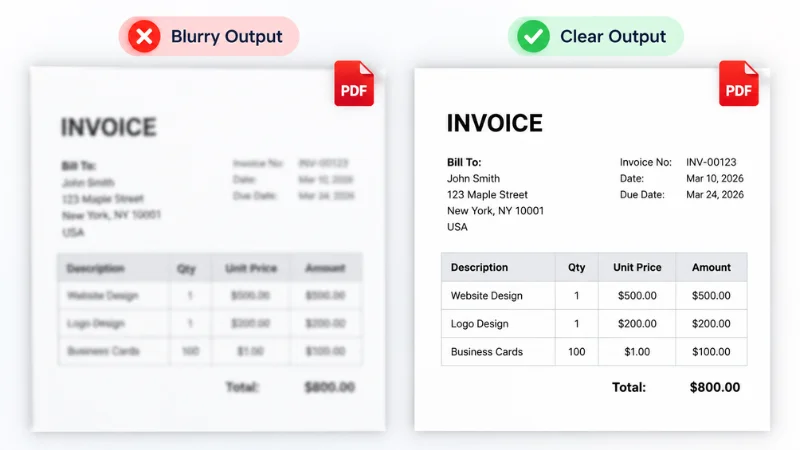
This is a common problem people run into. You take a photo that looks sharp and clear. When you turn it into a PDF, it ends up looking soft or full of pixels when you zoom in.
Why It Happens
If the original image was small, zooming in will always show the pixels. WhatsApp and other messaging apps often compress images to save space, which can reduce detail. Another big cause is taking a screenshot of a screenshot. Every time you do that, the quality gets worse.
How to Fix It
- Use the original, high-resolution image instead of a compressed copy.
- Take photos in good lighting and keep your phone steady.
- Avoid repeatedly saving or editing the image.
2. Image Format Not Supported
Sometimes you choose an image, and the converter just does not accept it.
Why It Happens
Not all image formats work in every tool. Some phones save pictures in formats like HEIC. Some websites download images as WEBP. These formats can cause problems with converters.
How to Fix It
JPG and PNG are widely supported image formats. Screenshots from your phone or computer also work well. If your image is in a different format, follow these steps:
- Save or convert the image to JPG or PNG.
- Check that the new file opens properly.
- Upload the JPG or PNG file to the converter.
- Try the conversion again.
3. PDF File Size Is Too Large
You finish the conversion and try to email or upload the PDF. It says the file is too big.
Why It Happens
High-resolution phone photos can take up several megabytes. When that photo goes into a PDF, the file stays large.
How to Fix It
- Use a smaller image if fine details aren’t needed.
- Avoid combining too many large photos into one PDF.
- Use a PDF compressor if the file is still too large.
- Check the PDF quality after compression before sharing it.
4. Image Is Rotated or Sideways in the PDF
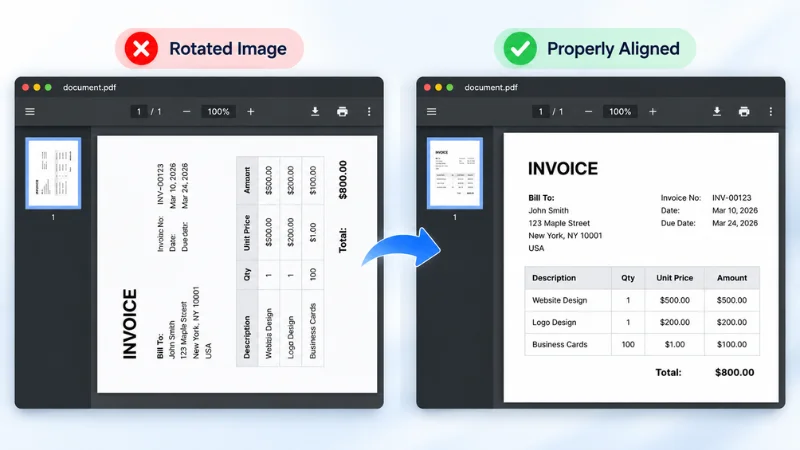
The photo looked fine on your phone. In the PDF, it is rotated or sideways.
Why It Happens
Phones store a hidden orientation note (EXIF metadata) about which way the phone was held. Some apps respect that note, and some do not, so the image can show up rotated after conversion.
How to Fix It
- Open the image in your phone gallery or any photo editor.
- Rotate it to the correct direction.
- Save the image.
- Convert the saved image to PDF.
5. Image Does Not Fit the Page
Sometimes an image looks cut off, or large empty spaces appear around it.
Why It Happens
Images come in various shapes, while PDF pages have a fixed shape. When they don’t match, the image may look cropped or surrounded by space.
How to Fix It
- Open the image in your gallery or any photo editor.
- Crop or adjust it the way you want it to appear in the PDF.
- Keep important text or subjects centered.
- Save the image and convert it to PDF.
6. Text in the PDF Cannot Be Selected
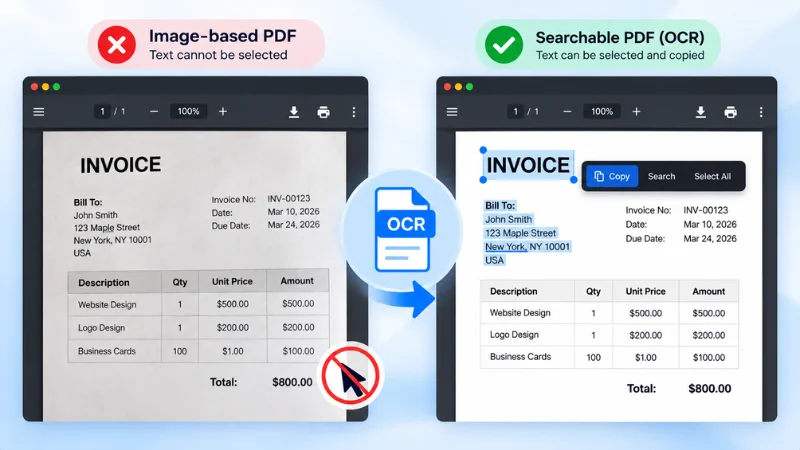
You converted a photo of a document. You cannot copy the text, or the words are hard to read.
Why It Happens
A PDF made from an image is still a picture inside a PDF. The words are part of the picture, not text, so you cannot select or search them. If the original photo was dark or shaky, the words will look unclear too.
How to Fix It
- Use even lighting and avoid shadows when taking the photo.
- Keep the camera straight above the document.
- Use an OCR tool to make the text searchable or editable, depending on its features.
7. Conversion Fails or Gets Stuck
The conversion may freeze, or you may see an error message.
Why It Happens
This usually happens because of an internet connection, a very big file, or a browser that needs to be reloaded.
How to Fix It
- Reload the page and try again.
- Make sure your internet connection is working properly.
- Use a smaller image.
- Try the tool in another browser.
8. PDF Won’t Open or Download Properly on Phone
The file downloads but will not open, or you cannot find it afterward.
Why It Happens
The problem is often your phone, not the PDF. You may not have a PDF viewer, your storage may be full, or the download did not fully finish.
How to Fix It
- Open the PDF in your browser or install a PDF viewer app.
- Free up some storage space.
- Download the file again.
- Check your Downloads folder if you cannot find it.
How to Convert Image to PDF Easily
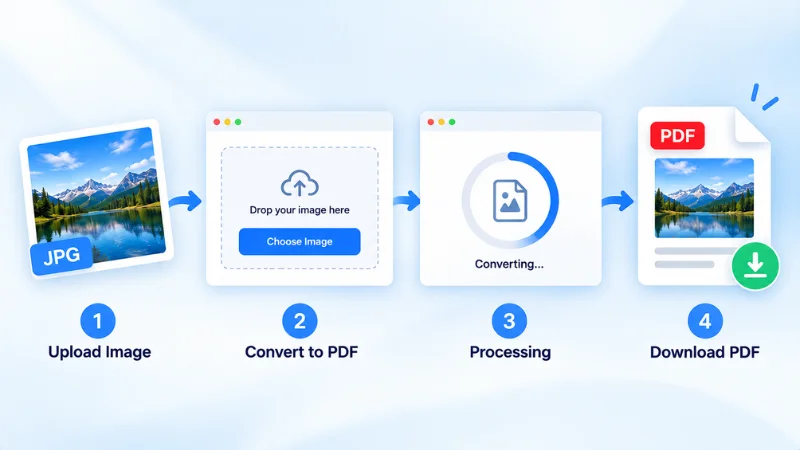
Once your image is ready, converting it to PDF takes just a few steps:
- Open the PDF Converter Image to PDF tool in your browser.
- Upload your JPG or PNG image.
- Let the tool convert your image automatically.
- Download the PDF and check the result before sharing it.
For better results, always start with a clear, high-quality image. See our guide on how to convert images to PDF without losing quality.
Note: This tool does not offer manual controls for page size, orientation, or compression, so prepare your image before uploading it.
Frequently Asked Questions
Why is my image blurry after converting to PDF?
The original image may have a low resolution or may have been compressed by a messaging app. Use a clear, high-resolution image to help maintain quality.
Why can’t I convert a HEIC or WEBP image to PDF?
Some converters don’t support HEIC or WEBP files. If your converter rejects the image, convert it to JPG or PNG and try again.
How do I reduce PDF size after converting an image?
Resize or compress the original image before conversion, or use a PDF compressor afterward. Check the final PDF to ensure the text and details remain clear.
Why is my image rotated in the PDF?
Some converters may not interpret an image’s orientation metadata correctly. Rotate the image in a photo editor, save the changes, and convert it again.
Is it safe to convert images to PDF online?
Online conversion can be convenient, but avoid uploading sensitive documents, such as ID cards or bank statements, unless you trust the service and understand its privacy and file-handling policies.
Conclusion
Most problems when converting an image to PDF, such as blurry output, large file size, or incorrect orientation, are easy to fix. Start with a clear, high-quality image, use a supported format like JPG or PNG, and check the image before converting.
Ready to convert? Use the PDF Converter Image to PDF tool to turn your JPG or PNG into a PDF in a few clicks, then check the result before sharing.