 IMG to PDF
 Word to PDF
 Excel to PDF
 JPG to PDF
 PNG to PDF
 Text to PDF
 PPT to PDF
 PDF to Image
 PDF to Word
 PDF to Excel
 PDF to JPG
 PDF to PNG
 PDF to Text
 PDF to PPT
 Word to JPG
 Word to PNG
 IMG to Word
 IMG to PPT
 IMG to Excel
 IMG to Text
 Merge PDF
 Split PDF
 Organize PDF
 OCR PDF
 Delete Page
 Add Page To PDF
 Compress PDF
 PDF Form Filler
 Fill Out PDF
 Create Fillable PDF
 Edit PDF
 Crop PDF
 Sign PDF
 Rotate PDF
 Add Watermark
 Add Number page
 Protect PDF
 Unlock PDF
 Redact PDF
 PDF To PDF/A
 PDF Translator
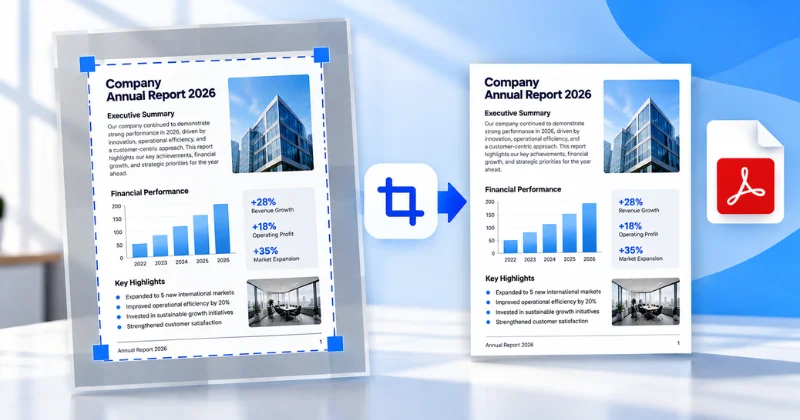
You can crop PDF pages online using a tool that lets you download the edited file without adding a watermark. Upload your PDF, select the area you want to keep, and apply the crop settings.
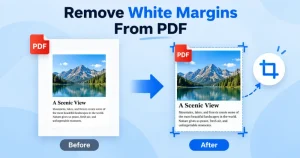
Cropping helps remove unwanted margins and borders from PDF pages. In this guide, you’ll learn how to crop a PDF, preserve important content, and understand how cropping affects watermarks and document quality.
How to Crop PDF Pages Online Free Without Watermark
You can crop PDF pages online in a few simple steps using the PDF Conveter Crop PDF tool. Follow the instructions below to remove unwanted margins or white space and download your cropped PDF.
Step 1: Upload Your PDF
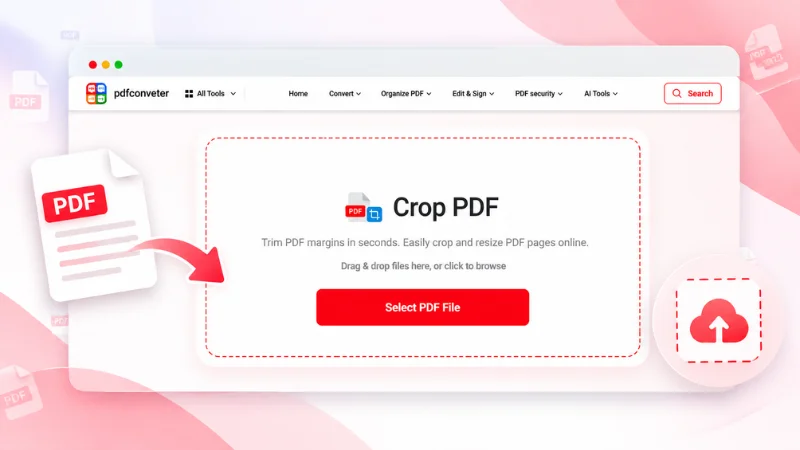
Open the Crop PDF tool and select your PDF file or drag and drop it into the upload area. Wait for the document to load before adjusting the page area.
Step 2: Select the Area You Want to Keep
Drag the crop box or adjust its side and corner handles to select the area you want to keep. Make sure important text, page numbers, headers, and images remain inside the selected area.
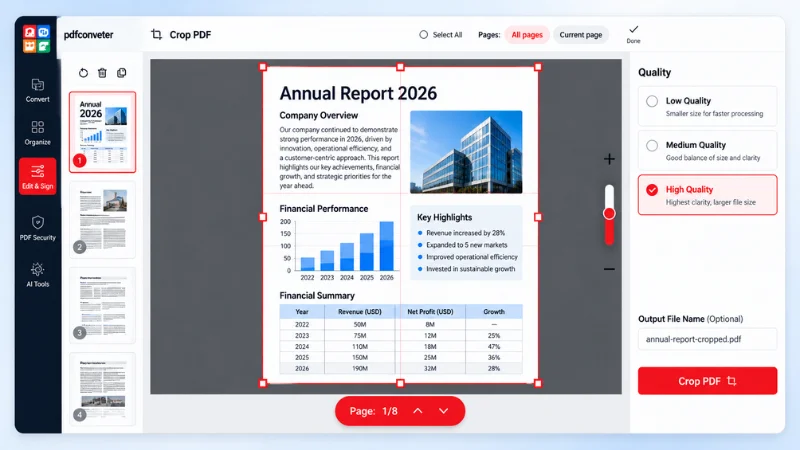
If the tool allows, you can apply the same crop to all pages or choose specific pages. Take a moment to review the selection carefully before moving to the next step.
Step 3: Apply the Crop and Download Your PDF
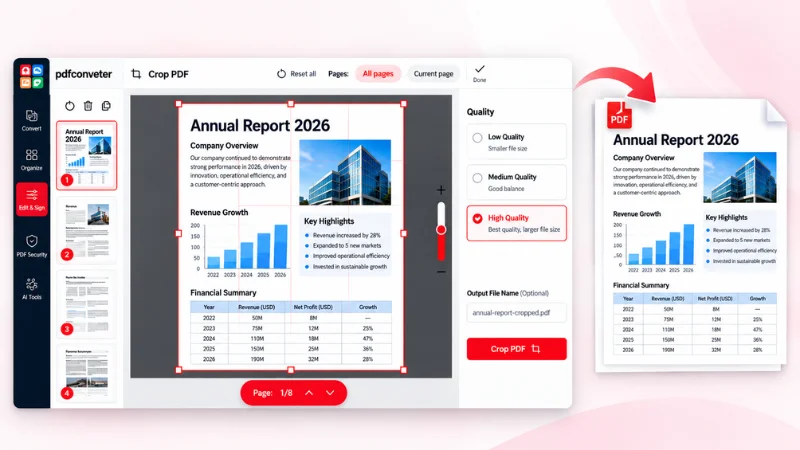
Apply the crop settings and review the result. If everything looks correct, download the cropped PDF. Open the saved file to confirm that no important content has been cut off and that the output meets your requirements.
How to Crop PDF Pages Without Cutting Off Content
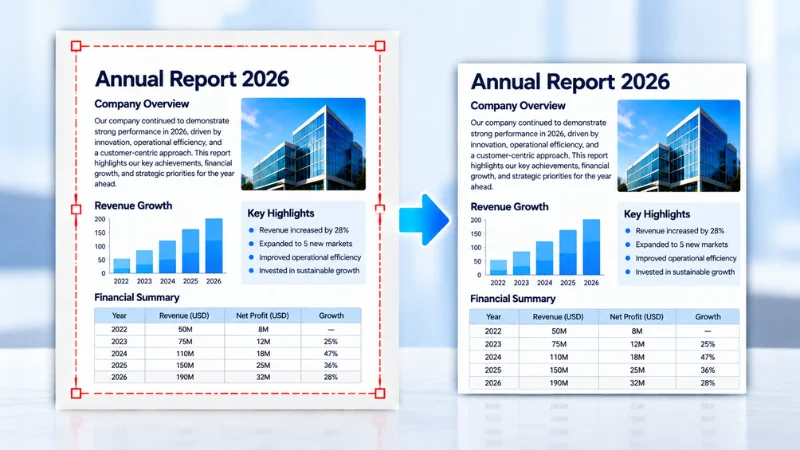
Cropping a PDF too tightly can hide important text, page numbers, or parts of images. Before applying the crop, check the selected area carefully.
- Leave enough space around text and headings.
- Keep page numbers and headers if they are needed.
- Make sure tables, charts, and diagrams fit within the selected area.
- Review the cropped pages before using the final file.
Does Cropping a PDF Remove Watermarks?
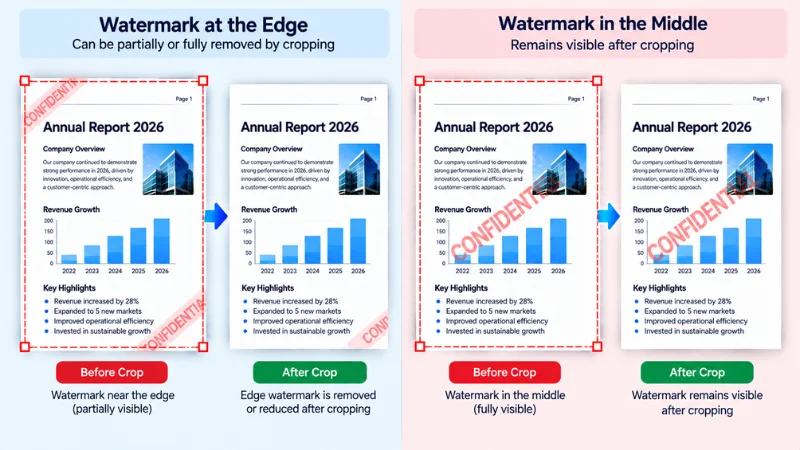
Cropping a PDF and removing a watermark are two different things. Cropping changes the visible page area, while watermark removal targets the watermark itself.
If a watermark appears near the page edges, cropping may cut off part of it. However, if the watermark is located inside the selected area, it will usually remain visible. Cropping too aggressively can also remove important text, images, or other content.
Tip: Use cropping carefully when you only want to remove unwanted margins. To remove a watermark from the document itself, you may need a PDF editor or a dedicated watermark removal tool.
Does Cropping a PDF Affect Its Quality?
Cropping a PDF generally changes the visible page area rather than reducing the resolution of its text or images. However, the result depends on how the PDF tool processes the document.
When reviewing a cropped PDF, check that:
- Text readability: Text and page numbers remain clear.
- Image clarity: Photos, charts, and diagrams retain their detail.
- Page layout: Important content is positioned correctly.
Tip: Keep a copy of the original PDF until you have confirmed that the cropped version looks correct and no important content is missing.
Frequently Asked Questions
Can I Crop a PDF Online for Free Without a Watermark?
You can crop a PDF online without a watermark if the tool supports watermark-free downloads on its free plan. Check PDF Conveter’s current tool options and usage limits before processing your file.
Can I Crop Only Specific PDF Pages?
This depends on the tool. Some PDF croppers let you select individual pages, while others apply the same crop settings across multiple pages. Check the available options before starting.
Do I Need to Install Software to Crop a PDF?
No desktop installation is needed when you use a browser-based PDF cropping tool. Open the tool in your browser, upload your PDF, and follow the available cropping options.
Is It Safe to Crop a PDF Online?
That depends on how the service handles uploaded files. Before uploading sensitive documents to PDF Conveter or any online PDF tool, review its privacy policy and file-handling practices.
Conclusion
Cropping a PDF is a simple way to remove unwanted margins and improve page layout. Choose the crop area carefully so essential text, page numbers, and images remain visible. To get started, visit the PDF Conveter Crop PDF tool and follow the steps in this guide.