 IMG to PDF
  Word to PDF
  Excel to PDF
  JPG to PDF
  PNG to PDF
  Text to PDF
  PPT to PDF
  PDF to Image
  PDF to Word
  PDF to Excel
  PDF to JPG
  PDF to PNG
  PDF to Text
  PDF to PPT
  Word to JPG
  Word to PNG
  IMG to Word
  IMG to PPT
  IMG to Excel
  IMG to Text
  Merge PDF
  Split PDF
  Organize PDF
  OCR PDF
  Delete Page
  Add Page To PDF
  Compress PDF
  PDF Form Filler
  Fill Out PDF
  Create Fillable PDF
  Edit PDF
  Crop PDF
  Sign PDF
  Rotate PDF
  Add Watermark
  Add Number page
  Protect PDF
  Unlock PDF
  Redact PDF
  PDF To PDF/A
  PDF Translator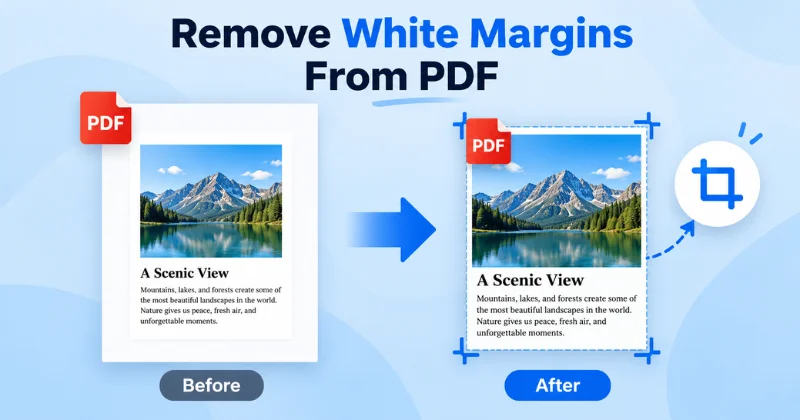
Large white margins can make a PDF look poorly formatted, waste valuable space, and create problems when printing or sharing. If you want to remove white margins from PDF files, the easiest way is to crop the page around the actual content. An online PDF cropper lets you trim unwanted space and create a cleaner, more compact document without installing any software.
Why Does a PDF Have White Margins?
White margins usually appear when the page size is larger than the actual content. This commonly happens during scanning, document conversion, or when a file is exported with extra spacing.
While margins can be useful for some documents, excessive white space can make pages look unbalanced and take up unnecessary space.
Common Reasons a PDF Has Large White Margins
- Scanned documents: Scanners often capture extra space around the edges, leaving white borders.
- Page size mismatch: Content may occupy only part of a larger page, creating empty areas.
- Word, Google Docs, or image conversion: Export settings can add extra space around the original content.
- Extra blank space: Some PDFs are created with unnecessarily large margins or empty areas around text and images.
When these margins are larger than necessary, cropping the PDF can remove the unwanted space and create a cleaner page layout.
How to Remove White Margins From a PDF Online
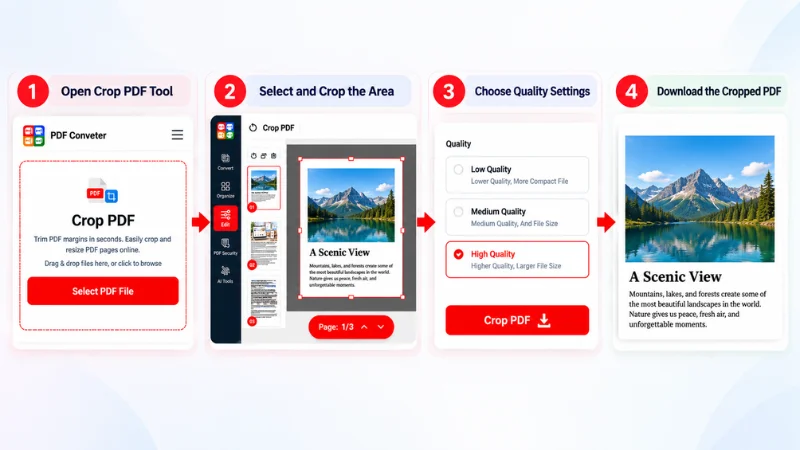
Removing unwanted white margins is simple with an online PDF cropper. Follow these steps to remove unwanted margins and create a cleaner PDF.
1. Upload Your PDF
Upload the PDF you want to edit by selecting the file from your device or dragging and dropping it into the online PDF cropper.
2. Select the Area to Keep
Open the page preview and adjust the crop area around the content you want to keep. Make sure all important text, images, and elements stay inside the selection.
3. Crop the White Margins
Adjust the crop boundaries on the top, bottom, left, and right sides to remove unwanted white space from the page. Fine-tune the selection until the content fits comfortably within the new page boundaries.
4. Apply the Crop and Preview
Apply the crop settings and preview the result. Check that no text, images, or other important content has been accidentally cut off.
5. Download the Cropped PDF
Once you’re satisfied with the result, download the cropped PDF. Your PDF will now have tighter margins, less wasted space, and a cleaner layout.
How to Remove White Margins From All PDF Pages
If every page has similar white margins, you can apply the same crop boundaries to the entire document instead of editing pages one by one. This is especially useful for scanned documents, reports, and PDFs with consistent layouts.
When Cropping All Pages Works Best
Applying the same crop to all pages works well when the pages have:
- Similar page sizes
- Consistent margins
- A uniform document layout
If some pages have different layouts or content near the edges, review those pages individually to avoid cutting off important information.
How to Remove White Margins From a Scanned PDF
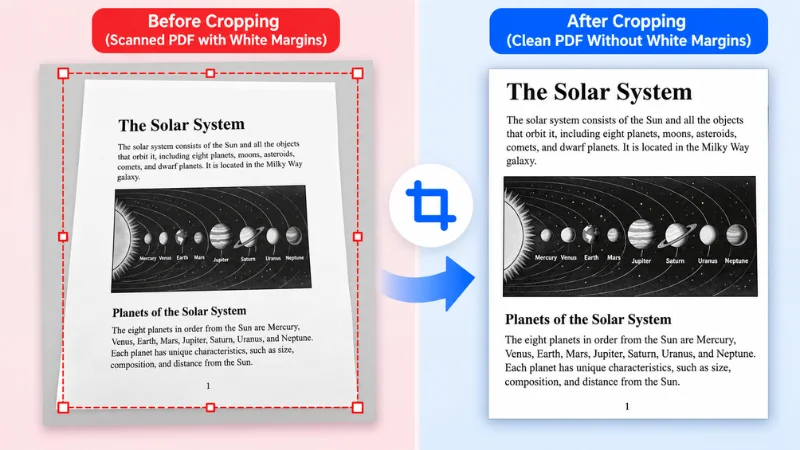
Scanned PDFs often have uneven white borders because scanners capture extra space around the original document. You can remove these margins by cropping the page around the scanned content. For documents with consistent borders, automatic trimming can make the process much faster.
Tips for Scanned PDFs
- Check the borders carefully so the crop follows the actual document edges.
- Use automatic trimming when available to detect and remove consistent white space.
- Review each page, as scanned documents sometimes have slightly different margins.
This approach helps remove unwanted scanner-generated space while keeping the original document content intact.
Automatic vs. Manual PDF Margin Removal
Some PDF tools can automatically detect and remove white margins, while others let you manually choose the area to keep. The best option depends on how consistent the margins are across your pages.
| Method | Best for |
| Automatic | Consistent or scanned margins |
| Manual | Precise control |
| Page-by-page | Different page layouts |
For most scanned PDFs with consistent borders, automatic trimming saves time. When pages have uneven layouts or content close to the edges, manual cropping gives better control and reduces the risk of cutting off important elements.
Does Removing PDF Margins Reduce Quality?
Cropping a PDF does not normally reduce the quality of its text or images. It changes the visible page area while keeping the original content quality intact. Adobe explains that cropping may not reduce the file size because cropped content can remain in the PDF.
How to Crop a PDF Without Losing Quality
When removing PDF margins, focus on adjusting the page boundaries rather than changing the document’s resolution or compression settings. Keep the crop area outside the important content and check the final pages before downloading.
What Gets Removed When You Crop a PDF?
Cropping primarily removes the visible area outside the selected page boundaries, such as unnecessary white margins or blank space. It does not delete the text or images that stay inside the crop area. Anything that falls outside the new page boundaries will no longer be visible.
Tip: Always preview the cropped PDF to make sure important text, images, and page elements remain fully visible.
How to Remove White Borders From a PDF for Printing
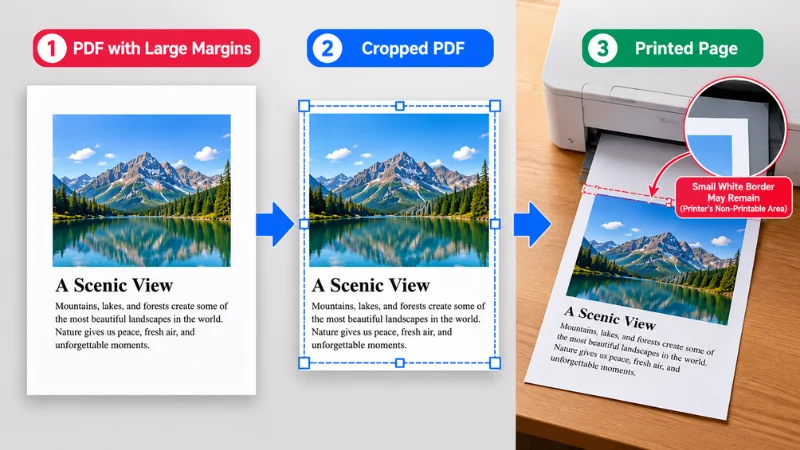
White borders can come from large PDF margins or from the printer’s physical printable area. Cropping the PDF can reduce unnecessary space, but it cannot always eliminate borders created by the printer itself.
- Crop excess PDF margins to bring the content closer to the edges.
- Match the PDF page size to your document size.
- Enable borderless printing if your printer supports it.
- Check the print preview to see whether any white borders will remain.
Important: Even after cropping, a small physical border may still appear if the printer does not support edge-to-edge printing.
Common Problems When Removing PDF Margins
Even a simple PDF cropping process can cause a few issues. Here are some common problems and quick solutions.
Cropping Cuts Off Text or Images
If important content is too close to the edge, reduce the crop area and leave a small amount of space around the content. Always preview the result before downloading.
Different Pages Have Different Margins
A single crop setting may not work for every page. For PDFs with varying layouts, review or crop pages individually to avoid cutting off content.
Some White Space Remains After Cropping
Make sure the crop boundaries are close enough to the actual content. If the remaining space is intentional, such as a document’s design margin, it may be better to keep it.
Cropping Doesn’t Always Reduce PDF File Size
Cropping changes the visible page area but does not necessarily remove the underlying data from the PDF. If you need a smaller file, use a PDF compression tool after cropping.
Frequently Asked Questions
How do I remove white margins from a PDF online?
Upload your PDF to an online PDF cropper, select the area around the content, and crop the unwanted white space. Preview the result and download the cropped PDF.
Can I remove white margins from a PDF for free?
Yes. Many online tools offer free margin removal. Check the tool’s limits, such as file size, page count, or daily usage, before processing your document.
How do I remove white space from a PDF?
Crop the page around the actual content and adjust the top, bottom, left, and right boundaries for a tighter layout.
Can I remove margins from all PDF pages at once?
Yes, if the pages have consistent margins. Apply the same crop to all pages to save time. Different layouts may still need individual adjustments.
Can I remove white margins from a scanned PDF?
Yes. Scanned PDFs often have extra borders. You can crop them manually or use automatic trimming when available.
Does cropping a PDF reduce quality?
No. Cropping only changes the visible page area and does not reduce the quality of text or images.
Can I remove PDF margins without installing software?
Yes. An online PDF cropper lets you remove unwanted margins directly in your browser without installing desktop software.
Need to Remove White Margins From Your PDF?
Removing excessive white space can make your PDF look cleaner, more balanced, and easier to print or share. Use our Crop PDF tool to quickly trim PDF margins and crop your PDF pages online without installing software. Ready to clean up your PDF? Try our Crop PDF tool and remove unwanted white margins in just a few clicks.