 IMG to PDF
 Word to PDF
 Excel to PDF
 JPG to PDF
 PNG to PDF
 Text to PDF
 PPT to PDF
 PDF to Image
 PDF to Word
 PDF to Excel
 PDF to JPG
 PDF to PNG
 PDF to Text
 PDF to PPT
 Word to JPG
 Word to PNG
 IMG to Word
 IMG to PPT
 IMG to Excel
 IMG to Text
 Merge PDF
 Split PDF
 Organize PDF
 OCR PDF
 Delete Page
 Add Page To PDF
 Compress PDF
 PDF Form Filler
 Fill Out PDF
 Create Fillable PDF
 Edit PDF
 Crop PDF
 Sign PDF
 Rotate PDF
 Add Watermark
 Add Number page
 Protect PDF
 Unlock PDF
 Redact PDF
 PDF To PDF/A
 PDF Translator
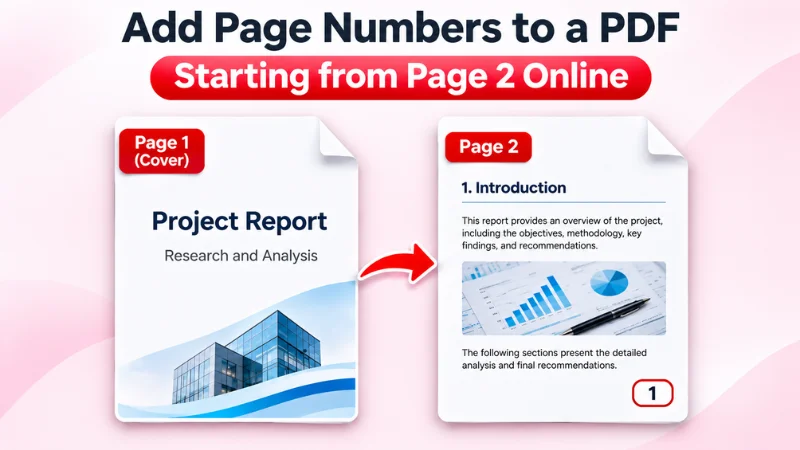
To add page numbers to PDF from page 2 online, open the Add Number Page tool on PDF Converter (pdfconveter.com). Set your page range from page 2 to the end, and choose whether page 2 starts at “1” or “2.” Finally, apply your settings and download the updated PDF.
Adding page numbers on a cover page or title page makes a clean document look unprofessional. Whether you are preparing a university thesis, a client proposal, or a digital e-book, skipping the first page is a common formatting standard.
At PDF Converter, our team tested 20 multi-page PDFs, including student theses, reports, and brochures, to see where people struggle most. We found two main mistakes: starting the numbering on the cover page and overlapping existing footer text. Here is our tested method to skip your cover page cleanly in a few clicks.
Choosing Your Starting Number: Should Page 2 Be “1” or “2”?
Before adding numbers, decide how you want your pages counted. Picking the wrong option is the main reason people have to edit their PDFs twice:
- Start at “1” (Most Common): Page 1 stays unnumbered, and Page 2 becomes 1.
- Start at “2” (Exact Page Count): Page 1 stays unnumbered, and Page 2 shows 2 to match the actual sheet number.
The settings below are the most common choices. Always follow your institution’s or organization’s formatting guidelines when applicable.
| Document Type | Page 2 Number | Why & Tool Setting |
| Thesis / Research Paper | 1 | Cover page excluded. Range: 2 to end · Start: 1 |
| Business Proposal / Report | 1 | Title page skipped. Range: 2 to end · Start: 1 |
| E-Book / Book Draft | 2 | Follows physical page sequence. Range: 2 to end · Start: 2 |
| Product Catalog / Brochure | 2 | Counts the cover as page 1. Range: 2 to end · Start: 2 |
How to Number a PDF Starting on Page 2 (Step-by-Step Process)
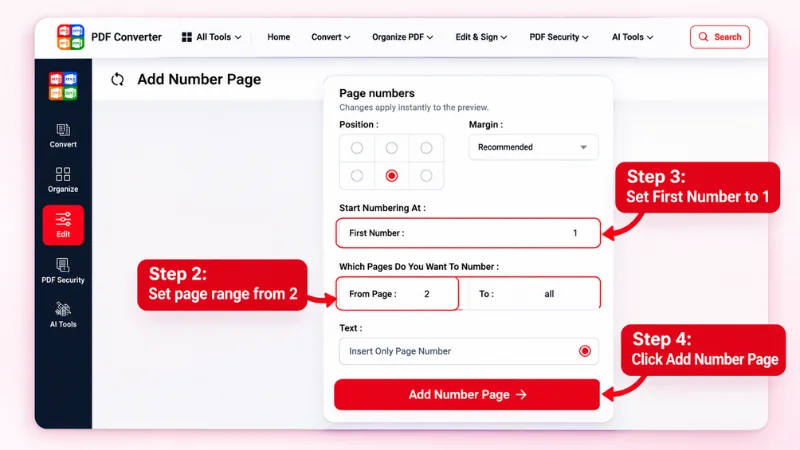
You can do this directly in any desktop or mobile browser using PDF Converter. You don’t need Adobe Acrobat or heavy software.
Step 1: Upload Your PDF
Open the Add Number Page tool under the Edit & Sign menu on PDF Converter and drop your file into the upload box.
Step 2: Exclude the First Page
In the page range settings, set the numbering to run from Page 2 to the last page of your file.
Step 3: Set Your Starting Number
Enter 1 if page 2 starts your main content, or enter 2 if you want to match the actual sheet count.
Step 4: Choose Position
Pick a clean placement like Bottom-Right or Bottom-Center. If your footer already has text, move the numbers to the other position.
Step 5: Apply & Download
Click the button to process your file. Your numbered PDF downloads when processing finishes. All original links, images, and formatting stay intact.
Practical Formatting Tips from Our Tests
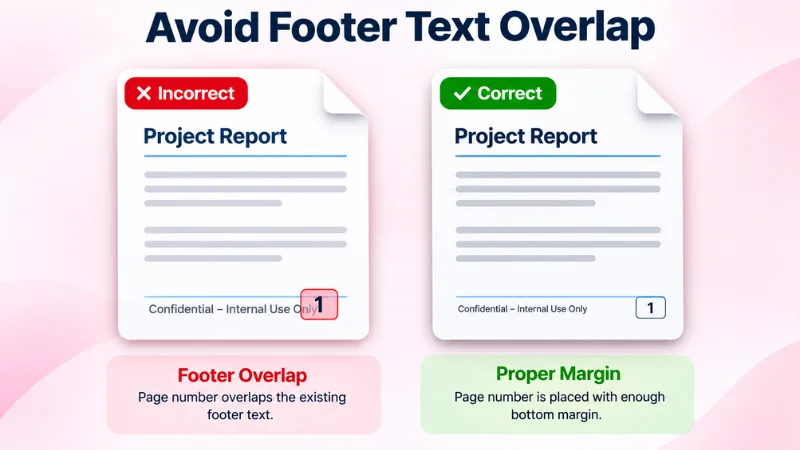
While testing sample PDFs across Windows, Mac, iOS, and Android devices, we found three simple tips that prevent common layout issues.
1. Avoid Footer Text Overlap
Many reports already have a copyright line or title centered at the bottom. Place your page numbers in the Bottom-Right or Top-Right corner with a small margin so they do not cover existing text.
2. Check Mixed Page Orientations
If your PDF has both vertical (Portrait) pages and wide horizontal (Landscape) charts, check the preview before downloading. Consistent placement keeps your numbers aligned when printed.
3. Shrink Large Scanned Files
If you are working with a large scanned file, number it first. Then use our OCR PDF tool to make it searchable. Finish with Compress PDF to keep it small enough for email.
How PDF Converter Protects Your Files
Uploading contracts, financial reports, or school research needs strong privacy. Here’s how we keep your files private.
- SSL Encryption: All file uploads and downloads are protected with SSL encryption.
- Automatic File Deletion: We never store your files long-term. Your files are automatically deleted from our servers right after processing, following GDPR and CCPA privacy rules.
- No Sign-Up Required: You do not need to create an account or share your email address to number your PDFs.
Frequently Asked Questions (FAQ)
How Do I Add Page Numbers to PDF from Page 2 to Jump on Another?
To skip the first 2 pages, open the Add Number Page tool on PDF Converter under the Edit & Sign menu. Set the page range from Page 3 to the last page. Enter 1 as your starting number.
Does Adding Page Numbers Online Reduce PDF Quality?
No, PDF Converter adds page numbers as a clean text layer. Your original images and page layout stay untouched.
Does PDF Converter Have Mobile Apps for Android and iPhone?
Yes, you can download the official PDF Converter app on Android and iOS. Both apps let you scan, edit, and number PDFs directly from your phone.
How Can I Remove Wrong Page Numbers from a PDF?
Use our Edit PDF tool to remove or cover the wrong numbers. If they sit in the margin, you can also use the Crop PDF tool. Then add your new page numbers.
Can I Add Page Numbers to Only Selected Pages in a PDF?
Yes, if your PDF page numbering tool supports custom page ranges. For example, you can choose pages 2–10 to add numbers only to that section while leaving the remaining pages unnumbered. Check the available page range settings before processing your document.
Can I Change the Font, Size, and Color of PDF Page Numbers?
This depends on the features available in your PDF numbering tool. Some tools let you customize the font style, size, color, and position of page numbers. Check the preview and available formatting options before downloading your updated PDF.
Will Page Numbers Appear When I Print My PDF?
Yes. Page numbers added to a PDF are generally included when you print the updated document. Before printing, open the downloaded PDF and check that the numbers are visible, correctly positioned, and not overlapping existing text or footers.
Final Thought
Adding page numbers from page 2 keeps your PDF clean and professional. Skip the cover page. Pick 1 or 2 as your starting number. Then place the numbers where they won’t cover your footer. Ready to try it? Open the Add Number Page tool and number your PDF in a few clicks.