 IMG to PDF
 Word to PDF
 Excel to PDF
 JPG to PDF
 PNG to PDF
 Text to PDF
 PPT to PDF
 PDF to Image
 PDF to Word
 PDF to Excel
 PDF to JPG
 PDF to PNG
 PDF to Text
 PDF to PPT
 Word to JPG
 Word to PNG
 IMG to Word
 IMG to PPT
 IMG to Excel
 IMG to Text
 Merge PDF
 Split PDF
 Organize PDF
 OCR PDF
 Delete Page
 Add Page To PDF
 Compress PDF
 PDF Form Filler
 Fill Out PDF
 Create Fillable PDF
 Edit PDF
 Crop PDF
 Sign PDF
 Rotate PDF
 Add Watermark
 Add Number page
 Protect PDF
 Unlock PDF
 Redact PDF
 PDF To PDF/A
 PDF Translator
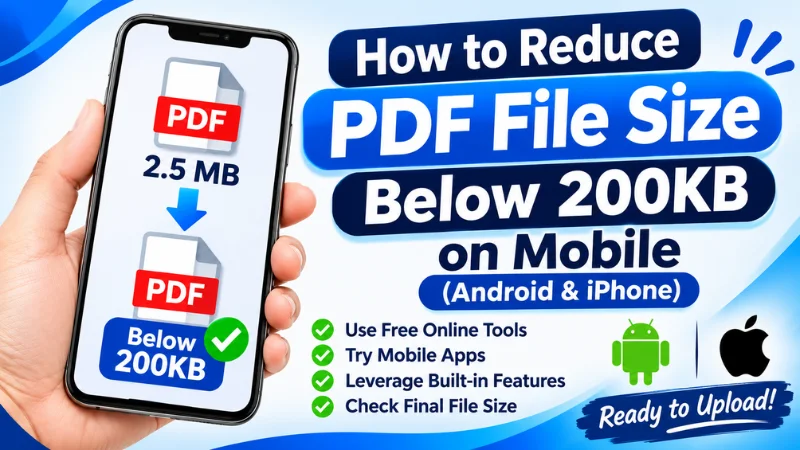
Uploading a PDF but seeing a “File size exceeds the limit” message? That usually means your document is larger than the website allows. Whether you’re applying for a job, filling out an admission form, or submitting documents to a government portal, a PDF over 200KB can quickly become a headache.
You can reduce PDF file size below 200KB on mobile in just a few steps. Open a free online PDF compressor in your mobile browser, upload your file, and select a compression level. Tap Compress, download the smaller file, and verify its size in your phone’s storage.
Why Is Your PDF File Too Large to Upload?
A PDF file can grow larger than you expect for several reasons. Understanding these causes helps you shrink your document below 200KB without losing readability.
High-Resolution Images
Photos taken on modern smartphones usually contain a lot of detail. If you are creating a document from scratch, you can convert JPG images to PDF directly from your phone.
Scanned Documents
Scanned PDFs often contain image-based pages instead of searchable text. This can make even short documents surprisingly large.
Embedded Fonts and Extra Graphics
Custom fonts, logos, backgrounds, and decorative elements add data to a PDF, making the PDF heavier.
Multiple Pages
Each extra page can add to the file size of a PDF, especially if that page holds photos, drawings, or detailed layouts. You can also organize PDF pages to arrange your document before compression.
A big PDF can take longer to upload, download, email, or share through messaging apps. It may also use mobile data and fill unnecessary storage space on your phone. Knowing these factors makes it easier to pick the compression method and keep PDF files light without losing readability.
What Should You Know Before Compressing a PDF?
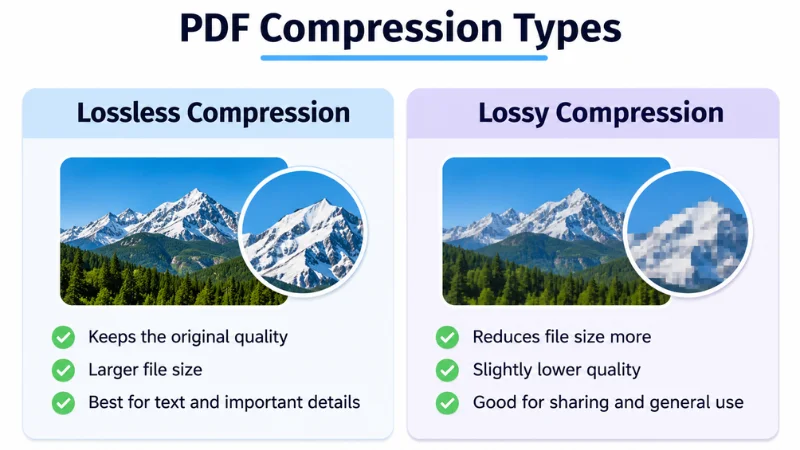
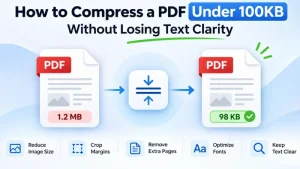
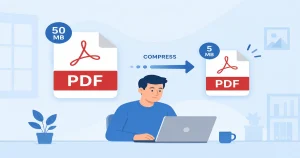
PDF compression reduces file size by optimizing images and removing unnecessary data. Before reducing a PDF file size to under 200KB on your mobile phone, it’s helpful to understand the two main types of compression.
Lossless Compression
This method reduces file size without affecting the original text or image quality. It’s a good option when keeping your document clear is important.
Lossy Compression
This method reduces file size by lowering image resolution and removing some details. It can make a PDF much smaller, but excessive compression may make images blurry.
If your PDF is much larger than 200KB, lossy compression may be needed to hit the target size. However, the result depends on the PDF’s content and original quality. Always keep a copy of your original file before compressing it.
How to Reduce PDF File Size Below 200KB on Android
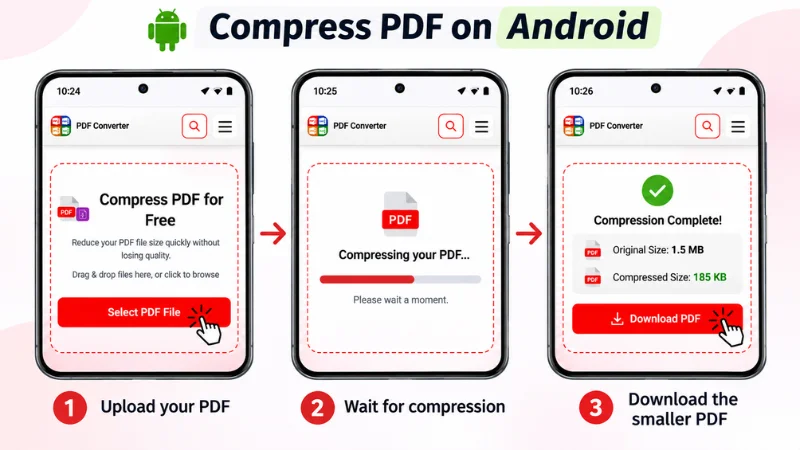
Android makes it easy to reduce PDF file size below 200KB on mobile, because you can do everything from your browser without installing anything.
Compress PDF Using Your Mobile Browser
This is the fastest method, especially if you need to upload your document right away.
- Open the Chrome browser on your Android phone.
- Go to the PDF converter website and open the Compress PDF tool.
- Tap the upload button and select the file from your phone storage.
- Tap the Compress button, wait for the process to finish, and download the new file to your phone.
Once the download is complete, save the compressed file under a new name so your original PDF stays safe. Then open it and check that the text is still clear before you upload it anywhere.
Reduce PDF Size with a Free Android App
If you compress files often, a free PDF compressor app can save you time. These apps let you select a PDF from your phone and reduce its size by optimizing images and removing unnecessary data.
- Open the Google Play Store, search for “PDF converter,” and install a well-reviewed app.
- Launch it and allow access to your files if it asks for permission.
- Choose the document you want to compress from your phone storage.
- Pick a compression option and tap the compress button.
- Save the new PDF under a different name so your original stays untouched.
Features vary between apps, so always check the final file size before uploading it.
Check Your PDF Size After Compression
Never assume the file is small enough. Check it yourself:
- Launch the File Manager or Files app on your Android phone.
- Go to the Downloads folder and locate the compressed PDF.
- Long-press the file and tap Details or Properties.
- Look at the file size and confirm that it is below 200KB.
If the file is still above 200KB, compress it again with a stronger setting.
How to Reduce PDF File Size Below 200KB on iPhone
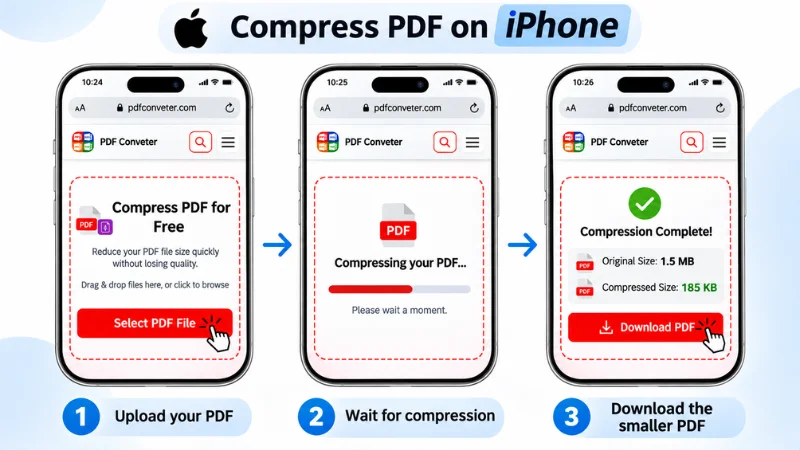
You can reduce PDF file size below 200KB on mobile with an iPhone using just Safari and the Files app, so you do not need to install anything.
Compress PDF Without Installing an App
- Open Safari on your iPhone.
- Visit the website and open the Compress PDF tool.
- Tap the upload button and select your PDF from the Files app or iCloud Drive.
- Tap the Compress button and download the new file once it’s ready.
If the file is still above 200KB, run it again with a stronger compression setting.
Use the Files App to Manage PDF Documents
The Files app is where your documents and downloads are stored on an iPhone.
- Open the Files app from your Home Screen or search for it.
- Check iCloud Drive, On My iPhone, or the Downloads folder.
- Press and hold the PDF to see options such as Rename, Move, Share, and Get Info.
Files downloaded through Safari are usually saved in the Downloads folder, so look there first for your compressed PDF. You can move it to another folder to find it more easily later.
Save and Verify Your Compressed PDF
- Open the downloaded PDF. Tap the file to preview it.
- Tap the Share icon and choose Save to Files, then pick a folder.
- In the Files app, press and hold the PDF and tap Get Info.
- Zoom in and scroll through every page to make sure the text, numbers, and signatures are clear and readable.
Which Free PDF Compressor Works Best on Mobile?
Several tools can help you reduce a PDF file to under 200KB on mobile. Features and free usage limits may change over time, so check each website for the latest details before choosing a tool.
| PDF Compressor | Compression Features | Mobile Access | Main Benefit |
| PDF Converter | Online PDF compression with different compression options. | Mobile browser on Android and iPhone. | Quick and convenient for compressing PDFs without installing an app. |
| Smallpdf | PDF compression and other document management tools. | Mobile browser and mobile app. | Easy to use, although free usage may have limits. |
| Adobe Acrobat Online | Browser-based PDF compression. | Mobile browser and Adobe mobile app. | A familiar platform for managing PDF documents, although some features may require an account or paid subscription. |
How to Reduce PDF Size If It Is Still Above 200KB
You compressed your PDF, but its size is still above the limit. This happens often, especially when a file contains large images or scanned pages. The cause is usually easy to identify. Here are some common reasons:
- Many high-resolution images: Large photos can keep the file size high even after compression.
- A scanned PDF: Scanned pages are stored as full-page images, making them naturally larger.
- Insufficient compression: The compression level you selected may not have been strong enough.
- Extra fonts and graphics: Embedded fonts, logos, and backgrounds add to the file size.
What to do next: Compress the file again with a stronger setting. If it is still above 200KB, you can delete unnecessary PDF pages, such as blank pages or extra cover sheets, and compress the document once more. For scanned files, you can also rescan at a lower resolution next time.
Frequently Asked Questions
Can I Reduce a PDF to Less Than 200KB on My Phone?
Yes, you can do it on both Android and iPhone using a mobile browser or a free app. Upload your file, choose a compression level, and download the result. Always check the final size before uploading it anywhere.
How Can I Compress a PDF Without Installing an App?
Open an online tool like PDFConveter.com in Chrome or Safari. Upload your PDF, compress it, and download the smaller file. The whole process happens in your browser.
Does PDF Compression Affect Document Quality?
It can, mainly for images and scans, because strong compression lowers image quality. Text usually stays readable. Open the file after compressing to confirm that everything is clear.
Is PDF Converter Free to Use?
Yes, PDFConveter – All-in-One PDF Solution offers online tools that you can use directly from your browser. Features and usage limits may change, so check the website for the latest details.
Can I Compress a Scanned PDF on Android or iPhone?
Yes, but scanned PDFs are image-based, so they are harder to shrink. You may need a stronger compression level to reach 200KB. If the file is still too large, try removing extra pages.
Final Thoughts
Knowing how to reduce PDF file size below 200KB on mobile can save time when you need to upload documents quickly. Whether you use Android or iPhone, you can compress PDFs online without needing a computer.
Large images, scanned pages, and unnecessary graphics can increase PDF file size. Choosing the right compression settings helps reduce file size while keeping your document readable.
Before uploading your compressed PDF, check its size and review every page to make sure the text, images, and signatures remain clear. Keep a copy of the original document as a backup.
Ready to get started? Use the Compress PDF tool on PDFConverter to reduce your PDF file size directly from your mobile phone.