 IMG to PDF
 Word to PDF
 Excel to PDF
 JPG to PDF
 PNG to PDF
 Text to PDF
 PPT to PDF
 PDF to Image
 PDF to Word
 PDF to Excel
 PDF to JPG
 PDF to PNG
 PDF to Text
 PDF to PPT
 Word to JPG
 Word to PNG
 IMG to Word
 IMG to PPT
 IMG to Excel
 IMG to Text
 Merge PDF
 Split PDF
 Organize PDF
 OCR PDF
 Delete Page
 Add Page To PDF
 Compress PDF
 PDF Form Filler
 Fill Out PDF
 Create Fillable PDF
 Edit PDF
 Crop PDF
 Sign PDF
 Rotate PDF
 Add Watermark
 Add Number page
 Protect PDF
 Unlock PDF
 Redact PDF
 PDF To PDF/A
 PDF Translator
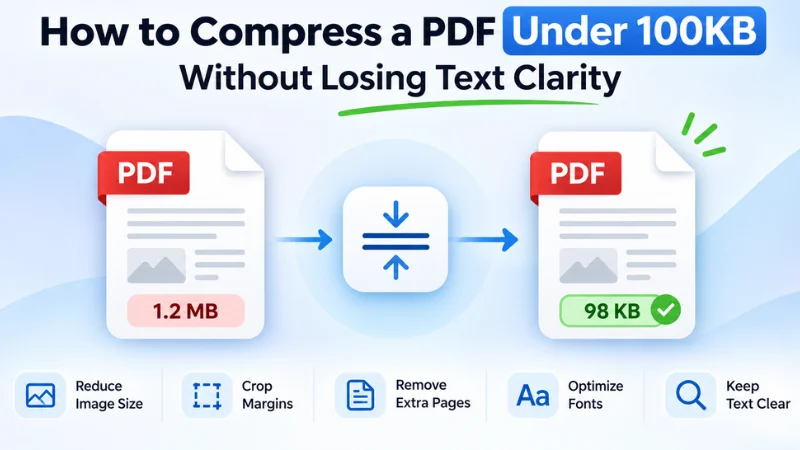
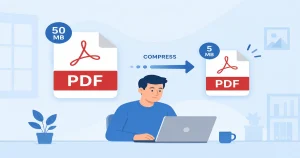
You finish filling out your application and hit upload. Then the portal rejects it with an error: “File too large.” Visa, scholarship, job, and government websites often limit uploads to 100KB. Deadlines do not wait, so you need a quick fix.
The best solution is to compress PDF under 100KB. However, heavy compression often makes your text blurry and hard to read. A rejected upload is frustrating. Submitting a file that nobody can read is even worse.
This guide shows you how to compress a PDF under 100KB while keeping every word clear. We tested these steps on resumes, ID scans, bank statements, and certificates. You will find proven methods for both text and scanned PDFs so you can upload your files on time.
Why PDF Files Get Large and Why Text Can Stay Sharp
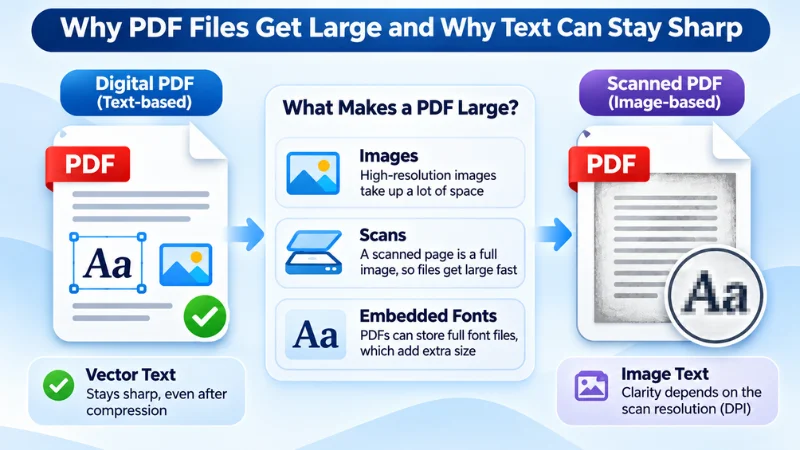
Before you compress a PDF under 100KB, it helps to know what makes the file big in the first place. Most of the size comes from three things:
- Images: Photos, logos, and background graphics take up much more space than text. One high-resolution image can be larger than the rest of the file combined.
- Scans: A scanned page is a full-page picture. A multi-page scan gets large very quickly.
- Embedded fonts: PDFs often store full font files inside the document so the text looks the same on every device. Extra fonts add extra file size.
The good news is that the text in a digital PDF is stored as vectors, not pixels. Vectors are mathematical shapes, so they stay sharp at any zoom level. When you compress the images in a digital file, the text stays completely clear.
Scanned PDFs work differently. Every word is part of an image. Clarity depends on the scan resolution (DPI) and the type of compression you use. That is why a scanned PDF needs more careful settings than a digital one.
Can You Really Compress PDF Under 100KB Without Losing Quality?
Your chances of reaching 100KB depend on the number of pages, image quality, embedded fonts, and document content. The table below provides general expectations, not guaranteed results.
| PDF Type | Chance of Reaching 100KB | What to Expect |
| Text-only PDF | Very high | Text usually stays sharp after compression |
| Text + small logo | High | May need image optimization |
| Scanned black-and-white | Medium to high | Lower DPI and image compression may help |
| Scanned color document | Low to medium | Grayscale and image downsampling can reduce size |
| Multi-page PDF | Depends on page count | May require image optimization or splitting |
5 Ways to Compress a PDF Under 100KB
Choose the method below that best matches your file type and device. Start with the first option for the fastest result.
1. Use a Free Online PDF Compressor (Fastest Option)
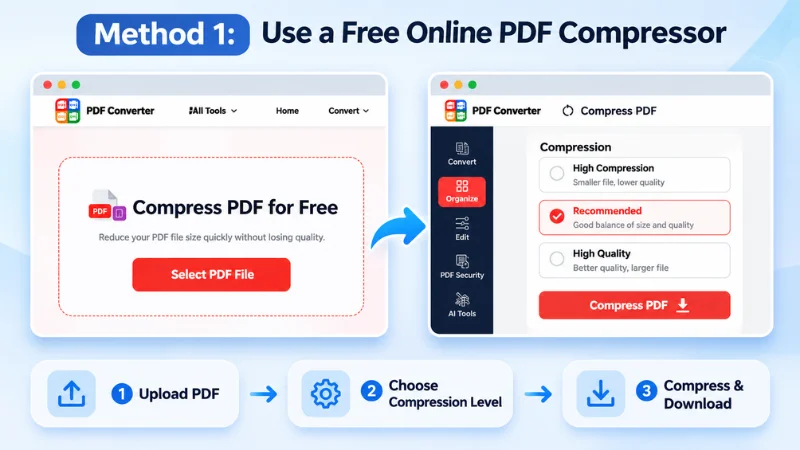
This is the quickest way to shrink non-sensitive files without installing software.
- Open a free PDF compression tool.
- Upload your PDF document.
- Choose your preferred compression level and start the process.
- Download the file and check its size.
Tip: If compression alone doesn’t get your file under 100KB, use a PDF to Word converter to edit the file first. Remove extra pages or large images, then use a Word-to-PDF tool to save a fresh, smaller PDF.
2. Re-Export from Word or Google Docs
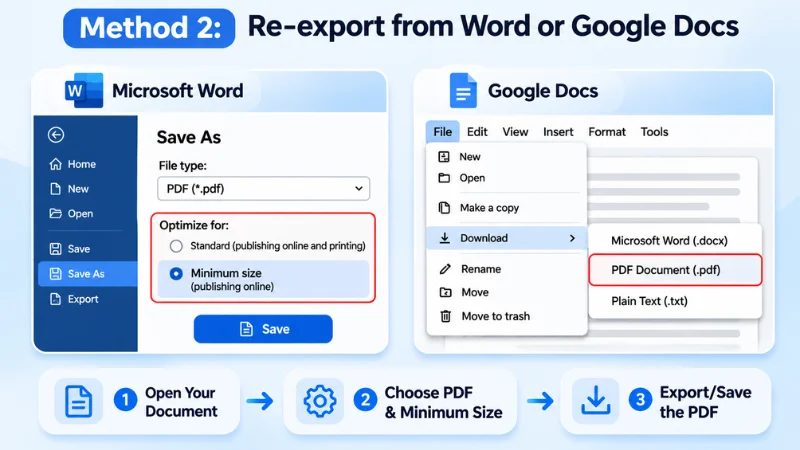
If you still have the original document, saving it again as a PDF gives the cleanest and smallest file.
- Microsoft Word: Go to File > Save As, choose PDF, and select Minimum size (publishing online).
- Google Docs: Go to File > Download > PDF Document. Remove or resize large images before downloading, as Google Docs does not have size settings.
Text exported this way stays as real vector text, so it remains completely sharp.
3. Use Mac Preview (Reduce File Size Filter)
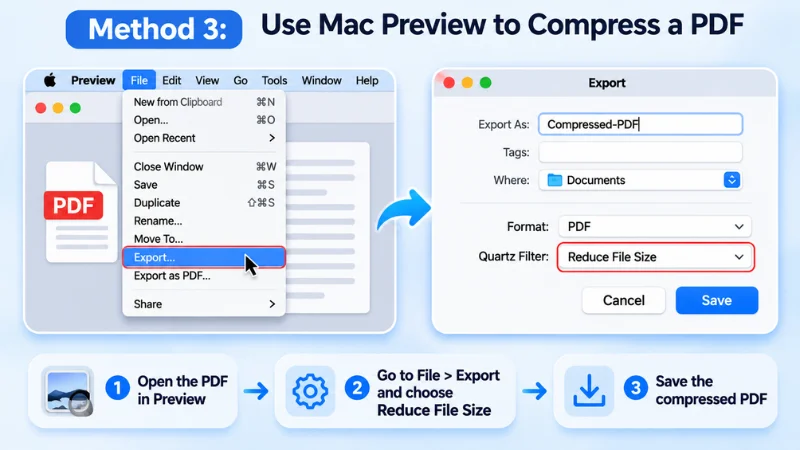
Mac Preview is built into your computer and works without an internet connection.
- Open your PDF in Preview.
- Click File > Export in the top menu.
- Open the Quartz Filter drop-down and choose Reduce File Size.
- Save the file under a new name.
Tip: Preview works best on text-heavy PDFs. If it makes your images blurry, remove large photos first and try again.
4. Use Adobe Acrobat (Optimize PDF Settings)
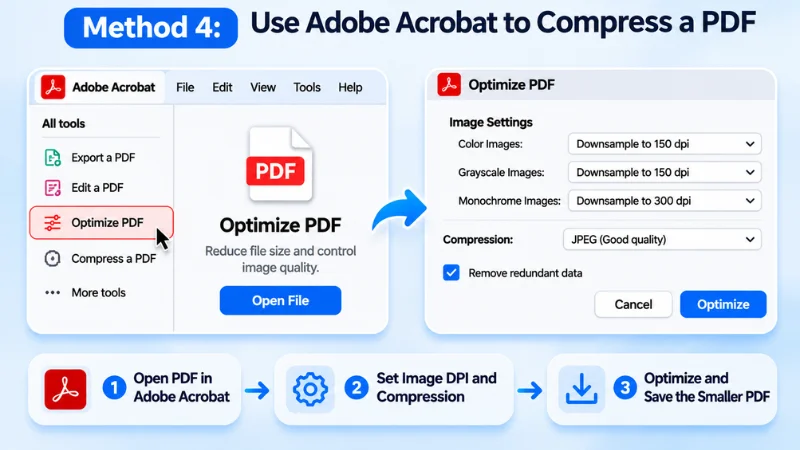
If you have a paid Adobe Acrobat license, it gives you deep control over file size.
- Open your PDF in Acrobat.
- Go to File > Save as Other > Reduced Size PDF for a quick result.
- For more control, go to File > Save as Other > Optimized PDF.
- Lower the image quality and downsample images to 100 DPI.
- Under Discard Objects and Discard User Data, remove hidden data and unused fonts that you don’t need.
- Save as a new file and check the size.
Tip: Use Save As and keep the original file untouched. If the first result is still above 100KB, adjust the image settings and run it again from the original, not from the compressed copy.
5. Split the PDF into Parts if It Still Won’t Fit
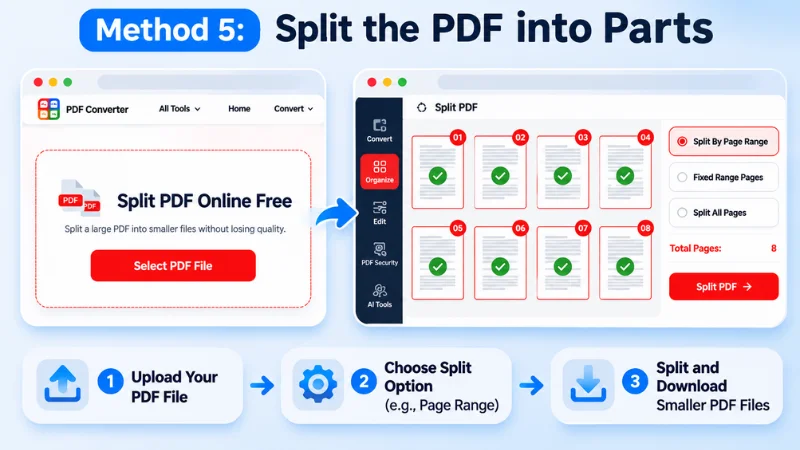
If the file is still above 100KB and the portal accepts more than one upload, split it.
- Open our Split PDF tool or use Acrobat’s Organize Pages > Split feature.
- Divide the document so each part stays under 100KB.
- Name each file clearly, such as “Passport-Page-1” and “Passport-Page-2”.
- Upload each part separately.
Tip: Check the portal’s rules first. Some require a single file, in which case you should remove pages or images instead.
How to Compress a Scanned PDF Under 100KB
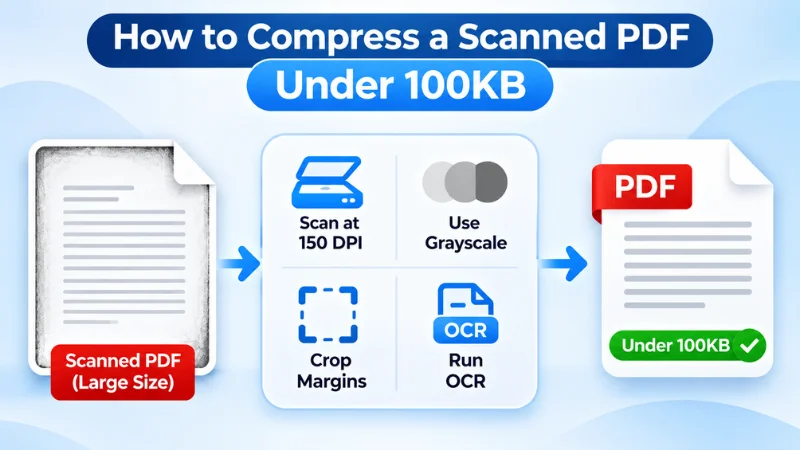
A scanned PDF is harder to shrink than a digital one, because every page is a full image. The good news is that you can still compress a scanned PDF under 100KB if you prepare the scan the right way.
Rescan at 150 DPI in Black-and-White or Grayscale
Most scanners default to 300 DPI or higher in color, which creates a huge file. For text documents, 150 DPI is enough to stay readable. Black-and-white mode makes the file much smaller than color.
Crop Margins and Delete Blank Pages
Remove dark scan edges, empty borders, and any blank pages. Less area means a smaller file.
Run OCR so the Text Stays Selectable
OCR adds a real text layer to your scan. This lets you search and copy the text, and it helps confirm the page is still readable after compression.
Why Text Gets Blurry and How to Fix It
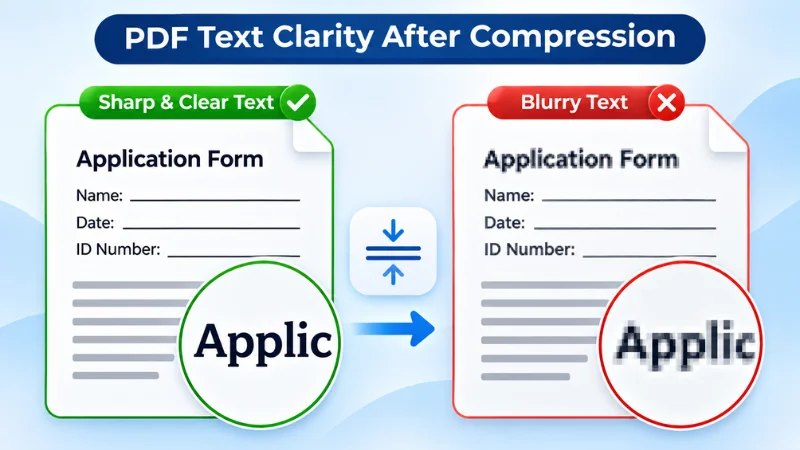
Sometimes a PDF reaches 100KB, but the text looks fuzzy. This usually happens when a converter turns text pages into low-quality images to meet the size limit. Repeated compression can also gradually reduce text and image quality.
To fix this, always start with your original file and compress it once. If the text still looks blurry, remove blank pages or large images before trying again. You can also use a tool that compresses images without converting text into low-quality images.
Quick Clarity Check Before Uploading
Take a minute to inspect your compressed PDF before submitting it:
- Check at 100% and 200% zoom: Make sure small fonts, dates, and ID numbers remain clear and readable.
- Test copy and paste: Select a line of text and paste it into a notepad to check whether the text is still selectable.
- Keep a backup: Save your original file separately so you can try again without losing quality.
Is It Safe to Use an Online PDF Converter?
Online tools are fast and free, but you are uploading your file to an external server. Before you use any website, check these safety signs:
- HTTPS connection: Look for a padlock icon and “https” in your browser bar. This encrypts your file during upload and download.
- Auto-delete policy: Trusted tools delete your files automatically from their servers after a few hours.
- Clear privacy rules: Make sure the site states that it does not share or sell your documents.
When to Use Offline Tools
Avoid uploading sensitive files like passports, ID cards, bank statements, or legal contracts to unknown sites. For private documents, use offline options like Mac Preview, Microsoft Word, or Adobe Acrobat to keep your files on your own device.
Frequently Asked Questions
Can I Compress a PDF to 100KB for Free?
Yes, free online PDF compressors, Mac Preview, and the export options in Microsoft Word or Google Docs can help reduce PDF file size. Text-based PDFs are generally easier to compress, but reaching 100KB depends on the document’s content and number of pages.
Will Compressing a PDF Reduce Text Quality?
Not necessarily. Digital PDFs store text as vector-based content, so it usually stays sharp during compression. However, some tools convert pages into low-resolution images, making text blurry. Always check the result at 100% zoom before uploading.
How Do I Compress a Scanned PDF Under 100KB?
Rescan your document at 150–200 DPI using black-and-white or grayscale mode. Crop unnecessary margins and remove blank pages before compression. You can also use OCR to make scanned text searchable and selectable, although OCR does not improve image clarity.
Why Is My PDF Still Above 100KB After Compression?
Your PDF may contain too many pages, high-resolution images, embedded fonts, or other unnecessary elements. Try removing large images and blank pages, optimizing embedded fonts, or exporting the document again. If the upload portal allows multiple files, you can also split the PDF into smaller parts.
Conclusion
Compressing a PDF under 100KB does not mean you have to sacrifice text clarity. For digital documents, use a reliable online compressor or export a fresh PDF directly from Word or Google Docs. For scanned files, stick to 150 DPI in grayscale mode and crop out extra borders. Always zoom in to check small numbers and signatures before hitting upload.
Need a quick way to shrink PDF files? Try our free PDF converter tool. Get your PDF under 100KB in seconds.