 IMG to PDF
  Word to PDF
  Excel to PDF
  JPG to PDF
  PNG to PDF
  Text to PDF
  PPT to PDF
  PDF to Image
  PDF to Word
  PDF to Excel
  PDF to JPG
  PDF to PNG
  PDF to Text
  PDF to PPT
  Word to JPG
  Word to PNG
  IMG to Word
  IMG to PPT
  IMG to Excel
  IMG to Text
  Merge PDF
  Split PDF
  Organize PDF
  OCR PDF
  Delete Page
  Add Page To PDF
  Compress PDF
  PDF Form Filler
  Fill Out PDF
  Create Fillable PDF
  Edit PDF
  Crop PDF
  Sign PDF
  Rotate PDF
  Add Watermark
  Add Number page
  Protect PDF
  Unlock PDF
  Redact PDF
  PDF To PDF/A
  PDF Translator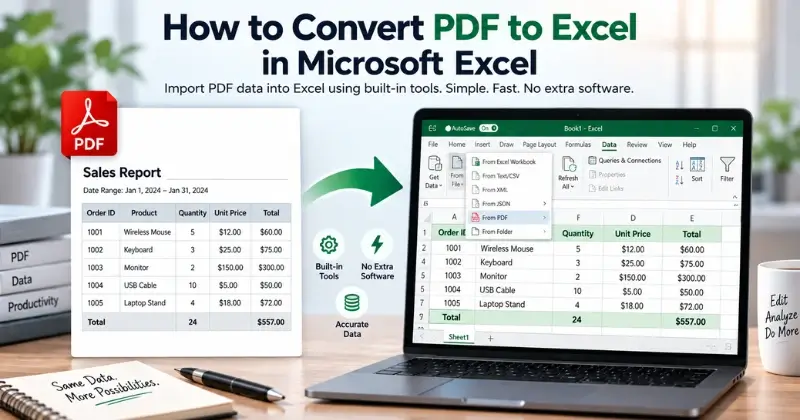
Converting a PDF to Excel makes tables easier to edit, organize, and calculate. Microsoft Excel can import data from supported PDF files without requiring manual copy-and-paste. This guide explains how to import PDF data into Excel, which versions support the feature, and how to fix common conversion problems. Let’s follow some easiest process to convert PDF to Excel in Microsoft Excel conveniently.
Can You Convert a PDF to Excel Directly in Microsoft Excel?
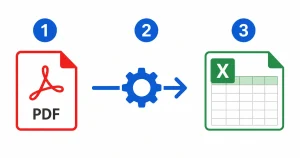
Yes, Microsoft Excel can import data from supported PDF files. Go to Get Data > From File > From PDF, then select the PDF you want to import. Excel opens the Navigator window, where you can select the table or data you want to add to your worksheet.
However, not every PDF imports perfectly. Scanned documents, complex tables, and unusual layouts may require OCR or manual formatting. Always review the imported data to check for missing or incorrectly formatted information.
What You Need Before Converting PDF to Excel
Before importing a PDF into Excel, make sure you have a supported Excel version and an accessible PDF file. A clear, text-based PDF usually makes table extraction easier.
You will need:
- A Windows computer with a supported version of Microsoft Excel.
- A PDF containing the table or data you want to import.
- Permission to access the PDF if it is protected.
- A clear, readable PDF for better extraction results.
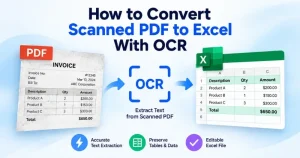
If your PDF contains scanned pages or images instead of selectable text, you may need OCR for scanned PDFs to extract the data before importing it into Excel.
Excel Versions That Support Native PDF Import
Microsoft Excel’s PDF import feature is available in supported Windows desktop versions. The feature uses Power Query to extract structured data from PDF files.
The exact options can vary by Excel version, update, and operating system. If you cannot find From PDF under the Data tab, check Microsoft’s current documentation for your version.
Step-by-Step: Convert PDF to Excel Using Get Data in Microsoft Excel
Microsoft Excel lets you import PDF data into Excel using its built-in Get Data tools. The Get Data feature lets you extract tables without manually copying and pasting each row. Follow these steps to import your PDF data into Excel.
Step 1: Open Excel and Go to the Data Tab
Open Microsoft Excel on your Windows computer and create a new workbook. From the top menu, click the Data tab to access Excel’s data import tools.
Step 2: Select Get Data > From File > From PDF
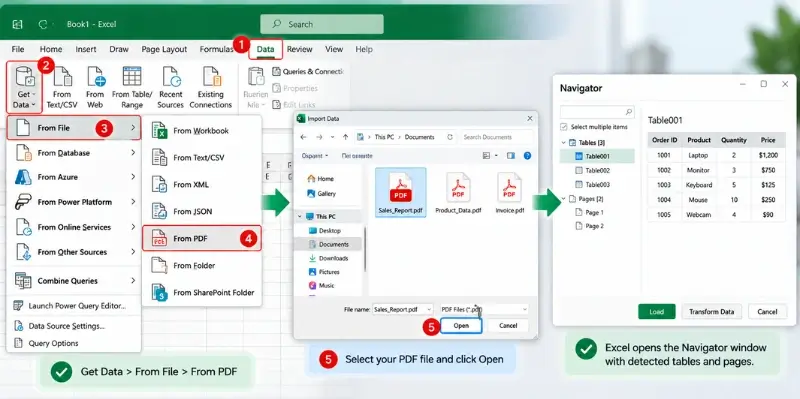
Click Get Data, select From File, and then choose From PDF. Browse your computer and select the PDF file you want to import. Excel will analyze the file and open the Navigator window.
Step 3: Choose a Table in the Navigator Window
The Navigator window shows the tables and pages that Excel detects in your PDF. Select the table you want to import and review the preview to check the data. If the PDF contains multiple tables, select the one you need.
Step 4: Load or Transform the Data
Click Load to import the selected table directly into your worksheet. If the data needs cleaning or formatting, select Transform Data to open Power Query. You can remove unwanted rows, rename columns, and adjust the data before loading it into Excel.
Can You Convert PDF to Excel in Excel Online?
Excel for the web does not offer the same From PDF import workflow available in supported Windows desktop versions of Excel. If you use Excel in a browser, you may need another method to convert the PDF into an Excel-compatible file.
How to Convert PDF for Use in Excel for the Web
If Excel Online is your main workspace, you can first convert the PDF into an Excel file using a suitable PDF conversion method. Then upload the resulting .xlsx file to Excel for the web.
Before editing the file, check the converted data for missing values, incorrect columns, or formatting issues. Scanned PDFs and complex tables may need additional cleanup after conversion.
What If Excel Cannot Read Your PDF?
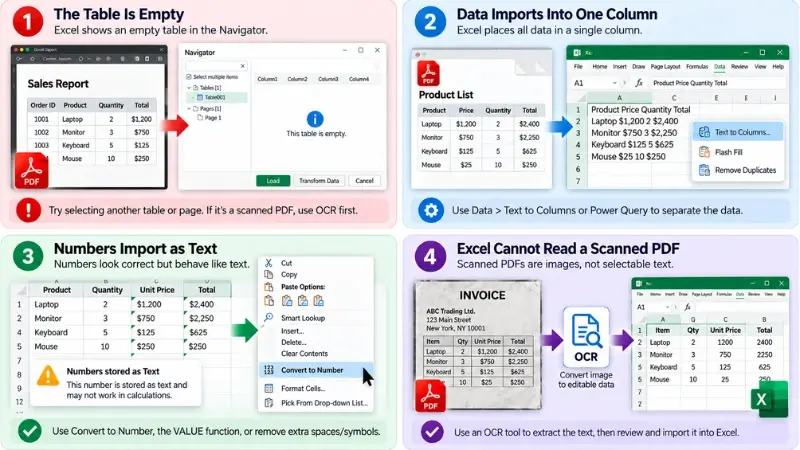
Excel may not recognize every PDF correctly. Scanned pages, complex tables, and unusual layouts can cause import problems. The issue usually depends on how the PDF stores its text and table data.
Get Data from PDF
This feature only works in Excel for Windows with an active Microsoft 365 subscription — it isn’t available in one-time-purchase (perpetual license) versions of Excel or on Mac. If the option has disappeared after previously working, check whether your Microsoft 365 subscription is still active, or whether your Office installation recently switched to a standalone license.
The Table Is Empty
If Excel shows an empty table in the Navigator, it may not recognize the PDF’s data structure. This can happen with scanned pages, image-based tables, or complex layouts.
Try selecting another table or page in the Navigator. If the PDF contains scanned pages, you may need an OCR tool before importing the data into Excel.
Data Imports Into One Column
Excel may sometimes place imported data into a single column. This can happen when the PDF does not have a clear table structure.
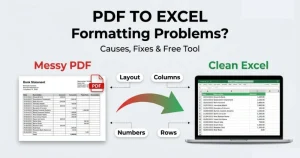
You can try Data > Text to Columns if the imported values have a consistent delimiter. If they do not, clean the data manually or use Power Query to restructure the columns. For more complex formatting issues, see our guide to PDF to Excel formatting problems and fixes.
Numbers Import as Text
Numbers can sometimes appear correctly but behave like text in Excel. This can prevent calculations, sorting, and other spreadsheet functions from working properly.
Select the affected cells and choose Convert to Number if Excel shows the option. You can also use the VALUE function to convert text into numbers. Check for extra spaces, currency symbols, or incorrect decimal separators if the problem continues.
Excel Cannot Read a Scanned PDF
Scanned PDFs contain images of pages rather than selectable text. Excel may therefore have difficulty identifying tables and extracting their values.
For scanned documents, use an OCR method to turn the image-based text into machine-readable data. Then review the extracted values carefully before using them in Excel.
Microsoft Excel vs. Adobe Acrobat vs. Online Converters: Which Should You Use?
The right PDF-to-Excel method depends on your file and workflow. Here is a quick comparison of the main options.
| Feature | Microsoft Excel | Adobe Acrobat | Online Converter |
| Best for | Tables | Advanced PDFs | Quick conversions |
| Ease of use | Easy | Moderate | Usually simple |
| Cost | Depends on Excel plan | Often paid | Free/Paid |
| Data editing | Strong | Strong | Varies |
| Complex layouts | May need cleanup | Better suited | Varies |
| Scanned PDFs | May need OCR | OCR | Depends on tool |
Frequently Asked Questions
Can Excel Convert a PDF to Excel for Free?
Yes, if your Excel version includes the From PDF feature, you can import PDF data without paying for a separate PDF conversion service. Availability depends on your Excel version and platform.
Why Is My PDF Table Showing as Empty in Excel?
An empty table usually means Excel cannot detect the PDF’s table structure. This can happen with scanned PDFs or image-based tables. For scanned files, use OCR to make the text machine-readable before importing it.
Does Excel for Mac Support PDF Import?
Excel for Mac does not provide the same From PDF workflow available in supported Windows desktop versions. Mac users may need another PDF-to-Excel method, especially for scanned documents.
Is It Safe to Convert a PDF to Excel in Microsoft Excel?
Yes, Excel’s built-in PDF import does not require a separate online converter. However, data handling can vary by feature and environment, so review Microsoft’s privacy documentation for your setup.
Why Does My Converted Data Lose Its Formatting?
Excel mainly extracts table data rather than preserving the PDF’s visual design. Complex layouts, spacing, fonts, and other formatting may change during import.
Can Excel Convert a Scanned PDF to Excel?
Not reliably. Scanned PDFs usually contain images instead of selectable text. You typically need OCR to extract the data before working with it in Excel.
Why Does Excel Put My PDF Data Into One Column?
Excel may place data into one column when the PDF lacks a clear table structure. You can try Data > Text to Columns or clean the data manually in Power Query.
Why Are Numbers Imported as Text in Excel?
Numbers may import as text because of extra spaces, currency symbols, or formatting differences. Use Convert to Number or the VALUE function to convert them into usable numbers.
Conclusion
Microsoft Excel can import data from supported PDF files and turn tables into editable spreadsheet data. The process is useful when you need to analyze, organize, or calculate information without manually retyping it.
However, scanned PDFs, complex layouts, and poorly structured tables may require additional cleanup or OCR. Always review the imported data before using it for calculations or business decisions.