 IMG to PDF
  Word to PDF
  Excel to PDF
  JPG to PDF
  PNG to PDF
  Text to PDF
  PPT to PDF
  PDF to Image
  PDF to Word
  PDF to Excel
  PDF to JPG
  PDF to PNG
  PDF to Text
  PDF to PPT
  Word to JPG
  Word to PNG
  IMG to Word
  IMG to PPT
  IMG to Excel
  IMG to Text
  Merge PDF
  Split PDF
  Organize PDF
  OCR PDF
  Delete Page
  Add Page To PDF
  Compress PDF
  PDF Form Filler
  Fill Out PDF
  Create Fillable PDF
  Edit PDF
  Crop PDF
  Sign PDF
  Rotate PDF
  Add Watermark
  Add Number page
  Protect PDF
  Unlock PDF
  Redact PDF
  PDF To PDF/A
  PDF Translator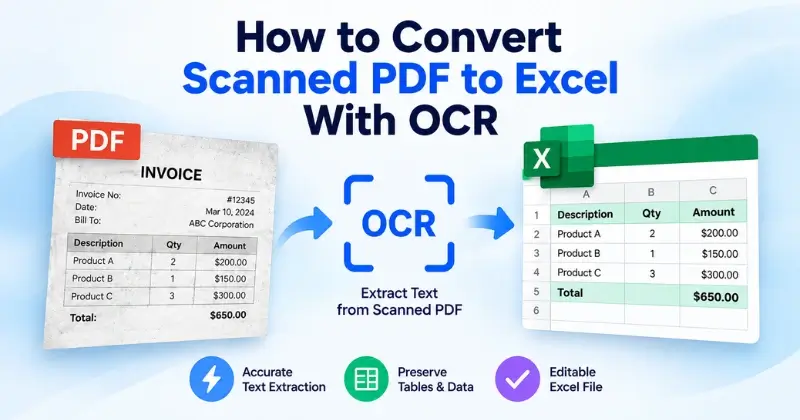
Converting a scanned PDF to Excel requires OCR technology. OCR reads text from scanned pages and makes it editable. You can then organize the data in Excel. After conversion, review the file for errors. This helps keep tables, numbers, and text accurate.
Scanned PDF vs Digital PDF: How to Tell the Difference
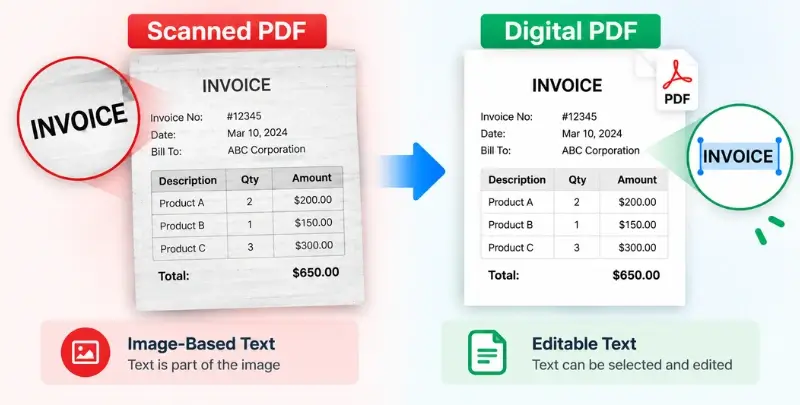
A scanned PDF is usually made from document images. Its text isn’t directly selectable or editable. You may need OCR to extract its content. A digital PDF contains real, selectable text. You can usually highlight, copy, and search its content. These PDFs don’t always need OCR for data extraction. If your file is already digital, you can convert it directly to Excel without going through OCR.
| Feature | Scanned PDF | Digital PDF |
| Text type | Image-based | Digital text |
| Text selection | Usually unavailable | Usually available |
| Copy and paste | Difficult | Easy |
| OCR needed | Yes | No |
| Excel conversion | Requires OCR | Direct extraction may work |
Knowing your PDF type helps you choose the right conversion method. If it’s scanned, OCR is usually the best starting point.
What Is OCR and Why Do Scanned PDFs Need It?
OCR stands for Optical Character Recognition. It helps computers read text from scanned images. It identifies letters, numbers, and symbols. Then, it turns them into machine-readable text.
A scanned PDF usually contains image-based text. You can’t select or edit this text directly. That’s where OCR helps. It recognizes the text and converts it into editable digital content.
This makes scanned data easier to extract and use in Excel. OCR works well with invoices, reports, bank statements, forms, and tables. However, poor scans can cause recognition errors. Always review the converted Excel file for accuracy.
How to Convert Scanned PDF to Excel With OCR (Step-by-Step)
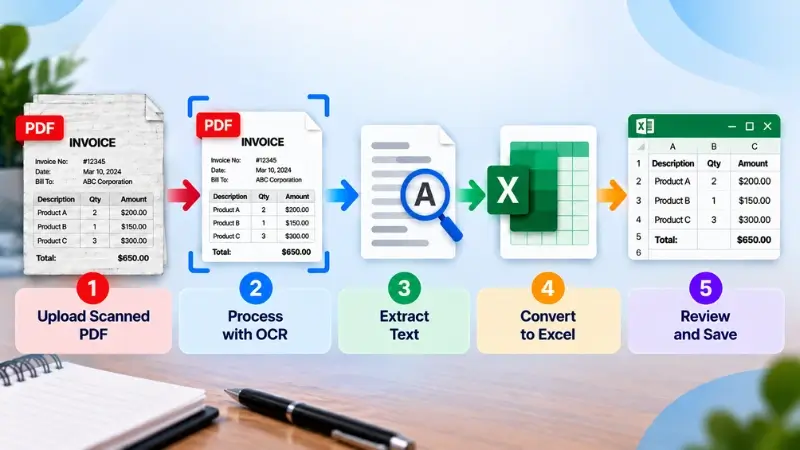
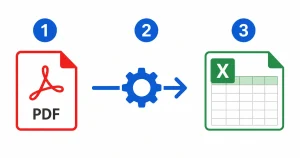
Converting a scanned PDF takes a few simple steps. OCR reads the text and prepares it for Excel. Follow these steps to convert your scanned file accurately.
Step 1: Prepare Your Scanned PDF
Start with a clear and readable scanned PDF. Check that every page is included. Make sure the pages aren’t blurry or heavily distorted. Remove unnecessary pages before starting the conversion.
Step 2: Upload the Scanned PDF
Open your preferred OCR or PDF conversion tool. Upload the scanned PDF from your device. Some tools also support cloud storage uploads. Choose the correct file before starting the conversion. Larger files may take longer to process.
Step 3: Let OCR Extract the Text
Start the OCR process after uploading your file. The tool scans each page and recognizes its content. OCR identifies letters, numbers, symbols, and table data. It then converts the scanned content into editable text.
Step 4: Convert the Extracted Data to Excel
Choose Excel or XLSX as the output format. Start the conversion after selecting your preferred format. The tool organizes extracted data into spreadsheet cells. Tables may require additional formatting after conversion.
Step 5: Review and Download the Excel File
Open the converted Excel file and check the results. Look for missing text, incorrect numbers, or broken columns. Pay extra attention to tables and financial data. Fix any errors before downloading the file.
If you want a quick solution, use an online OCR converter. Many tools offer free conversions for scanned PDFs. Free options may have file-size or page limits. They may also cause formatting errors with complex tables. Always check the Excel file after conversion.
Tips to Improve Scanned PDF to Excel Accuracy
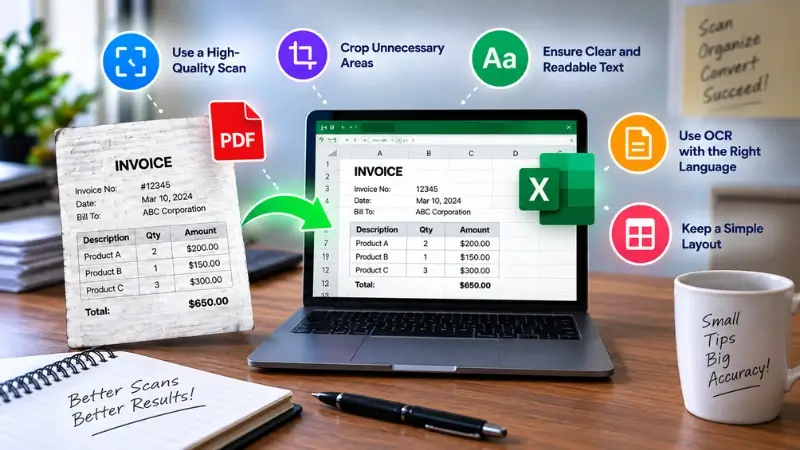
Good scan quality helps OCR recognize text more accurately. Follow these tips before converting your scanned PDF.
Use a Clear and High-Quality Scan
Use sharp and readable scans whenever possible. Avoid faded, damaged, or heavily compressed pages. Clear images help OCR recognize characters correctly.
Use a Suitable Scan Resolution
Use a resolution that keeps text sharp and readable. Around 300 DPI works well for most document scans. Very low resolution can reduce OCR accuracy.
Keep Pages Straight
Make sure each page is properly aligned. Tilted pages can make text recognition harder. Straight pages help OCR process the document more accurately.
Improve Text Contrast
Use scans with clear contrast between text and background. Dark text on a light background works best. Poor contrast can cause missing or incorrect characters.
Avoid Blurry Images
Blurry pages can cause OCR to misread letters and numbers. Rescan unclear pages before conversion. This can improve OCR accuracy.
Check Numbers After Conversion
Review dates, prices, quantities, and other numbers carefully. OCR can sometimes confuse similar characters. Fix any incorrect values before using the spreadsheet.
Review Complex Tables
Check tables for misplaced rows, columns, or values. Complex layouts may not convert perfectly. Compare important data with the original PDF.
Common Scanned PDF to Excel Errors and How to Fix Them
OCR makes scanned PDF conversion much easier. However, errors can still appear after conversion. Most issues happen because of poor scans, complex layouts, or unclear text.
| Common Error | How to Fix It |
| Incorrect Text | Use a clearer scan and run OCR again. |
| Missing Numbers | Check numbers against the original PDF. |
| Broken Columns | Adjust columns and review the table. |
| Wrong Characters | Proofread the converted text carefully. |
| Missing Data | Improve scan quality and rerun OCR. |
| Formatting Issues | Reformat the Excel sheet manually. |
Always compare important data with the original PDF. This is especially important for invoices, financial records, and numerical tables. A quick review helps catch errors before using the Excel file.
Frequently Asked Questions
Can I Convert a Scanned PDF to Excel for Free?
Yes, you can convert scanned PDFs to Excel for free. Free OCR tools may have file or page limits.
Does OCR Work on Handwritten PDFs?
OCR can recognize some handwritten text. However, accuracy depends on handwriting quality and OCR support.
Why Do My Excel Columns Not Line Up?
Complex tables can confuse OCR during conversion. Review the columns and adjust them manually.
Is OCR Accurate for Numbers and Financial Tables?
OCR can recognize numbers with good scan quality. Always check financial data against the original PDF.
Can I Convert a Scanned PDF to Google Sheets Instead of Excel?
Yes, you can. After running OCR, convert the data to Excel first. Then, upload the Excel file to Google Sheets. For detailed steps, read our guide on converting PDF to Excel in Google Sheets.
Final Thoughts
Converting scanned PDFs to Excel requires OCR technology. OCR helps turn image-based text into editable data. Good scan quality improves the conversion results. Always review numbers, tables, and formatting afterward.
If your PDF already contains editable text, try our PDF to Excel tool. It can help convert your PDF data into an editable Excel file.