 IMG to PDF
  Word to PDF
  Excel to PDF
  JPG to PDF
  PNG to PDF
  Text to PDF
  PPT to PDF
  PDF to Image
  PDF to Word
  PDF to Excel
  PDF to JPG
  PDF to PNG
  PDF to Text
  PDF to PPT
  Word to JPG
  Word to PNG
  IMG to Word
  IMG to PPT
  IMG to Excel
  IMG to Text
  Merge PDF
  Split PDF
  Organize PDF
  OCR PDF
  Delete Page
  Add Page To PDF
  Compress PDF
  PDF Form Filler
  Fill Out PDF
  Create Fillable PDF
  Edit PDF
  Crop PDF
  Sign PDF
  Rotate PDF
  Add Watermark
  Add Number page
  Protect PDF
  Unlock PDF
  Redact PDF
  PDF To PDF/A
  PDF Translator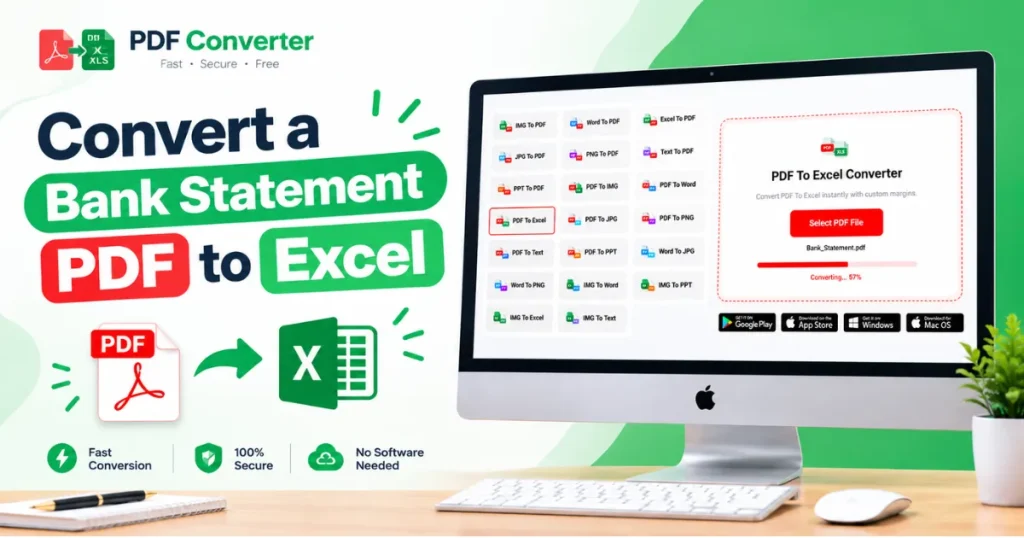
Most often, people need to convert a bank statement PDF into an Excel file to perform a specific task. In that case, many people use some converting software (free or premium). That is costlier and sometimes delays it if the subscription is over. The good news: you don’t need Adobe Acrobat, a paid PDF converter, or any desktop software installation.In that case. pdfconverter.com offers all-in-one solutions (Android, iOS, and web versions). Converting a bank statement PDF to Excel does not require any software.
Anyone can convert a PDF file into Excel format. There is a hidden charge; no software installation is required. It is free and converts a PDF document into a high-quality Excel file. In this article, we will clearly show you the right way to convert a PDF bank statement into a high-quality Excel file without installing any software.
Why Bank Statement PDFs Are Harder to Convert
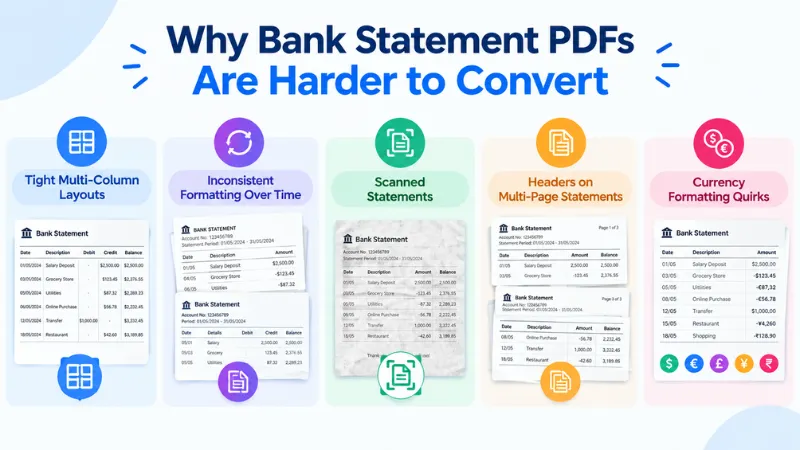
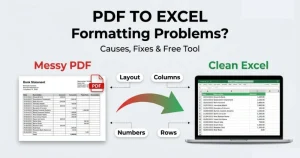
Most people assume a PDF is a PDF, but bank statements are one of the trickiest document types to convert. For a simple reason: banks don’t build them as spreadsheets. They place text at fixed positions on a page, almost like a printed layout. The software knows that “1,250.00” needs to sit under the “Credit” column visually, but the file itself has no idea that the number belongs to a column called “Credit. That structural information just doesn’t exist in a PDF.
This is why plain copy-paste, or even a generic PDF-to-text tool, often produces jumbled results. The converter has to guess which numbers belong to which column based on spacing alone, and on a busy bank statement, that guess frequently goes wrong.
A few specific issues make bank statements harder than most documents:
- Tight multi-column layouts: Date, description, withdrawal, deposit, and balance columns sit close together.
- Inconsistent formatting over time: Testing statements across several banks may have inconsistent reports or complex formatting.
- Scanned statements: Old or branch-printed statements are sometimes just images of text, not real text. These need OCR before any data can be extracted at all.
- Repeating headers on multi-page statements: Column headers often repeat on every page and can get mistaken for actual transaction rows, breaking totals and formulas.
- Currency formatting quirks: Inconsistent currency symbols can appear in Excel as text rather than numbers.
Conversion isn’t hard because it’s impossible. It’s hard because the right method depends on which of these problems your specific statement has.
Easy to Convert Bank Statement PDF to Excel Without Software (No App, No Account)
pdfconveter.com provides very advanced solutions to convert a bank statement PDF to Excel without software. Not only for bank account or job holders, but it also offers advanced privileges for different kinds of people who need conversion files from one into another. Here we have shown a simple conversion method from
Visit the Website and Select the Bank Statement PDF File
Visit pdfconveter.com find PDF to Excel conversion from the menu section (Convert). In that menu section, you will get over 20 converting tools (convert from one file to another, Excel to PDF, Word to PDF, Image to PDF, etc.).
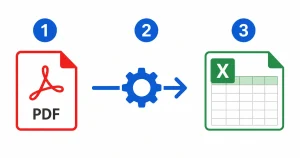
1. Upload PDF Bank Statement
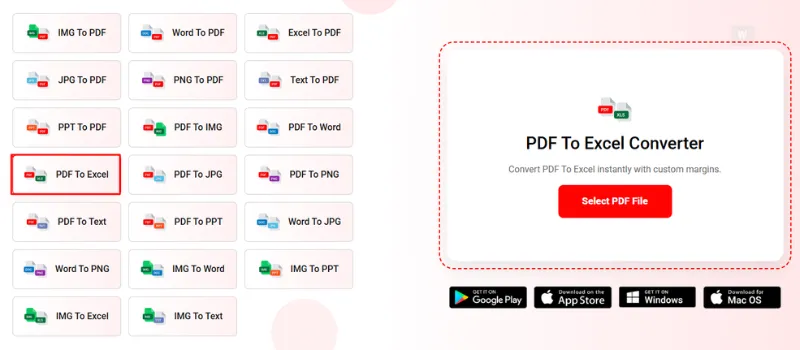
Now look at the file selection and converting box. Click on the select PDF file, then it will take you to the folder which you want to convert. Select that file from your mobile, tablet, or desktop folder.
2. Convert and download the converted Excel File
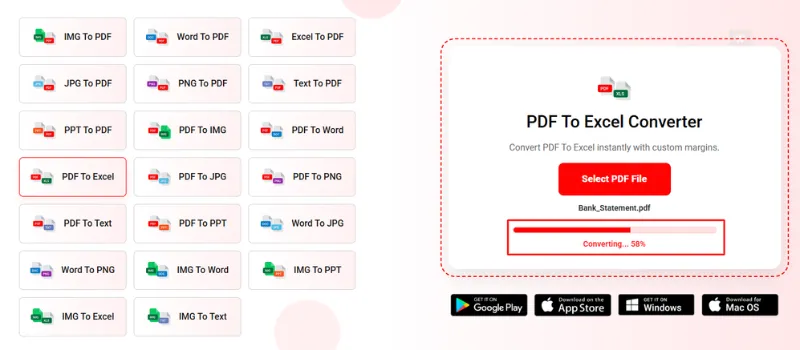
After selecting files, the conversion session will start automatically; wait a few seconds. If the conversion is done, then a green screen will be shown to indicate that your conversion has been successful.
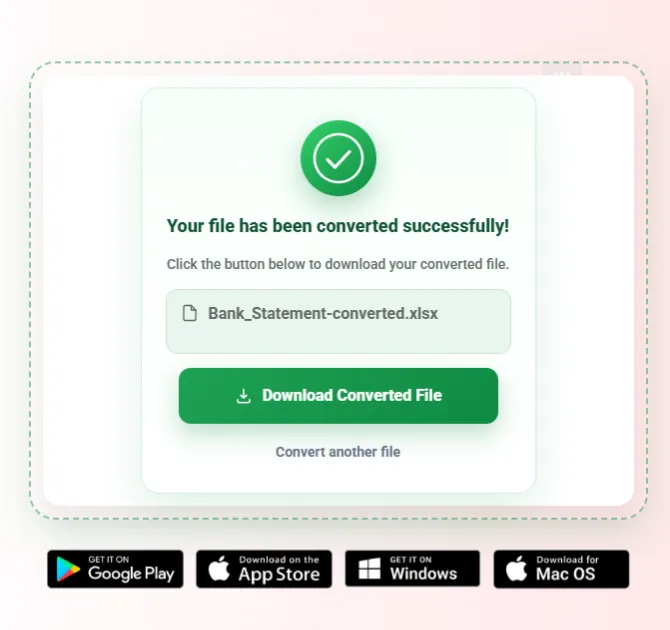
Now click on download and check your converted file (from PDF bank statement to Excel file).
This is the simple file conversion process that we have shown here. This web conversion is completely free for the audience, no credit card, no hidden charges. So, anyone can feel free to use this PDF converter. If anyone wants a mobile application of this web version, then they can find this PDF converter application from the Play Store and App Store. In that case, click on the Play Store or App Store icons and see the app on those stores.
Fixing Common Formatting Issues After Conversion
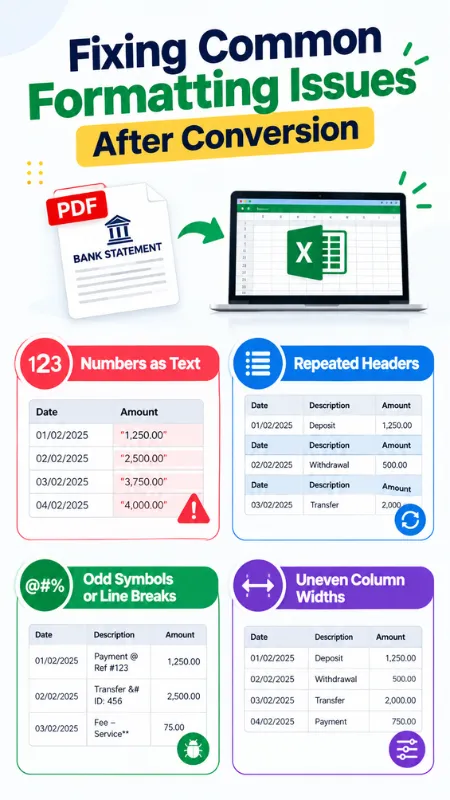
Your Excel file is ready, but before you dive into using it, a quick pass can save you headaches later. Here’s what typically needs a touch-up, and how to fix it fast.
Transaction Descriptions Overflowing Into Other Columns
Long merchant names or memo lines sometimes bleed into neighbouring cells. Widen the column by double-clicking its right border, or wrap the text using Home → Wrap Text so everything stays contained and readable.
Numbers Formatted as Text
If your balance or amount columns won’t sum up correctly, Excel may be reading them as plain text rather than numbers. Click the small warning icon next to the cell, or select the range and choose Convert to Number, your totals will calculate instantly after.
Repeated Headers Mid-Sheet
Statements spanning several pages sometimes bring their column headers along for the ride, showing up again halfway down your spreadsheet. Scroll through, spot these duplicate rows, and delete them so your data runs as one continuous list.
Odd Symbols or Line Breaks
Occasionally, PDF-to-Excel conversion carries over stray characters or unwanted line breaks within cells. A quick Find & Replace (Ctrl+H) clears these out just search for the symbol and leave the replace field blank.
Uneven Column Widths
A freshly converted sheet can look squeezed or unevenly spaced. Select your entire dataset and double-click any column border. Excel will auto-resize everything to fit its content perfectly.
None of these fixes takes more than a couple of minutes, and once handled, your spreadsheet is clean, accurate, and ready for whatever comes next: budgeting, reporting, or reconciliation.
Is It Safe to Upload Bank Statements to Online Converters?
Understandably, this is the question most people ask before uploading something as personal as a bank statement. Here’s what actually determines whether a converter is trustworthy.
Start With the Connection
Before uploading anything, glance at your browser’s address bar. A padlock icon and “https” mean your file travels over an encrypted connection, rather than being exposed as it moves from your device to the server.
Ask Where Your File Ends Up
The real safety question isn’t just about the upload, it’s about what happens afterwards. Reliable converters clear uploaded files from their systems shortly after your download completes, rather than archiving them indefinitely. If a platform’s policy is vague or absent on this point, that’s worth noticing.
Skip the Sign-Up, Skip the Risk
Tools that let you convert without creating an account tend to carry less risk. There’s no profile, no saved login, nothing tying the document back to a stored identity.
A Little Extra Caution Goes a Long Way
- Stick to secure, private networks rather than public Wi-Fi when handling financial files
- Take a minute to check the platform’s privacy or data-retention policy
- Favour well-established converters over unfamiliar sites cluttered with ads or pop-ups
With these checks in place, converting a bank statement online is a routine, low-risk task, not something that should keep you up at night.
Frequently Asked Questions
Can I convert a scanned bank statement to Excel?
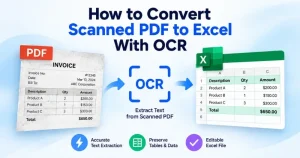
Yes, as long as the converter has built-in OCR to read the scanned image as text. Most modern tools handle this automatically, just make sure your scan is clear, since blurry images can cause misread numbers.
Is it safe to convert bank statements online?
Yes, if you pick a reputable tool: HTTPS-secured, no account required, and files auto-deleted after conversion. Avoid public Wi-Fi and unfamiliar, ad-heavy sites for extra safety.
Does Excel have a built-in PDF import feature?
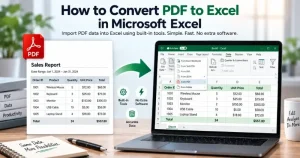
Yes, via Data → Get Data → From File → From PDF. It works for simple tables but often struggles with multi-column layouts or scanned statements, where a dedicated converter performs better.
What’s the fastest free method?
Web conversion from PDF to Excel. A dedicated online bank statement converter uploads your PDF, gets a ready spreadsheet in under a minute, no install or sign-up needed. Excel’s native import works too, but usually needs more manual cleanup.
Conclusion
To san document conveniently (PDF to file and file to PDF), a PDF converter plays a crucial role. A user can convert any file to another file format. Those things are free, and add free, no hassle for converting. So, whatever PDF document you have, such as a bank statement, legal evidence, certificate, accounting paper, and others. Convert them into your desired format (PDF to Excel, PDF to Word, PDF to Image, etc) conveniently.