 IMG to PDF
  Word to PDF
  Excel to PDF
  JPG to PDF
  PNG to PDF
  Text to PDF
  PPT to PDF
  PDF to Image
  PDF to Word
  PDF to Excel
  PDF to JPG
  PDF to PNG
  PDF to Text
  PDF to PPT
  Word to JPG
  Word to PNG
  IMG to Word
  IMG to PPT
  IMG to Excel
  IMG to Text
  Merge PDF
  Split PDF
  Organize PDF
  OCR PDF
  Delete Page
  Add Page To PDF
  Compress PDF
  PDF Form Filler
  Fill Out PDF
  Create Fillable PDF
  Edit PDF
  Crop PDF
  Sign PDF
  Rotate PDF
  Add Watermark
  Add Number page
  Protect PDF
  Unlock PDF
  Redact PDF
  PDF To PDF/A
  PDF Translator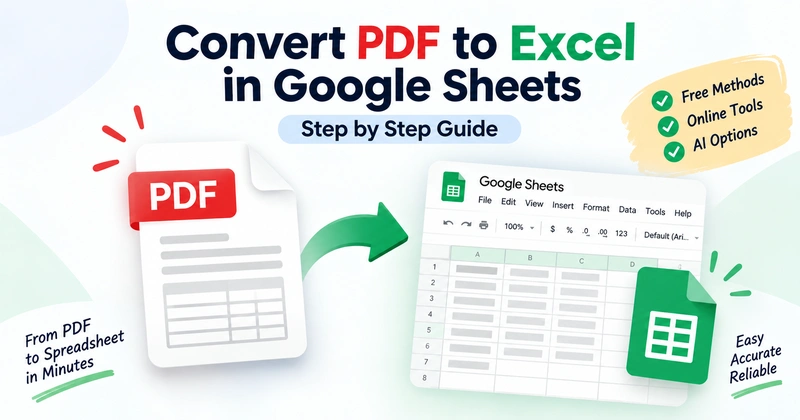
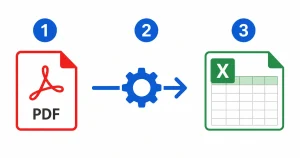
If you want to convert PDF to Excel in Google Sheets, there’s one extra step. Google Sheets cannot import PDF files directly. You must first convert the PDF data to Excel or another format. Then import the result into Google Sheets. This guide covers five practical methods. You’ll also learn how to fix common formatting errors.
Does Google Sheets Support PDF Import?
No, Google Sheets does not support direct PDF import. You need to convert or extract the PDF data first. You can convert the PDF to Excel or CSV. Then, import the converted file into Google Sheets.
Can You Import a PDF Into Excel?
Yes, Excel can import data from some PDF files. This works best with simple, structured tables. Results still depend on the PDF structure. Complex or multi-page tables may need manual cleanup after import.
Method 1: Convert PDF to Google Sheets Using Google Docs
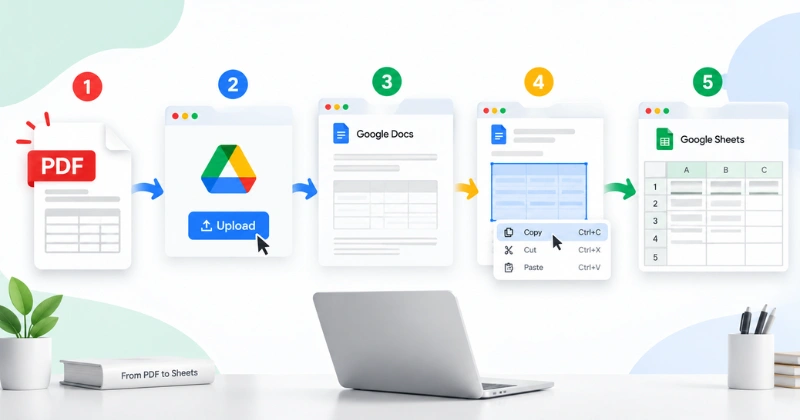
This is the easiest free method. It works best for simple PDFs with selectable text. It does not create an Excel file. Instead, it extracts text for you to copy into Sheets. Complex tables may lose their original structure.
Step 1: Upload the PDF to Google Drive
Open Google Drive. Click New and select File Upload. Choose your PDF file from your computer.
Step 2: Open the PDF With Google Docs
Right-click the uploaded file. Select Open With and choose Google Docs. Google will convert the PDF text into an editable document.
Step 3: Clean Up the Text
Check the new Google Doc for errors. Remove headers, footers, and extra spacing. This step is especially important for tables rather than plain text.
Step 4: Copy the Data
Highlight the data you need. Use Ctrl+C on Windows or Cmd+C on Mac to copy it.
Step 5: Paste Into Google Sheets
Open a new Google Sheets file. Click the first cell. Paste the data using Ctrl+V on Windows or Cmd+V on Mac.
This method works well for basic text. However, table structures may break during conversion. Rows can merge, and columns can shift out of place.
Method 2: Convert PDF to Excel Using an Online Converter
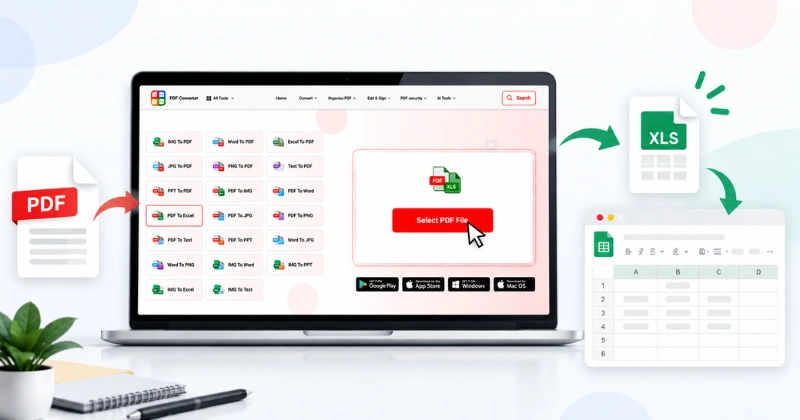
This method works better for PDFs with tables. You first convert the PDF to Excel. Then, you import the Excel file into Google Sheets.
Step 1: Choose a PDF to Excel Converter
Pick a reliable PDF to spreadsheet converter. Many online tools can convert PDF files to XLSX format. For more details, see our guide on how to convert PDF to Excel.
Step 2: Convert Your PDF File
Upload your PDF to the converter. Select the Convert to Excel option. Download the finished XLSX file.
Step 3: Import the Excel File Into Google Sheets
Open Google Sheets. Click File, then Import. Upload the XLSX file you just downloaded.
Step 4: Review the Data
Check the imported sheet for errors. Fix any misaligned columns or broken rows. Check numbers, dates, and formulas carefully.
Online converters work well with simple tables. They may struggle with complex or multi-page tables. Need a quick PDF to Excel conversion? Try our PDF to Excel converter to convert your file easily.
Method 3: Convert PDF to CSV and Import Into Google Sheets
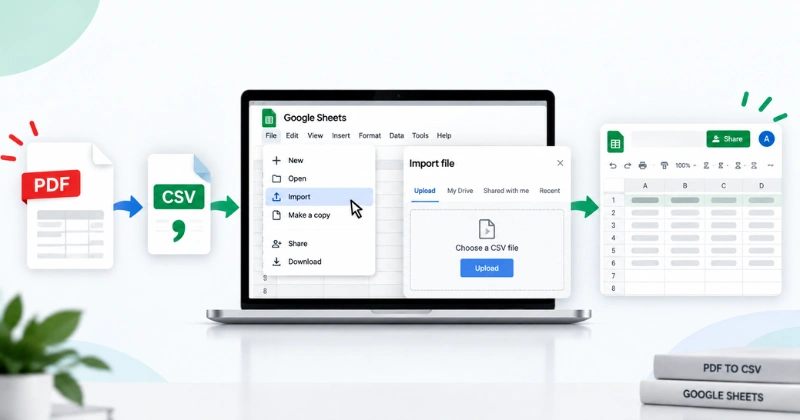
CSV files work well with Google Sheets. This method suits simple, structured spreadsheet data. It’s also useful when you don’t need Excel formatting.
Step 1: Convert Your PDF to CSV
Use a PDF converter that supports CSV output. Upload your PDF and select CSV as the output format.
Step 2: Open Google Sheets
Go to Google Sheets and open a new, blank spreadsheet.
Step 3: Import the CSV File
Click File, then Import. Upload your CSV file and select Insert new sheet.
Step 4: Check Your Data
Review the imported rows and columns. Fix any misplaced commas or line breaks. Check numbers and dates for accuracy.
CSV files store data in simple rows and columns. They work well for structured data without complex formatting.
Method 4: Import PDF Data Into Google Sheets Using a PDF Add-on
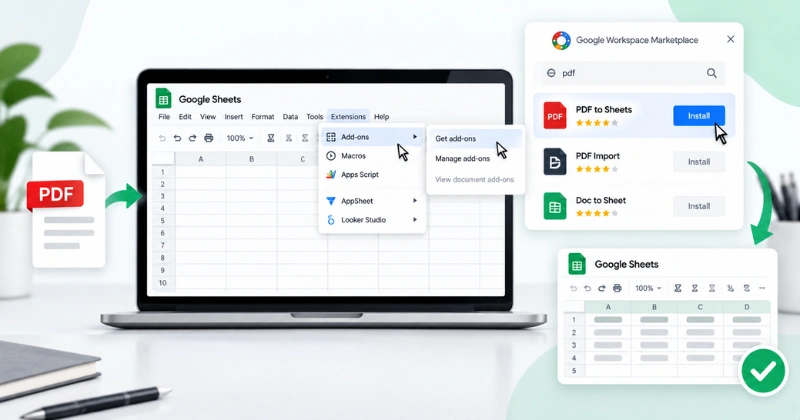
This method can skip the extra download step. The add-on pulls data directly into your sheet. It works well for PDFs with clear tables.
Step 1: Open a Blank Spreadsheet
Go to Google Sheets and open a new, blank spreadsheet.
Step 2: Find the Add-ons Menu
Click Extensions in the top menu. Select Add-ons, then Get Add-ons.
Step 3: Install a PDF Add-on
Search the marketplace for a PDF-to-Sheets add-on. Choose one that supports PDF table extraction. Install it and grant the required permissions.
Step 4: Extract Your PDF Data
Open the add-on from the Extensions menu. Upload your PDF file. Follow the add-on’s instructions to extract tables into your sheet.
This method can save time during repeat conversions. However, add-on features and accuracy can vary. Some handle multi-page tables better than others.
Method 5: Import PDF Tables Into Google Sheets Using AI Tools
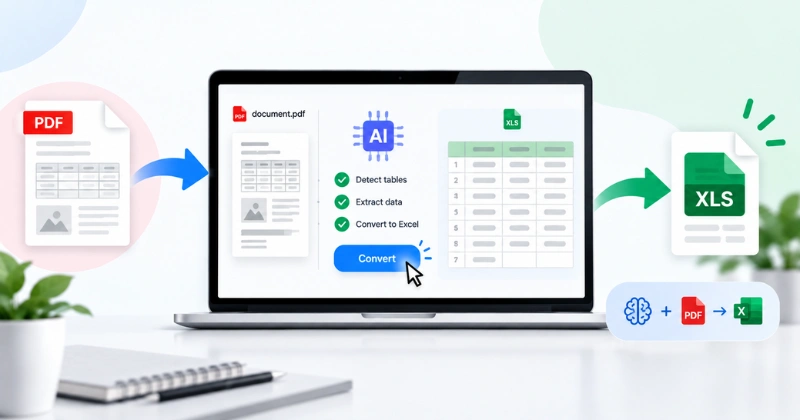
AI-based tools can help extract table data accurately. They read PDF layouts and match data to the right columns. This helps with complex or multi-page tables.
Here is how the process usually works:
Step 1: Upload the PDF
Add your PDF file to the AI tool’s upload window.
Step 2: Let the AI Detect Tables
The tool scans the document and finds table structures automatically.
Step 3: Review Extracted Rows and Columns
Check the preview for accuracy. Fix any misread numbers or headers.
Step 4: Export as XLSX or CSV
Download the cleaned data in your preferred format.
Step 5: Import the File Into Google Sheets
Open Google Sheets. Click File, then Import. Upload your file.
These tools can save time with large or messy documents. Some tools require an account. Others may charge for higher usage.
Fixing Common Formatting Issues After Conversion
Even good conversions may need some cleanup. Here are the most common problems when importing PDF data into Sheets.
Misaligned Columns
Data sometimes lands in the wrong column. Use Google Sheets’ Split Text to Columns tool when needed. You can find it under the Data menu.
Merged or Missing Cells
Some rows may merge into one cell after conversion. Check the original PDF to restore missing or misplaced data. Double-check numbers, dates, and totals for accuracy.
Scanned PDFs Show No Text
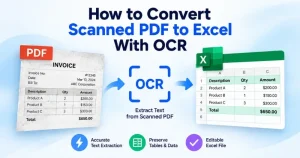
Scanned PDFs contain images instead of selectable text. Regular converters may not extract their data correctly. You’ll need an OCR tool to recognize the text first.
Which Method Should You Use?
Your choice depends on your PDF type and your budget.
| Method | Best For | Cost | Typical Accuracy |
| Google Docs | Simple PDFs | Free | Low |
| Online Converter | Clean tables | Free/Paid | Medium |
| PDF to CSV | Structured data | Free/Paid | Medium |
| Sheets Add-on | Repeat use | Free or paid | Medium-High |
| AI Tools | Complex tables | Usually paid | High |
Choose the simplest method that fits your PDF. Use AI tools for complex or messy documents.
Frequently Asked Questions
Can You Convert a PDF to Google Sheets Directly?
No, Google Sheets has no direct PDF import feature. You must convert the PDF to another format first, like Excel or CSV.
What Is the Easiest Free Way to Convert PDF to Google Sheets?
Uploading your PDF to Google Drive and opening it with Google Docs is the easiest free method. Then copy and paste the data into Sheets.
Why Does My Table Break After Pasting into Sheets?
PDF tables often lose their structure during copy-paste. Columns can merge or shift out of order. Use Google Sheets’ formatting tools to fix this after pasting.
Can I Convert a Scanned PDF to Google Sheets?
Yes, but you need an OCR tool first. Scanned PDFs are images, so regular converters cannot read the text inside them.
What Is the Best PDF to Spreadsheet Converter?
The best converter depends on your PDF. Simple text PDFs work fine with Google Docs. Complex tables need an online converter or AI extraction tool for better accuracy.
How Do I Convert a PDF to Excel for Free?
Use Google Drive and Google Docs to extract PDF data. Then, copy the extracted data into Google Sheets. This method is free and works best with simple, selectable-text PDFs.
How Do I Convert a Scanned PDF to Excel?
Use an OCR tool to extract text from scanned PDFs. Then, convert the extracted data to Excel or CSV. Finally, import the file into Google Sheets.
Conclusion
Converting PDF data to Google Sheets is easier with the right method. Google Docs works well for simple text-based PDFs. Online converters are better for clean tables and spreadsheet data. CSV works well when you need simple structured data. Add-ons can help with repeat conversions. AI tools are useful for complex or multi-page tables. Choose the method that matches your PDF structure. Always review the imported data for accuracy. This helps prevent errors in your final spreadsheet.