 IMG to PDF
  Word to PDF
  Excel to PDF
  JPG to PDF
  PNG to PDF
  Text to PDF
  PPT to PDF
  PDF to Image
  PDF to Word
  PDF to Excel
  PDF to JPG
  PDF to PNG
  PDF to Text
  PDF to PPT
  Word to JPG
  Word to PNG
  IMG to Word
  IMG to PPT
  IMG to Excel
  IMG to Text
  Merge PDF
  Split PDF
  Organize PDF
  OCR PDF
  Delete Page
  Add Page To PDF
  Compress PDF
  PDF Form Filler
  Fill Out PDF
  Create Fillable PDF
  Edit PDF
  Crop PDF
  Sign PDF
  Rotate PDF
  Add Watermark
  Add Number page
  Protect PDF
  Unlock PDF
  Redact PDF
  PDF To PDF/A
  PDF Translator
It is easy to convert PDF to Word on Android phone, with an app or an online converter. You can do this in a few taps. If you need to edit a resume, update a report, or even copy text from a PDF, your Android phone can do it. Many PDF-to-Word tools preserve formatting, images, tables, and text, so the converted document is easy to edit in Microsoft Word or Google Docs.
This guide will show you the ways to convert a PDF to a Word document on your Android phone. You will learn how to choose the right conversion tool to convert a PDF to a Word document. You will also get some tips to keep your document formatting accurate after you convert a PDF to a Word document on your Android phone.
Why Convert PDF to Word on Your Android Phone?
Use case: editing resumes, filling forms, working on the go without a laptop
Converting a PDF to a Word document on your Android phone is really helpful. This is because you can edit PDF documents anytime and anywhere you want without needing to use a laptop or a desktop computer to make changes to your PDF documents. This is especially useful when you need to update your resume or fill out forms. You can also edit reports. Make quick corrections or copy text when you are travelling, working, or studying.
When you convert a PDF to a Word document, you can use Microsoft Word or other apps on your phone to make changes to the Word document. This saves you time. Helps you get more work done. You can also manage your documents from your Android phone, which is really convenient. Converting a PDF to a Word document is
helpful when you need to edit documents on the go.
Method 1: Convert PDF to Word (Browser Method)
If you do not want to install an app, you can convert a PDF to a Word document directly from your Android phone’s web browser. Using pdfconverter.com is an easy option that lets you upload your PDF, convert it online and download an editable Word file in just a few steps. This method works well for things like resumes, reports, assignments, business documents, and other text-based PDFs.
To convert a PDF to Word using your browser:
1. Open your web browser on your Android phone, whatever browser you like to use.
2. Go to pdfconverter.com.
3. Select PDF to Word. The conversion tool is easy to find.
4. Upload the PDF file from your phone. This is a step.
5. Tap the Convert button. Wait for it to start converting your PDF to Word.
6. Wait for the conversion to finish, and this will not take long.
7. Download the converted Word (.docx) file, and you can do this in a few seconds.
8. Open the file in Microsoft Word or another document editing app to review and edit your Word document.
This browser-based method is simple and fast. Does not require installing additional software, making it ideal for converting PDF files while you are on the go with your Android phone when you need to convert a PDF to a Word document quickly. You can convert a PDF to Word using pdfconverter.com. It is very easy to do.
Step-by-Step Guide
- Open pdfconveter.com/pdf-to-word in Chrome or any browser
- Tap “Upload” and select the PDF from Files/Downloads/Drive
- Tap Convert
- Download the converted Word file
Converting a PDF to a Word document with pdfconverter.com is very simple. It does not take a lot of time to do this. You can do this on your Android phone. You do not have to install any apps on your Android phone.
Here is what you need to do:
1. Open Chrome or any other web browser on your Android phone.
2. Go to pdfconverter.com/pdf-to-word. to convert your PDF to a Word document.
3. Tap on Upload. Then pick your PDF file from Files, Downloads, or Google Drive.
4. Tap the Convert button to start the process.
5. Wait for a while; this will not take long while the file is being converted.
6. Download the new Word (.docx) file that you just converted from a PDF.
7. Open this Word (.docx) file in Microsoft Word or some other document editor to look it over and make any changes that you need to make.
This way of converting a PDF to a Word document is quick and easy. It works well for things like resumes, reports, forms, and other PDF documents that you want to change into Word files that you can edit.
Why This Method Is Best for Most Users
- No app install needed
- Saves storage
- Fast, works on any Android browser
Using pdfconverter.com in your Android browser is one of the ways to turn a PDF into a Word file. Because everything happens online, you do not have to download an app, which helps keep more space available on your phone. It also works with known Android browsers like Chrome, which makes it a great choice for nearly any phone. No matter if you are changing a resume, a school paper or a work file, the task is quick. Takes just a few minutes.
Method 2: Using a PDF to Word Converter App
If you work with PDF files a lot, it is an idea to use a PDF to Word converter app on your Android phone. This way, you can convert PDF files whenever you need to, without having to open a web browser. Some of these PDF to Word converter apps even let you convert PDF files without an internet connection.
This is really useful when you need to make changes to things like your resume, schoolwork, business documents, and forms when you’re not at your desk. Most of these apps are easy to use, so you can convert PDF files even if you are not very good with technology. PDF to Word converter apps make it easy to convert PDF files to Word documents. This is very helpful when you need to edit PDF files like your resume or business documents on your Android phone.
To convert a PDF using a converter app:
- Install a trusted PDF to Word converter app from the Google Play Store.
- Open the app on your Android phone.
- Select the PDF file from your device.
- Tap the Convert button.
- Wait for the conversion to finish.
- Save or download the Word (.docx) file.
- Open the document in Microsoft Word or another editor to make changes.
Using a PDF-to-Word converter app is a convenient choice if you frequently edit documents on your Android phone and want quick access to conversion tools.
Best Free Apps from Google Play Store
- PDF Converter – Scanner & Maker
- Adobe Acrobat – pros/cons
- WPS Office – pros/cons
- Microsoft Word app – pros/cons
If you prefer using an app instead of a browser, several free PDF to Word converter apps are available on the Google Play Store. Each app has its own strengths and limitations, so choosing the right one depends on how often you convert PDF files and the features you need.
Adobe Acrobat: Pros and Cons
Adobe Acrobat is one of the most trusted apps for working with PDF files. It provides accurate PDF to Word conversion and does a good job of preserving formatting.
Pros:
- High-quality PDF conversions
- Preserves formatting in most documents
- Trusted and easy to use
- Includes many PDF editing features
Cons:
- Some conversion features require a premium subscription
- Can be slower with large PDF files
WPS Office: Pros and Cons
WPS Office is an all-in-one office app that supports PDF viewing, editing, and document conversion. It is a good choice for students and everyday users.
Pros:
- Free to download and use
- Supports PDF, Word, Excel, and PowerPoint
- Easy-to-use interface
- Includes basic document editing tools
Cons:
- Some advanced features require a paid version
- The free version may display advertisements
Microsoft Word App: Pros and Cons
The Microsoft Word app lets you open and edit Word documents on your Android phone. It can also work with PDF files and provides a familiar editing experience.
Pros:
- Easy to edit converted Word documents
- Simple and beginner-friendly interface
- Syncs with OneDrive for cloud storage
- Works well with Microsoft Office files
Cons:
- PDF conversion features are more limited than dedicated PDF converter apps
- Some premium features require a Microsoft 365 subscription
How to Convert Using an App (Generic Steps)
- Install the app from the Play Store
- Open/import the PDF
- Select Export/Save as Word (.docx)
- Note: apps may have ads or storage limits vs the browser method
Using a PDF-to-Word converter app is really easy. It only takes a minute. You can get the app. Then use it to convert your PDF into an editable Word document. You can do this right from your Android phone. Some of the apps will have ads, or they will only let you convert a few files. If you only need to do this, using the browser to convert your PDF to Word might be easier.
Follow these steps:
- Install a trusted PDF to Word converter app from the Google Play Store.
- Open the app and import your PDF file from your phone, Downloads folder, or cloud storage.
- Select Export or Save As, then choose Word (.docx) as the output format.
- Start the conversion and wait for it to finish.
- Save or download the converted Word document.
- Open the file in Microsoft Word or another document editor to review and edit it.
While converter apps are useful for frequent conversions, some free versions include advertisements or storage limits. If you only need to convert a file occasionally, the browser method may be a faster and more convenient choice
Common Problems When Converting PDF to Word on Android (And Fixes)
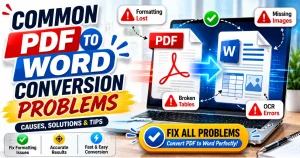
Converting a PDF to Word on an Android phone is usually quick, but you may sometimes run into problems. The converted document might have missing formatting, incorrect fonts, or misplaced images. These issues are often caused by the type of PDF or the converter being used. Fortunately, most problems can be fixed with a few simple steps.
| Problem | How to Fix It |
| Formatting looks different | Use a reliable PDF to Word converter and review the document after conversion. |
| Fonts have changed | Install the original fonts if available or use common fonts such as Arial or Calibri. |
| Images or tables are misplaced | Adjust the layout manually in Microsoft Word after conversion. |
| The scanned PDF is not editable | Use a converter that supports OCR (Optical Character Recognition). |
| The file is too large | Compress the PDF before converting or split it into smaller files. |
| Conversion fails | Check your internet connection, restart the app, or try another converter. |
Most conversion problems are easy to fix, and using a trusted PDF converter helps produce better results with fewer formatting issues.
H2: FAQs
Can I convert PDF to Word on Android for free?
Yes. Many PDF to Word converters let you convert files for free on Android. You can use online browser-based tools or free apps from the Google Play Store. Some free services may have daily conversion limits or show ads, but they are usually enough for basic document conversion.
Do I need the internet to convert PDF to Word on Android?
It depends on the method you choose. Online converters require an internet connection because the conversion happens on a remote server. Some Android apps support offline conversion, allowing you to convert PDF files without internet access.
Is it safe to upload PDFs to online converters?
Yes, as long as you use a trusted and secure PDF converter. Choose services that use encrypted file transfers and automatically delete uploaded files after a short period. Avoid uploading documents that contain sensitive or confidential information unless you trust the service.
Which app is best for PDF to Word conversion on Android?
Some of the best Android apps include Adobe Acrobat, WPS Office, and Microsoft Word. Each app offers different features, so the best choice depends on your needs. If you want a quick conversion without installing an app, a browser-based PDF-to-Word converter is often the easiest option.
Conclusion
Converting a PDF to a Word document on Android is simple when you use the right method. Whether you choose a browser-based tool like pdfconverter.com or a PDF converter app from the Google Play Store, you can quickly turn your PDF into an editable Word file without using a computer. The best method depends on your needs. Online converters are great for occasional use, while apps are convenient if you convert documents regularly.
To get the best results, use a reliable converter, review the converted document for any formatting changes, and make sure your PDF is clear and text-based whenever possible. By following the tips in this guide, you can easily edit resumes, reports, assignments, forms, and other documents on your Android phone while keeping the original formatting as accurate as possible.