 IMG to PDF
  Word to PDF
  Excel to PDF
  JPG to PDF
  PNG to PDF
  Text to PDF
  PPT to PDF
  PDF to Image
  PDF to Word
  PDF to Excel
  PDF to JPG
  PDF to PNG
  PDF to Text
  PDF to PPT
  Word to JPG
  Word to PNG
  IMG to Word
  IMG to PPT
  IMG to Excel
  IMG to Text
  Merge PDF
  Split PDF
  Organize PDF
  OCR PDF
  Delete Page
  Add Page To PDF
  Compress PDF
  PDF Form Filler
  Fill Out PDF
  Create Fillable PDF
  Edit PDF
  Crop PDF
  Sign PDF
  Rotate PDF
  Add Watermark
  Add Number page
  Protect PDF
  Unlock PDF
  Redact PDF
  PDF To PDF/A
  PDF Translator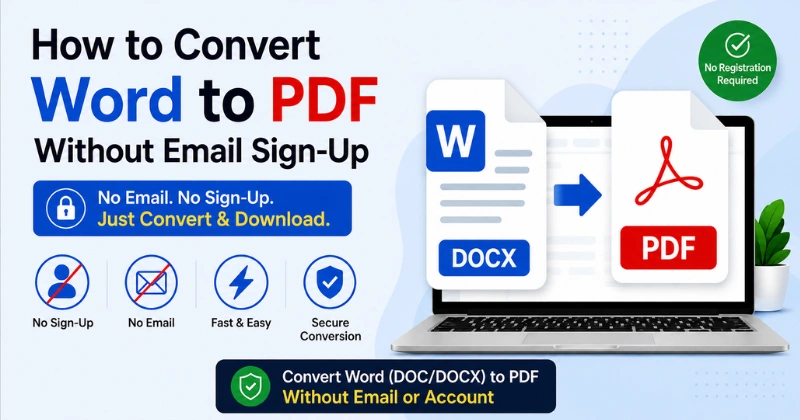
Need to convert a Word file to PDF without giving your email? You can do it quickly without creating an account. This guide explains how to convert Word to PDF without email, choose a reliable no-sign-up converter, and keep your document’s formatting intact.
Quick Way to Convert Word to PDF Without Signing Up
You can convert Word files to PDF without registering. Use an online converter that doesn’t require an account. Upload your .doc or .docx file and convert it. Then, download the finished PDF to your device.
Quick Steps
- Open a Word to PDF converter without sign-up.
- Upload your .doc or .docx file.
- Click the ‘Convert to PDF’ button.
- Wait for the conversion to finish.
- Download the converted PDF.
Tip: Check the PDF before sharing or sending it. Make sure the fonts, images, tables, and layout look correct.
Why Convert Word to PDF Without Email?
You may only need one PDF for a quick task. Creating an account can add extra steps you don’t need. A no-email converter makes the process faster. You can convert your file without sharing your email.
Here are the main benefits:
- Saves Time: Start converting without creating an account.
- Protect Your Email: Avoid sharing your email address.
- Simplifies Conversion: Upload, convert, and download your PDF.
- Works Across Devices: Use a browser on most devices.
- Good for Quick Tasks: Convert files without long registration steps.
- Offers More Privacy: Avoid unnecessary personal information.
No Sign-Up vs. No Email
No sign-up and no email have slightly different meanings.
- No Sign-Up: You don’t need to create an account.
- No Email: You don’t need to provide your email address.
- No Registration: You can use the tool without registering.
- No Account: You can convert files without creating an account.
Some converters require an email without requiring registration. Others require neither an email nor an account. For quick conversions, choose a tool that needs no email or registration.
How to Convert Word to PDF Without Email
Now that you know the basics, let’s explore the easiest methods. You can choose an online or offline option.
Method 1: Use PDF Conveter Online
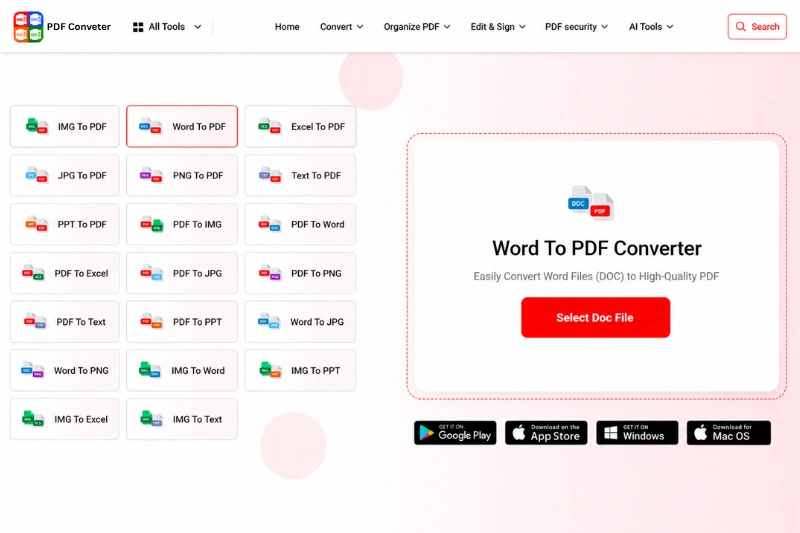
PDF Conveter lets you convert Word files in your browser. You don’t need an account or email address to start.
Follow these steps:
- Open PDF Conveter in your browser.
- Select the Word to PDF converter.
- Upload your .doc or .docx file.
- Click the Convert button.
- Wait for the conversion to finish.
- Download the finished PDF to your device.
- Open the PDF and check its formatting.
This method works on desktop and mobile devices. On Android or iPhone, open the same tool in Chrome or Safari.
Method 2: Convert Directly From Microsoft Word
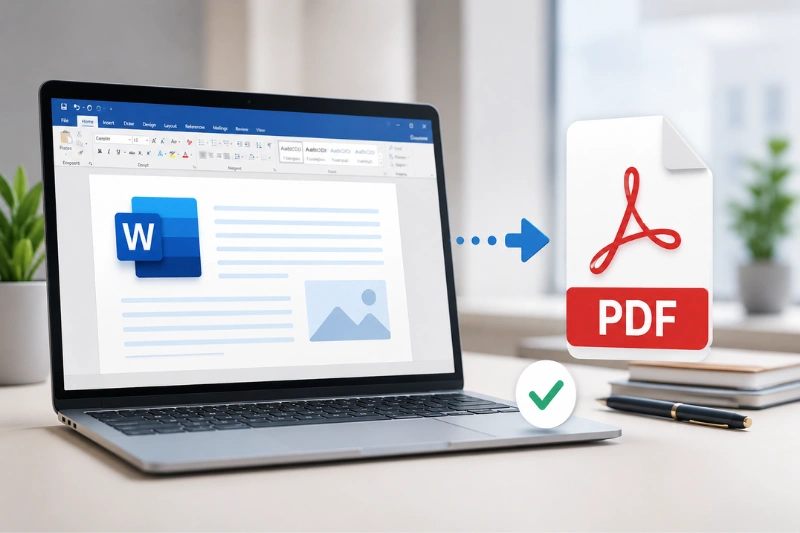
Microsoft Word includes a built-in PDF export option. This method doesn’t require an online upload. Your file stays on your device during conversion.
Follow these steps:
- Open your Word document in Microsoft Word.
- Click File and choose Save As.
- Select PDF as the file type.
- Choose where you want to save the file.
- Click Save to create the PDF.
- Open the PDF and check the formatting.
This method converts the file directly from Word. Your document’s fonts, images, and layout should remain consistent.
Is It Safe to Upload Files Without Creating an Account?
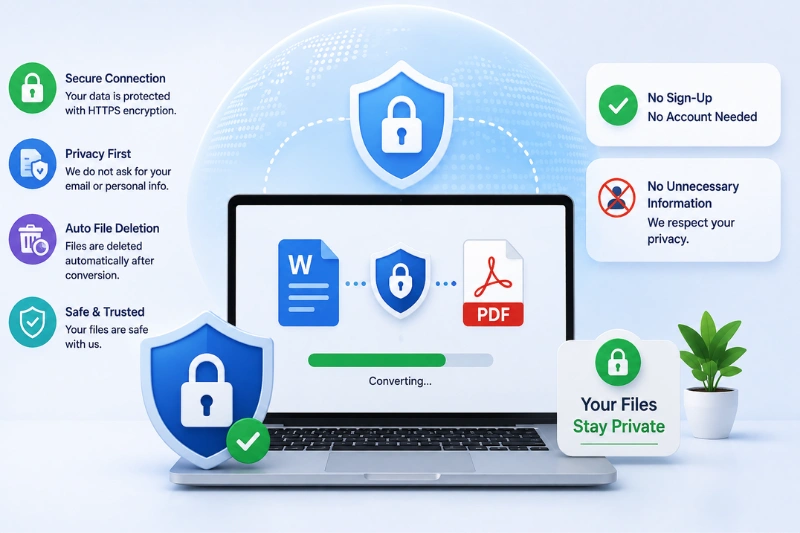
It can be safe when the converter follows good privacy practices. Not requiring an account doesn’t automatically make a converter unsafe. Always check how the website protects your uploaded files.
Before uploading a Word document, check these things:
- HTTPS Connection: Make sure the website uses HTTPS.
- Privacy Policy: Check how the site handles your files.
- File Deletion: Look for information about file deletion.
- Clear Contact Details: Choose a site with clear contact information.
- No Unnecessary Details: Don’t share extra personal information.
Be careful with documents containing private information. This includes passwords, financial details, and business data. For highly sensitive files, consider an offline conversion method. Always review a converter’s privacy and security information before uploading important documents.
Common Problems When Converting Without Sign-Up (and Fixes)
Converting Word files is usually simple, but problems can happen. Most issues have simple solutions you can try.
File Size Limits
Some converters limit the size of uploaded Word files. Large files may take longer or fail during conversion. Try reducing large images before uploading your document. You can also check the converter’s file size limit.
Formatting Looks Different
Some Word files may look different after conversion. Fonts, images, tables, and spacing can sometimes change. Choose a converter that preserves the original document layout. Always compare the PDF with your original Word file.
Conversion Fails
A conversion may fail because of several common issues. These include poor internet connections, unsupported files, or damaged documents. Check your internet connection before trying again. Also, make sure your file uses .doc or .docx format.
Too Many Conversions
Some free converters limit how many files you can convert. These limits may apply within a specific time period. Check the converter’s usage limits before converting many files. This can help you avoid unexpected interruptions.
Download Button Does Not Work
Sometimes the PDF may not download correctly. Browser settings or low storage can cause this issue. Check your browser’s download settings. Make sure your device has enough storage. You can also refresh the page and try again.
Frequently Asked Questions
Do Free Word to PDF Converters Require an Account?
No, not always. Some free converters work without registration. Choose a tool that clearly supports no-sign-up conversion.
Is It Safe to Convert Sensitive Documents Without Signing Up?
It can be safe with proper privacy practices. Check the site’s privacy policy before uploading sensitive files. For highly confidential files, use offline conversion.
What’s the Fastest Way to Convert Word to PDF Without an Account?
An online converter is usually the fastest option. Upload your Word file and convert it. Then, download the PDF without creating an account.
Can I Convert Word to PDF on My Phone?
Yes, you can convert Word files on your phone. Open a suitable converter in Chrome or Safari. Upload your file and download the converted PDF.
Will My Word Document’s Formatting Stay the Same?
A good converter usually preserves the original formatting. Complex documents may still show small layout changes. Always check the final PDF before sharing.
Is There a Limit to How Many Files I Can Convert?
Limits depend on the converter you choose. Some tools limit file size or conversion volume. Check the tool’s current limits before converting many files.
Conclusion
Converting Word to PDF without email is quick and simple. You can choose an online or offline method based on your needs. PDF Conveter offers a convenient browser-based option without requiring an account. Before sharing your PDF, check every page carefully. If you’re unsure which format to use, compare PDF and Word formats.