 IMG to PDF
  Word to PDF
  Excel to PDF
  JPG to PDF
  PNG to PDF
  Text to PDF
  PPT to PDF
  PDF to Image
  PDF to Word
  PDF to Excel
  PDF to JPG
  PDF to PNG
  PDF to Text
  PDF to PPT
  Word to JPG
  Word to PNG
  IMG to Word
  IMG to PPT
  IMG to Excel
  IMG to Text
  Merge PDF
  Split PDF
  Organize PDF
  OCR PDF
  Delete Page
  Add Page To PDF
  Compress PDF
  PDF Form Filler
  Fill Out PDF
  Create Fillable PDF
  Edit PDF
  Crop PDF
  Sign PDF
  Rotate PDF
  Add Watermark
  Add Number page
  Protect PDF
  Unlock PDF
  Redact PDF
  PDF To PDF/A
  PDF Translator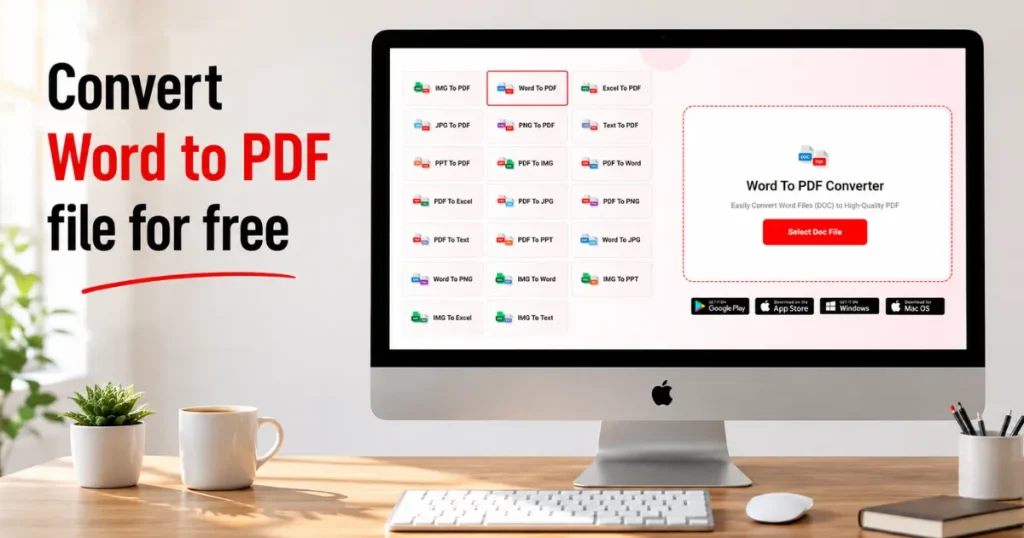
When you want to share a Word document, it is a good idea to convert it to a PDF file. This way, the layout, fonts, and images in your Word document will stay the same. If you use the wrong tool or the wrong settings, you might have problems with how your Word document looks when it is a PDF file. You might see that some fonts are missing or that the images are in the wrong place. Sometimes the tables in your Word document can get. The pages can look different.
This guide will show you how to turn a Word document into a PDF file without messing up the formatting. It will also show you how to fix problems that people have when they do this. You will learn ways to keep your Word document looking the same when you turn it into a PDF file.
Why Word to PDF Conversion Breaks Formatting
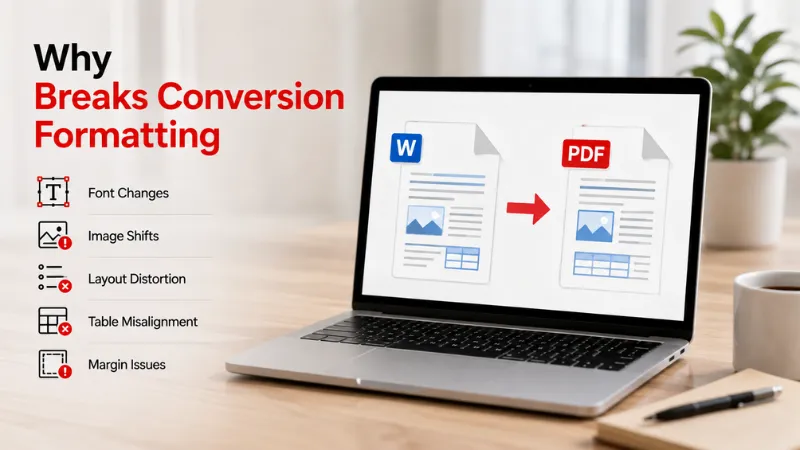
A PDF is meant to be a fixed, exact copy of your Word document. In practice, it often isn’t, because Word documents are flexible by design and PDFs are not. Two things usually cause the mismatch: fonts that the converter can’t access, and layouts that are too complex for the conversion engine to reproduce exactly.
The conversion tool itself plays a large role here. Some converters substitute missing fonts, reposition images, adjust table row height, or shift page breaks during processing. Font substitution is a common source of this problem, since a PDF only displays a font correctly if that font is either embedded in the file or available on the system rendering it.
The most reliable fix is to use a converter built to preserve the original layout, check the Word file before converting, and check the PDF after. That before-and-after check catches most issues before they reach a reader.
Font Substitution Errors
Font substitution happens when the font used in your Word document is not available or cannot be embedded during PDF conversion. The converter may replace it with another font, which can change the text style, spacing, and page layout.
To avoid this problem, use widely supported fonts such as Arial, Calibri, or Times New Roman. If your document uses a special font, make sure it can be embedded and is supported by your converter. After converting, open the PDF and compare it with the original Word file to make sure the fonts and spacing look correct.
Image and Table Shifting
When you transform a Word document into a PDF, the pictures and tables might not stay where they were. This is especially true for documents that have a lot of things going on. It can make the PDF look messy and hard to read.
To keep the pictures and tables in place:
- Anchor images to nearby text rather than leaving them floating freely
- Avoid deeply nested tables or tables within tables
- Review where page breaks fall before converting
- Use a converter designed to preserve layout, not just text
Margin and Spacing Changes
The PDF file does not always look like the Word document. This is because the margins and the line spacing in the PDF sometimes differ. The PDF might also have fewer pages than the Word document.
To stop this from happening to the margins and the space between lines:
- Set the right page size and the margins before you make the PDF file.
- Make sure the space between paragraphs is the same in the Word document.
- Check the PDF file when you are done to make sure it looks like the Word document.
How to Convert Word to PDF to Keep Original Formatting
The best way to convert a Word document into a PDF without losing its original format is to use a converter that keeps the document’s original fonts, pictures, tables, and space between pages. Saving directly from Word, embedding fonts, and checking element placement beforehand all reduce the chance of formatting errors.
For the best result:
- Use a Word to PDF converter built to preserve the original layout
- Save the file as a PDF directly from Microsoft Word when possible
- Use embedded fonts so text doesn’t display incorrectly
- Confirm images, tables, and page breaks are correctly placed before converting
- Review the finished PDF for layout issues before sharing it
Converting document using PDF Conveter:
Step 1: Upload Your Word Document
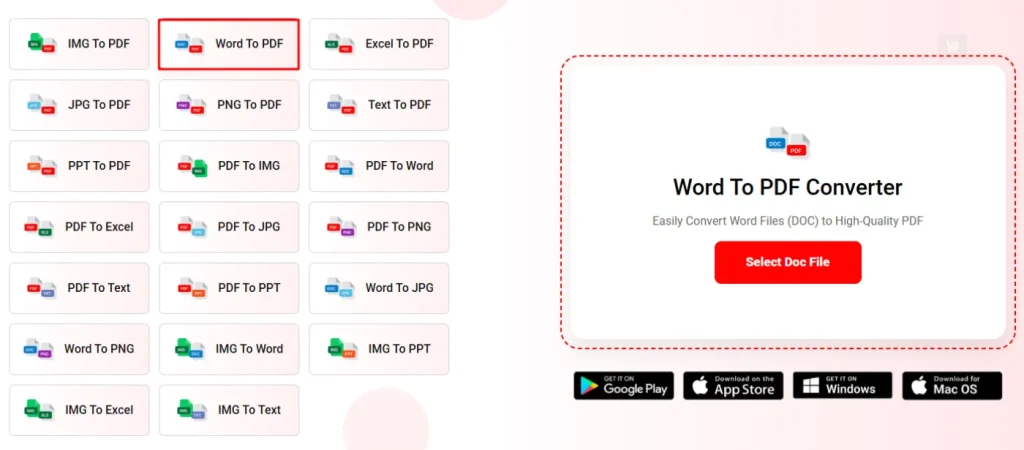
First, open PDF Conveter in your browser. Find Word to PDF under the Convert To PDF section. Click it to open the Word-to-PDF tool. Then click Upload and choose the Word file from your computer. You can also drag the Word file and drop it into the upload area.
Step 2: Let Conversion happen
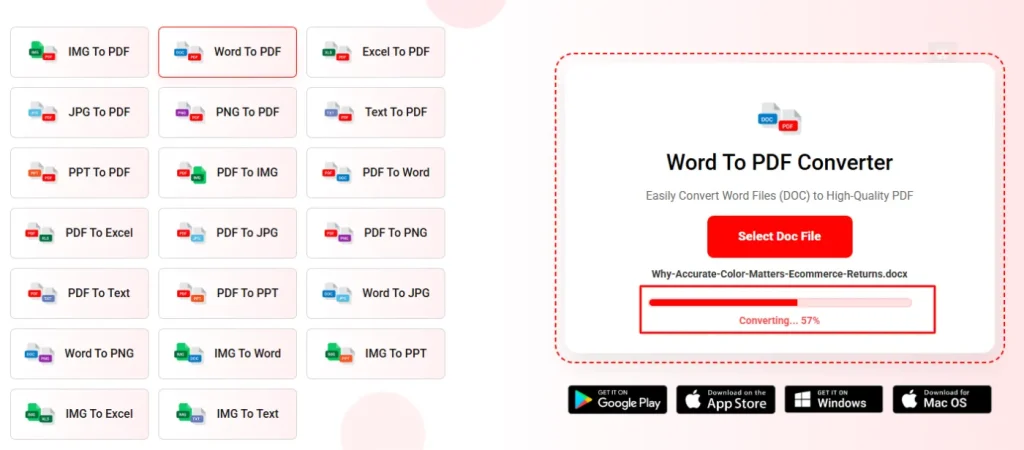
Once your Word document is uploaded, let PDF Conveter handle the conversion. The tool will process your file and create a PDF while keeping the document’s layout and content intact. Depending on the file size, the conversion may take a few seconds.
Step 3: Download the PDF
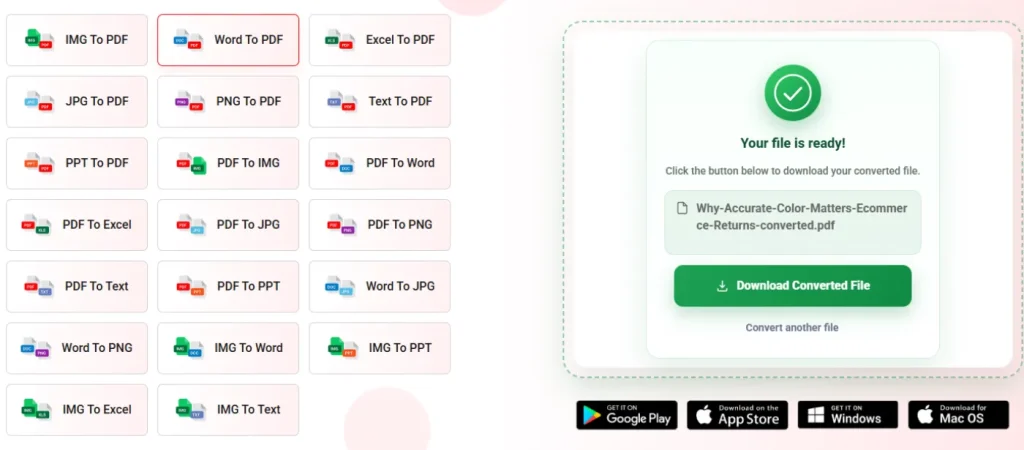
Once processing finishes, your converted file will be ready to download. Save your file and open it to check the text, images, tables, and overall layout before sharing it.
How to Fix Formatting After Conversion (If It Already Broke)
If your Word document loses its formatting after it is turned into a PDF, don’t be worried. Many issues that arise when converting from Word to PDF can be resolved with a few changes. Problems like fonts, pictures that are not in the right place, tables that are broken, or page layouts that look different are usually because of the converter or because some formatting is not supported. Before you send out the PDF, spend a few minutes checking and fixing any mistakes.
Here are some ways to fix formatting after conversion:
- Check missing or changed fonts: Make sure the fonts used in the original Word document are available and can be embedded during PDF creation. If a font cannot be preserved, consider using a supported alternative.
- Fix shifted tables: Return to the original Word document and adjust the table’s position, width, or spacing. Then convert the document again and check the result.
- Match the page settings: Make sure the PDF uses the same page size, margins, orientation, and spacing as the original Word document.
- Convert the document again: After correcting the formatting issues in Word, reconvert the original file using a reliable Word to PDF conversion method.
- Try saving directly from Microsoft Word: If you’re using Microsoft Word, you can select File to Save As and choose PDF to create the file directly from the document.
- Compare the files before sharing: Open the PDF and the original Word document side by side. Check the fonts, images, tables, page breaks, margins, hyperlinks, and overall layout for any differences.
Fixing Font Display Issues
If the fonts in your PDF appear different from the fonts in the Word document, the font might not be supported or might not have been embedded properly. This can affect the text style, the spacing between lines, and even the total number of pages. To solve this issue, open the Word file and change any unusual fonts to standard choices, like Arial, Calibri, or Times New Roman. If you can use a converter that handles embedded fonts. Once you convert the file, open the PDF again. Make sure all the fonts look right.
Realigning Shifted Tables and Images
Tables and images can sometimes move or change position during Word to PDF conversion. This is more common in documents with complex layouts or floating images. To fix this, return to the original Word document and adjust the position of the tables and images. Make sure they fit properly within the page margins. Then convert the document again and compare the new PDF with the original to make sure everything is in the right place.
Correcting Page Margins and Spacing
When you make changes to the margins, the line spacing, or the page breaks in a document, the PDF version can look really different from the Word file. This kind of thing happens a lot when you use the wrong page settings.
To fix the margins and the spacing, you should do a few things.
- Verify the page size, the margins, and the orientation in the Word document before you convert it to a PDF.
- Use the paragraph spacing and line spacing all the way through the document.
- Check the page breaks to make sure that each section starts on a page.
If you do these things and then convert the document again, you can compare the PDF to the original Word file to make sure everything looks the same. Making these changes before you convert your Word document to a PDF again can really help get rid of formatting problems and make a professional-looking PDF. The Word document and the PDF should look the same. That is what you want.
Word to PDF Converter Settings That Preserve Formatting Best
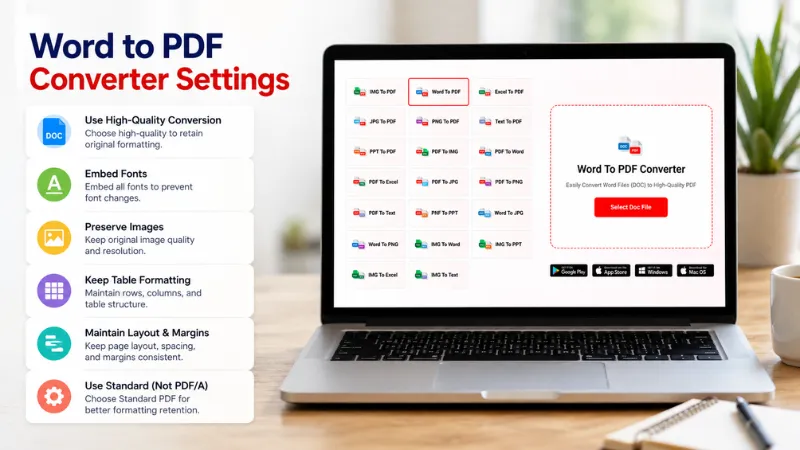
The choices you make before turning a Word document into a PDF can have an impact on what you end up with. Selecting the options helps keep the look of the document the same when you move from Word to PDF. This means fonts, images, tables, and the way pages are set up will stay just like they were in the file. If you pick the wrong settings, you might run into problems when converting from Word to PDF. These issues can include missing fonts, tables that don’t work right or pictures that move around.
To get the desired outcome, follow these suggested settings:
- Pick “Standard” or “High Quality” as the output option instead of ones that are compressed or take up less space.
- Try to include fonts whenever you can so that the text looks the same
- Make sure the size of the pages and the margins stay the same as the original.
- Turn on the feature that keeps the quality of images so they don’t look blurry.
- Only flatten the document if it is necessary.
- Use a tool that keeps hyperlinks, tables and page breaks intact.
- Check the PDF before you send it out or print it to make sure the way it looks is the same as the Word file.
These settings are useful because they help reduce mistakes when you convert a Word document to a PDF file. This means the PDF will look the same as the Word document. It will look professional when you view it on any device. The Word-to-PDF converter will keep the layout of the Word document. This makes the Word-to-PDF converter very helpful for making PDF files that look good on any device.
Comparison Table: Which Tools Keep Formatting Intact
An updated PDF reference guide without the overall rating column has been generated for you. Here is a quick comparison table: which tools keep formatting intact
| Platform | Best For | Key Formatting Strength |
| PDFConverter.com | Quick & high-quality browser-based conversion | Designed for 20+ conversion especially Word to PDF |
| Sejda | Documents with tables & structured layouts | Explicitly states that fonts, tables, images, columns, margins and spacing are preserved. |
| PDF Candy | General business documents | States that images, tables, graphics and complex Word document structure are preserved. |
| CloudConvert | High-fidelity document conversion | Says its DOCX to PDF quality is comparable to saving through a recent MS Office version. |
| Convertio | Fast online conversion | States that tables, headers, images, paragraph styles, fonts and spacing carry over to PDF. |
| Zamzar | Simple Word to PDF conversion | Supports DOC/DOCX to PDF and positions the service for preserving complex Word formatting. |
| FreeConvert | Users needing conversion controls | Offers advanced settings such as screen/print optimization, PDF/A, bookmarks and password options. |
| PDF2Go | Basic online document conversion | Good option for browser-based Word/PDF workflows |
| HiPDF | General PDF management | Useful for users wanting conversion alongside other PDF tools |
| PDFgear | Word to PDF on desktop/mobile web | Its online converter claims formatting preservation and supports DOC/DOCX conversion in the browser. |
| Online2PDF | Multi-file/document workflows | Useful for users looking for broader online document-processing options |
Free vs. Paid Tools Formatting Accuracy Differences
Here is a fresh breakdown focused on the underlying mechanics of layout distortion during Word-to-PDF conversions. To preserve perfect document fidelity, it helps to look at conversion not as a simple file-saving step, but as translating a dynamic text-flow engine into a fixed vector canvas.
Free vs. Paid Tools Formatting Accuracy Differences
Here are some popular converting tools that offer free, paid or premium convertion system. Let’s take a look at a glance and find your best free tool and convert your documents (Word to PDF, PDF to Word, Image to PDF, etc.) conveniently..
| Platform | Free Word → PDF | Paid Version | Free vs Paid Formatting Accuracy |
| PDFConverter.com | ✅ Yes | ✅ Yes | No stated accuracy difference |
| Sejda | ✅ Yes | ✅ Pro | No stated accuracy difference |
| PDF Candy | ✅ Yes | ✅ Pro | No stated accuracy difference |
| CloudConvert | ✅ Yes | ✅ Yes | No stated accuracy difference |
| Convertio | ✅ Yes | ✅ Premium | No stated accuracy difference |
| Zamzar | ✅ Yes | ✅ Yes | No stated accuracy difference |
| FreeConvert | ✅ Yes | ✅ Paid | No stated accuracy difference |
| PDF2Go | ✅ Yes | ✅ Premium | No stated accuracy difference |
| HiPDF | ✅ Yes | ✅ Premium | No stated accuracy difference |
| PDFgear | ✅ Yes | ❌ No conventional paid tier | Same free conversion service |
| Online2PDF | ✅ Yes | ❌ No conventional paid tier | Same free conversion service |
Common Formatting Mistakes to Avoid
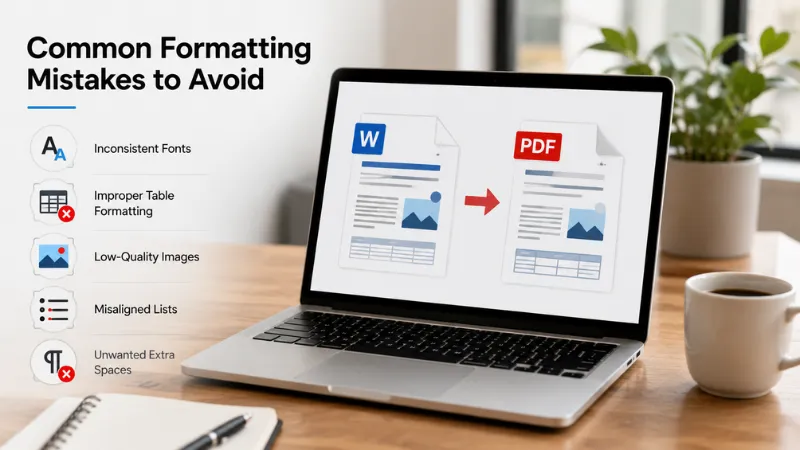
When you convert something to a PDF, a lot can go wrong with the layout. This is usually because of mistakes you make before you start converting or while you are converting. If you can avoid these mistakes your Word-to-PDF will look really good. It will have the layout, the same fonts, the same images and the same tables as the original. This means you will get a PDF that looks clean and professional.
Using Unsupported or Unlicensed Fonts
When you use fonts that are not supposed to be used in a Word document it can be a problem when you want to turn it into a PDF. If the font is not allowed to be put into the PDF or the computer does not have it the computer will use a font instead. This can make the words look different, the spaces between them can be different. It can even change the number of pages in your document.
So what can you do to avoid this problem? You should use fonts that’re okay to use and that your computer can handle when it is turning the Word document into a PDF. If you can put the fonts into the Word document before you turn it into a PDF and then check the PDF to make sure everything looks right.
Converting from Older .DOC Files Instead of .DOCX
If you have files that are in the.doc format they might not work very well with new formatting. When you change a document into a new format some things like fonts or pictures or tables might not look right.
To get results you should open the.doc file in Microsoft Word and save it as a.docx file. Then you can change it into a PDF file. It is a good idea to review the document and make sure everything looks okay before you create the final PDF from the docx file.
Skipping the Print Preview Step
When you change a Word document into a PDF it is easy to share it right away. If you do not look at the PDF first you might not see some small problems. The words might be in a font the pictures might be in the wrong place, the tables might be broken or there might be page breaks where you do not want them.
You should always look at the Print Preview or the PDF preview before you are done with the file. Look at the preview. Compare it to your original Word document. If you see anything that needs to be fixed make the changes before you share the PDF. Always check the Word document and the PDF to make sure everything looks okay.
FAQs About Word to PDF Formatting Issues
Why does my PDF look different from my Word document?
Your PDF might look different from the Word document. This is because the Word document may have fonts or complicated tables. It might also have formatting that does not work well with PDFs or have detailed pictures. Some tools that change Word documents to PDFs can also change things like where the pages break or how much space’s between words.
How do I stop fonts from changing in PDF conversion?
To keep the fonts from changing, you can also put the fonts into the document before you change it into a different format. If you save your file directly as a PDF from Microsoft Word, that can help too. Using a tool that keeps the fonts looking the same when it converts the file is also a good way to make sure the text looks the same in the final PDF.
Can I convert Word to PDF and keep hyperlinks intact?
Yes, most high-quality Word to PDF converters preserve hyperlinks during conversion. If your document contains website links, email addresses, or internal links, choose a converter that supports hyperlink preservation. After converting, open the PDF and test the links to make sure they still work correctly.
Does converting Word to PDF affect table formatting?
It can, especially if the document contains large, merged, or complex tables. Some converters may adjust column widths, row spacing, or page breaks. To reduce these problems, keep tables simple, check the layout before converting, and use a converter that preserves the original document formatting.
Is there a free tool that preserves 100% formatting?
Many free Word to PDF converters preserve formatting very well for most documents, but no tool can guarantee 100% accuracy in every situation. Documents with custom fonts, advanced layouts, macros, or complex formatting may still require small adjustments after conversion.
Conclusion
Converting a Word document to a PDF is really easy if you have the tools. You can keep the layout and everything when you use a good Word to PDF converter. This means your document will look good on any device. It will have the fonts and images and tables and page breaks.
When you are getting ready to convert your Word file to a PDF just take an extra time to make sure everything is right. Use conversion settings and check the PDF when it is done. This way you can avoid problems with the formatting. You will have a document that looks professional.
It does not matter if you are converting a resume or a business report or a school assignment. Just take a minute to check that everything is okay. This will save you time later. You will not have to worry about mistakes. Follow these tips to convert your Word document to a PDF without any problems. You will have a PDF that’s ready to share or print or save. You can do all these things with confidence when you know your PDF looks good.