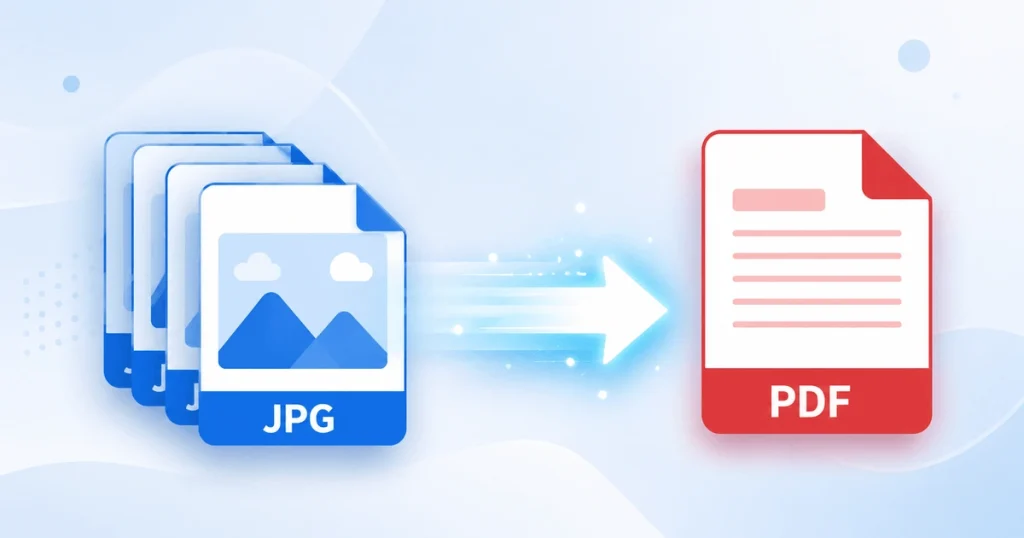
Need to turn a JPG image into a PDF file quickly? How to Convert JPG to PDF in Seconds? Simply upload your JPG image, convert it into a high-quality PDF, and download the file instantly. In this case, you don’t need to install software or have technical skills. Here you can scan documents, receipts, invoices, assignments, certificates, or photos. Converting JPG to PDF is one of the easiest ways to organize and share your files.
The best part is that you can convert JPG to PDF in just a few seconds using PDF Conveter. Simply upload your image, let the tool automatically process it, and download your PDF file. The same process works whether you’re on a phone, tablet, Windows PC, or Mac. There is no need to install an app or complete extra steps.
What Is JPG to PDF Conversion?
JPG to PDF conversion is the process of turning a JPG image into a PDF document. Instead of sharing separate image files, you can create a single PDF that is easier to manage, print, store, and share.
Many people use JPG to PDF conversion for:
- Scanned documents
- Receipts and invoices
- Business reports
- School assignments
- Certificates
- Contracts
- Product catalogs
- Photo collections
JPG vs PDF: What’s the Difference?
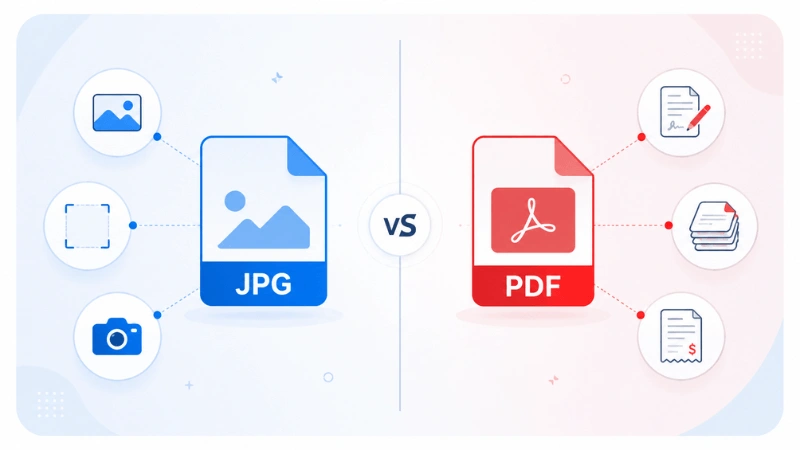
JPG and PDF are both popular file formats, but they serve different purposes. JPG is mainly used for individual images, while PDF is designed for sharing and organizing documents.
JPG Is Best For
- Photos
- Screenshots
- Social media images
- Product pictures
- Website graphics
PDF Is Best For
- Assignments
- Reports
- Contracts
- Receipts
- Invoices
- Multi-page documents
If you need to share multiple images in an organized format, PDF is usually the better option. It keeps pages together in a single file and maintains a consistent layout across different devices.
Why Convert JPG to PDF?
JPG files are perfect for images, but they can become difficult to manage when you have multiple files. Converting them to PDF helps keep everything organized in one document. It also offers several practical benefits for both personal and professional use.
Easier to Share
PDF files are easy to send through email, messaging apps, and cloud storage platforms. They help ensure your documents remain accessible and organized.
Better Organization
A PDF lets you keep multiple images together in a single document. This makes files easier to manage, store, and find later.
Professional Appearance
PDF files create a cleaner and more polished presentation. They are commonly used for business documents, reports, and assignments.
Consistent Viewing Experience
PDF documents maintain the same layout across different devices. This helps ensure the content looks correct for every viewer.
Convenient Printing
PDF files are designed for reliable printing and document sharing. The layout stays consistent and requires fewer adjustments before printing.
Step-by-Step Guide to Convert JPG to PDF
You don’t need any technical skills to convert JPG images into PDF files. Simply follow the steps below to complete the process and download your PDF in seconds.
Step 1: Select Your JPG Image
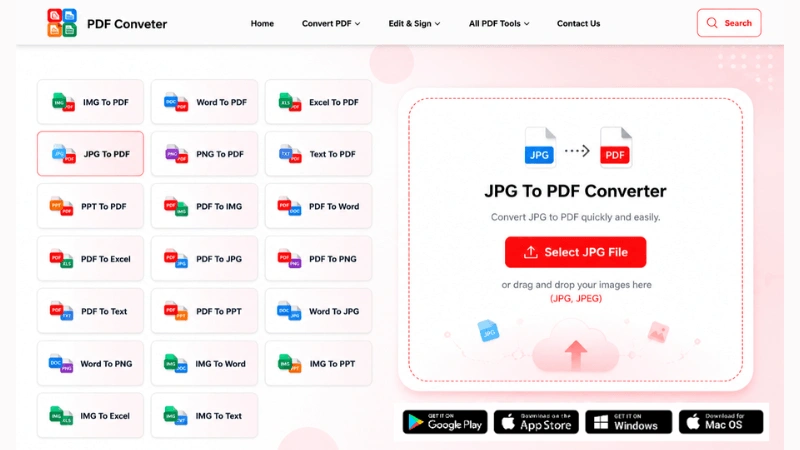
Select or drag and drop your JPG image into the converter. You can upload single and multiple JPG files, scanned photos, screenshots, and document images.
Step 2: Automatic Conversion Starts
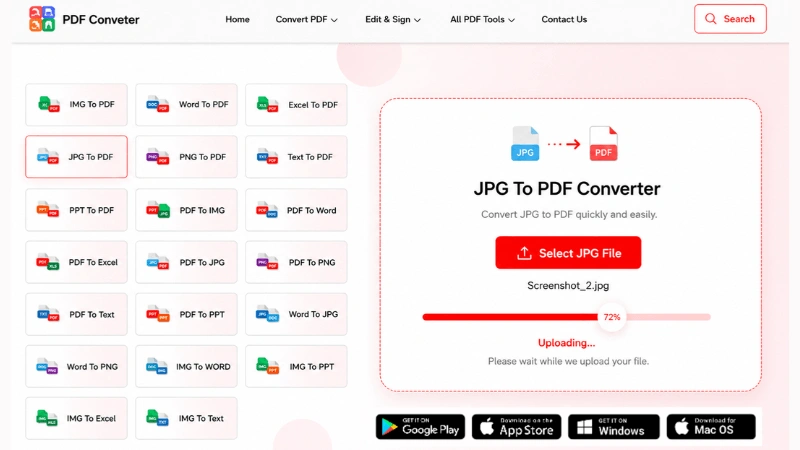
Once your image is uploaded, the converter automatically begins processing the file. There is no need to click a Convert button or adjust any settings. This saves time and makes the conversion process faster and easier.
Step 3: Download Your PDF File
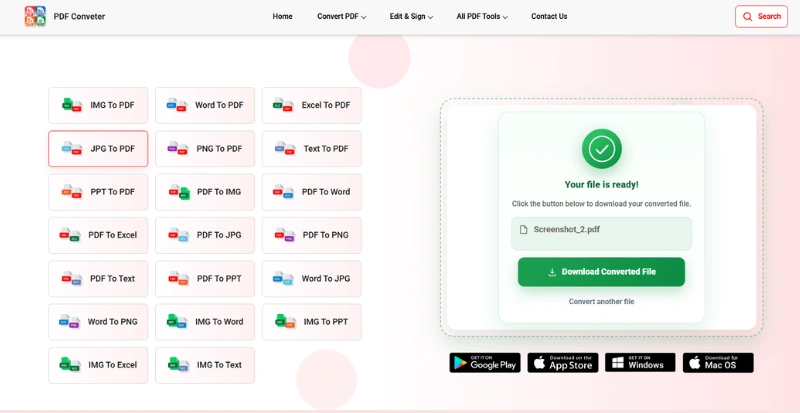
After the conversion is complete, click the Download button. Your new PDF file will be saved to your device and ready to use immediately.
How to Convert Multiple JPG Images into One PDF
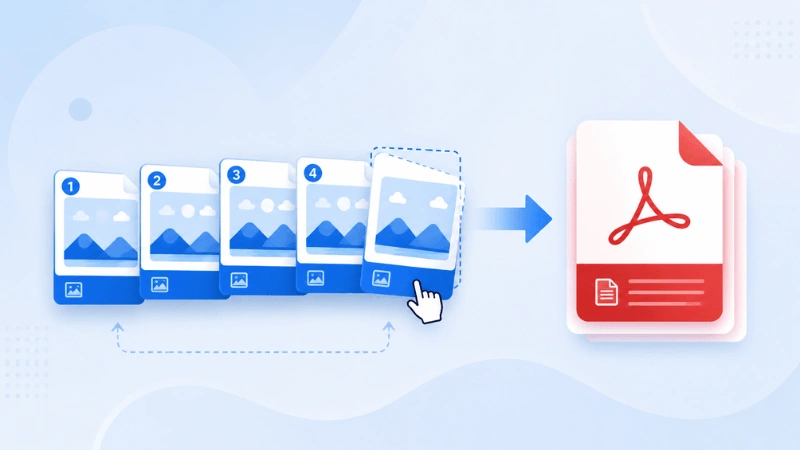
If you have several JPG images, you can combine them into a single PDF document. This helps keep related files together in a single document. It is especially useful for assignments, reports, contracts, catalogs, invoices, and other multi-page files.
Here’s how to merge multiple images correctly:
Step 1: Select All Your Images at Once
Instead of uploading one file at a time, select or drag in all the JPG files you want combined. The converter accepts multiple files in a single upload.
Step 2: Arrange the Page Order
Before conversion, check the order in which your images appear. Getting the image order right before conversion makes the PDF easier to read. You won’t need to fix the file later.
Step 3: Confirm Page Count
Before downloading the PDF, check that all your images were uploaded successfully. The PDF should include every image you selected.
Step 4: Convert and Download
Once the order looks correct, the tool merges all images into one PDF automatically. Download the finished file, which will contain every image as a separate page in the order you set.
Instead of sharing multiple image files, you now have one organized PDF that’s easier to store, print, and share with others.
Works on Every Device: Mobile, Windows, and Mac
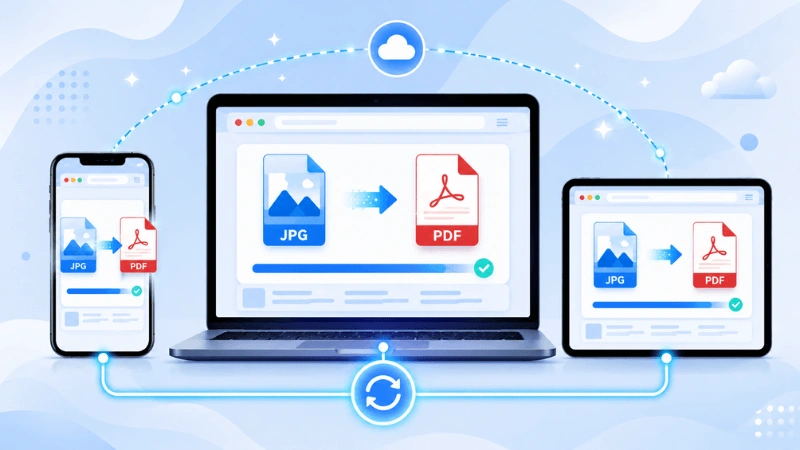
PDF Conveter works the same way on all devices. There is nothing to install because everything happens directly in your web browser.
- On Android or iPhone: Open the converter in your mobile browser, select or upload the image from your photo library, and download the PDF once it’s ready.
- On Windows or Mac: Open the converter, upload your JPG file, and wait for the automatic conversion to finish. Once completed, download the PDF file to your device.
The process is simple, whether you are using a smartphone, tablet, laptop, or desktop computer. This makes JPG to PDF conversion fast and convenient wherever you are.
Benefits of Using an Online JPG to PDF Converter
Online JPG-to-PDF converters make it easy to turn images into PDF documents. They offer a fast and convenient solution for both personal and professional use.
- No Software Installation: Everything happens directly in your web browser.
- Fast Conversion: Files are processed within seconds.
- High-Quality Results: The PDF maintains the quality of the original image.
- Works Everywhere: Use the tool on desktops, laptops, tablets, and smartphones.
- Easy for Everyone: No technical knowledge is needed.
Common JPG to PDF Conversion Mistakes to Avoid
Converting JPG images to PDF is simple, but a few common mistakes can affect the final result. Avoiding these issues can help ensure a smoother conversion experience.
- Using Low-Quality Images: Low-resolution images may produce less clear PDF documents. For better results, use images that are sharp and easy to read.
- Uploading Images in the Wrong Order: If you are combining multiple images, arrange them correctly before conversion. This helps keep the PDF organized and easy to follow.
- Ignoring File Size: Very large image files can create larger PDF documents. Optimizing image size can help reduce the final file size.
- Using Untrusted Tools: Always choose a secure and reliable converter. This helps protect your files and keeps your data safe during processing.
When Should You Convert JPG to PDF?
JPG to PDF conversion is useful in many everyday situations. It helps keep images organized and makes documents easier to share.
Common use cases include:
- School assignments
- Business reports
- Receipts and invoices
- Scanned paperwork
- Product catalogs
- Project documentation
- Client presentations
Final Thoughts
Converting JPG to PDF is one of the simplest ways to organize images into a single, shareable document. Whether you’re working with assignments, invoices, reports, certificates, or scanned paperwork, a PDF keeps everything in one place and makes it easier to share, print, and store.
With PDF Conveter, you don’t need any technical skills or extra software. Simply upload your JPG files, let the automatic conversion handle the rest, and download your finished PDF in seconds, ready to use on any device.
Frequently Asked Questions
How do I convert JPG to PDF for free?
To convert JPG to PDF for free, upload your JPG image to an online JPG-to-PDF converter. The tool automatically processes the file and creates a PDF document. Once the conversion is complete, simply download the PDF to your device.
Can I combine multiple JPG files into one PDF?
Yes, you can combine multiple JPG files into a single PDF document. Simply upload all the images you want to include, and the converter will merge them into one PDF file that is easier to organize, share, and store.
Will JPG to PDF conversion reduce image quality?
No, a quality JPG-to-PDF converter preserves the original image quality during conversion. Your PDF file should maintain the clarity, resolution, and appearance of the uploaded JPG images.
Can I convert JPG to PDF on my phone?
Yes, you can convert JPG to PDF on both Android and iPhone devices. Simply open the converter in your mobile browser, upload your image, and download the PDF file once the conversion is complete.
Why is PDF better than JPG for documents?
PDF is better for documents because it keeps pages organized in a single file and maintains consistent formatting. PDF files are also easier to share, print, store, and view across different devices and operating systems.