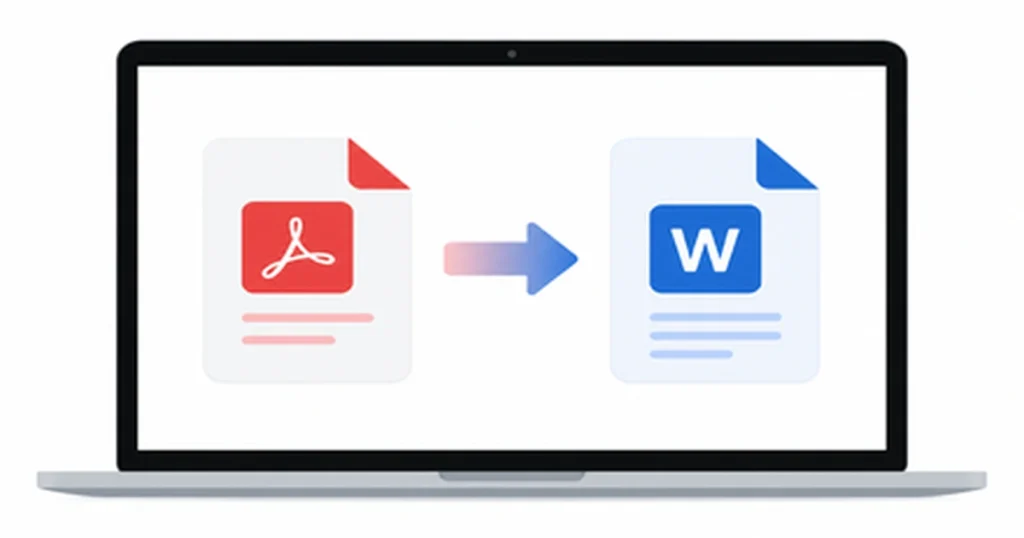
Working with a PDF on your Mac is easy until you need to actually edit the text inside it. Maybe you received a contract that needs a quick edit, or a report you want to update before sending it back. The moment you try to change anything, you realize PDFs simply aren’t built for editing. How to convert PDF to Word on Mac? Follow a few simple steps
- Open a PDF to Word converter in your browser.
- Upload your PDF file.
- Click Convert.
- Download the converted Word (.docx) file.
That’s where converting your PDF to Word comes in. Once your file is in a Word document, you can edit text, fix formatting, add comments, or repurpose content without starting from scratch.
The good news is that Mac users have several reliable ways to do this, some built right into macOS and Microsoft Word, others through dedicated converter tools. In this guide, we’ll walk through five practical methods to convert PDF to Word on Mac, covering free options as well as tools built for accuracy and speed, so you can pick what works best for your file.
Method 1 – Convert PDF to Word Using Microsoft Word (Built-in)
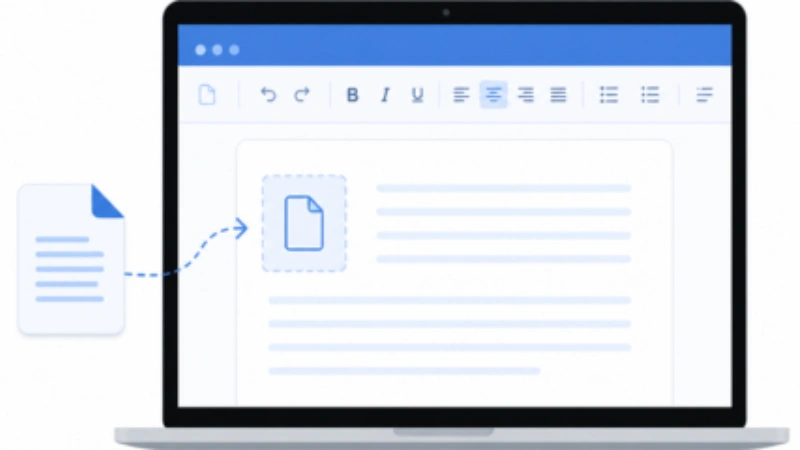
If you already have Microsoft Word installed on your Mac, this is the simplest method since it requires no extra software or online uploads.
Here’s how it works:
- Open Microsoft Word on your Mac.
- Go to File, then click Open.
- Select the PDF file you want to convert.
- Word will show a message saying it will convert the PDF to an editable document. Click OK.
- Word automatically converts the layout into an editable Word file. Once done, save it as a .docx file using File, then Save As.
This method works well for text-heavy PDFs like letters, reports, or simple contracts, since Word does a solid job preserving fonts, paragraphs, and basic formatting.
However, it isn’t perfect. PDFs with tables, multiple columns, or complex layouts may lose some formatting during conversion. Scanned PDFs or image-based files also cause problems here.
Since Word can’t recognize text that isn’t selectable to begin with, it would need OCR for that, which this method doesn’t include. So if your file is simple and text-based, this is a fast, no-cost option already sitting on your Mac.
Method 2 – Use Mac’s Preview App (Export Workaround)
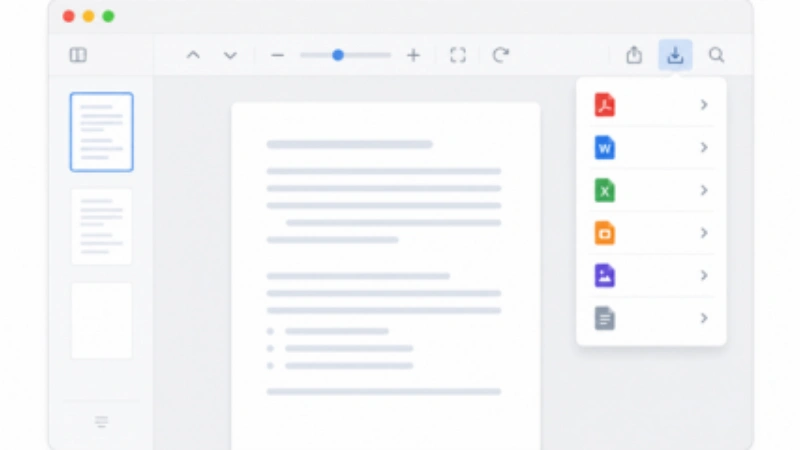
A lot of Mac users assume that Preview, since it’s built into macOS and opens PDFs by default, can convert them straight to Word. That’s actually a common misconception. Preview doesn’t have a direct “export to Word” or .docx option. So if you’re searching for that button, you won’t find it. Preview doesn’t create a Word document directly, but it can save your PDF as an RTF file that opens and edits easily in Microsoft Word. Here’s how:
- Open your PDF in Preview.
- Click File, then Export.
- In the Format dropdown, select RTF.
- Choose where to save the file and click Save.
- Open the RTF file in Microsoft Word and save it as .docx if needed.
This workaround is fine for very basic, text-only PDFs, but it comes with real limitations. Formatting often gets messy, images may not carry over properly, and tables or multi-column layouts often lose their formatting during conversion. It also doesn’t work at all for scanned PDFs, since Preview has no OCR capability.
So while this method is technically free and doesn’t need any extra app, it’s best treated as a last resort rather than a reliable conversion method.
Method 3 – Online PDF to Word Converters
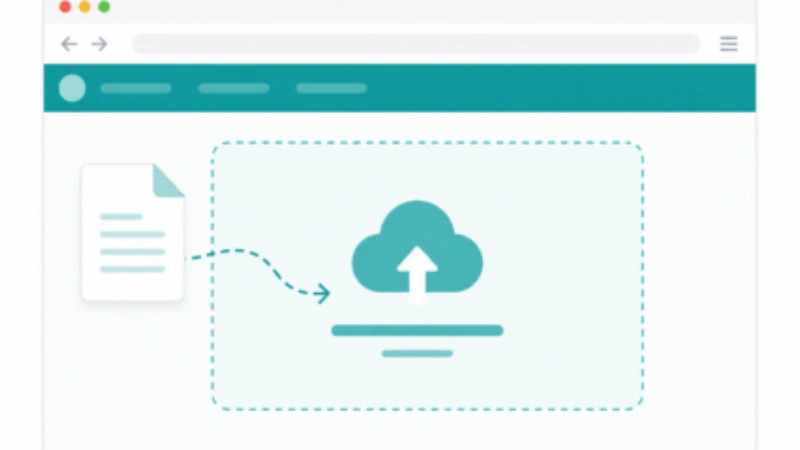
If you’d rather skip downloading any software, online converters are a quick alternative. Tools like CloudConvert, SmallPDF, and Adobe’s online PDF converter let you convert files directly through your browser, no installation needed.
The process is pretty much the same across these tools:
- Go to the converter’s website.
- Upload your PDF file (usually by dragging and dropping or selecting from your folder).
- Let the tool convert it to Word format.
- Download the converted .docx file to your Mac.
However, there are a few limitations you should know about. Since your file is uploaded to a third-party service, privacy matters. If the document contains sensitive information, make sure the converter uses encryption and deletes files after processing.
Free versions often come with file size limits, so larger PDFs may get rejected or require a paid plan. And naturally, you’ll need a stable internet connection, since the whole process happens online rather than on your device.
For quick, one-off conversions of non-sensitive files, online converters work well. But if you’re handling confidential documents regularly, it’s worth considering a tool that keeps everything on your device.
Method 4 – Dedicated PDF Converter Software for Mac
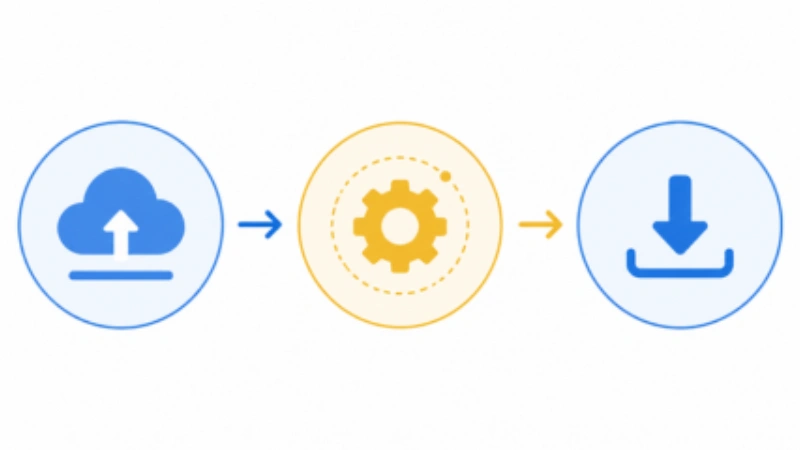
If you regularly work with PDFs, a dedicated PDF converter can offer better accuracy than built-in tools. These solutions are designed to handle complex layouts, scanned documents, and large files while preserving formatting during conversion.
Using a tool like PDF Conveter is simple. Upload your PDF, choose Word (.docx) as the output format, and download the converted file once processing is complete. No software installation is required.
Dedicated PDF converters are especially useful when you need:
- OCR scanned PDF to editable text
- Batch convert PDF files
- Better formatting preservation
- Drag and drop PDF converter workflows
- Cloud-based PDF conversion
While free tools work well for occasional use, paid options often provide more advanced features and higher conversion accuracy. If you frequently edit PDFs on macOS Ventura or Sonoma, a dedicated PDF converter can save time and deliver more reliable results.
Method 5 – Convert Scanned PDFs Using OCR
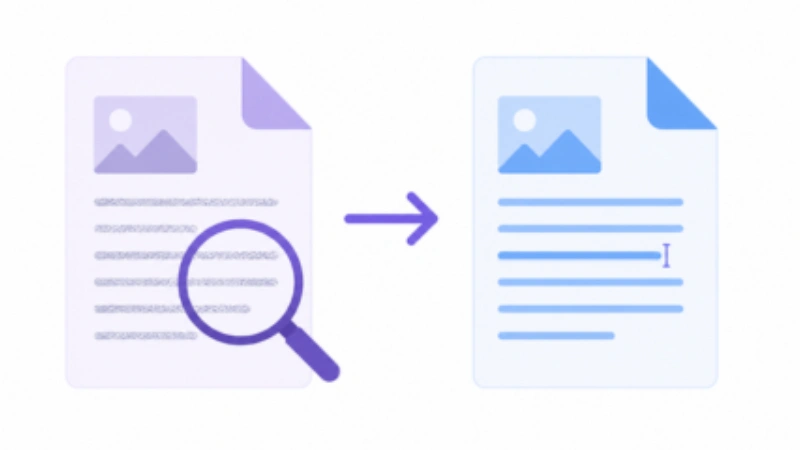
Scanned PDFs are different from regular PDFs because they are essentially images of documents rather than editable text files. As a result, standard PDF-to-Word conversion methods often can’t recognize or extract the text correctly.
This is where OCR (Optical Character Recognition) comes in. OCR technology analyzes the scanned document, identifies the text within the image, and converts it into editable content that can be opened in Word.
To convert a scanned PDF:
- Upload your scanned PDF to an OCR-enabled converter.
- Enable the OCR option if it’s not turned on automatically.
- Select Word (.docx) as the output format.
- Convert and download the editable document.
Tools that support OCR can accurately convert scanned reports, invoices, contracts, and printed documents into editable Word files. If your PDF contains images instead of selectable text, using an OCR-enabled converter is usually the most effective solution.
Which Method Should You Choose?
The best PDF-to-Word conversion method depends on your file type, accuracy requirements, and how often you need to convert documents.
| Method | Speed | Accuracy | Cost | Best For |
| Microsoft Word | Fast | Good | Free | Simple PDFs |
| Preview (RTF Export) | Fast | Basic | Free | Basic Text |
| Online PDF Converter | Very Fast | Good | Mostly Free | Quick Conversion |
| Dedicated PDF Converter Software | Fast | High | Free/Paid | Professional Use |
| OCR-Based Conversion | Medium | High | Free/Paid | Scanned PDFs |
For most users, Microsoft Word or an online PDF to Word converter is sufficient for everyday files. However, if you’re working with scanned documents, complex formatting, or large batches of PDFs, a dedicated converter with OCR support will usually provide the best results.
Common Problems When Converting PDF to Word (and Fixes)
Even the best PDF-to-Word converters can run into issues, especially with complex documents. Here are some common problems and simple ways to fix them.
| Problem | Cause | Solution |
| Formatting Shifts | Complex layouts or unsupported elements | Choose a converter built for layout accuracy, especially for multi-column or design-heavy PDFs |
| Font Mismatch | Original fonts aren’t available on your Mac | Install the missing fonts manually, or let Word substitute the closest match |
| Images Out of Place | Image positioning doesn’t convert correctly | Reposition images manually after conversion, or use a tool that preserves image placement |
| Broken Tables | Tables are difficult to recreate in Word format | Use a converter with strong table-recognition capability |
| Unrecognized Text | PDF is scanned or image-based | Enable OCR during conversion to extract editable text |
For the best results, choose a PDF converter built to handle tables, graphics, multiple columns, and scanned pages accurately. This reduces manual cleanup after conversion and keeps your document looking close to the original.
Frequently Asked Questions
Does macOS have a built-in PDF to Word converter?
Not directly. Preview, the default PDF viewer on Mac, can export PDFs as RTF files but doesn’t offer a true Word or .docx conversion option. Microsoft Word, if installed, handles this more reliably.
Is online PDF conversion safe?
It depends on the tool. Reputable converters use encryption during file transfer and delete files after conversion, but it’s worth checking a tool’s privacy policy before uploading sensitive documents. For confidential files, a tool that processes everything securely or keeps data private is a safer choice.
Can I convert scanned PDF to an editable Word?
Yes, but you’ll need a converter with OCR (Optical Character Recognition) support. Standard conversion methods can’t read text from scanned or image-based PDFs, so OCR is essential for turning them into editable Word documents.
Will converting a PDF to Word mess up the formatting?
It can, especially with complex layouts, tables, or scanned documents. Simple, text-based PDFs usually convert cleanly, while files with detailed formatting may need a dedicated converter or some manual cleanup afterward.
Conclusion
Converting a PDF to Word on your Mac doesn’t have to be complicated. Whether you use Microsoft Word, Preview, an online converter, or a dedicated OCR tool, the best option depends on the type of PDF you’re working with and how often you need to convert files.
For occasional, simple PDFs, the free built-in options work just fine. However, if you frequently work with scanned files, complex layouts, or need accurate formatting, a dedicated PDF converter can save time and reduce manual editing.
If you’re looking for a fast, accurate way to convert your PDFs to Word, give PDF Conveter a try. It’s built to handle everything from simple text files to scanned documents with OCR. So you can spend less time fixing formatting and more time getting work done.